Attributes sections
You can divide your form into sections.
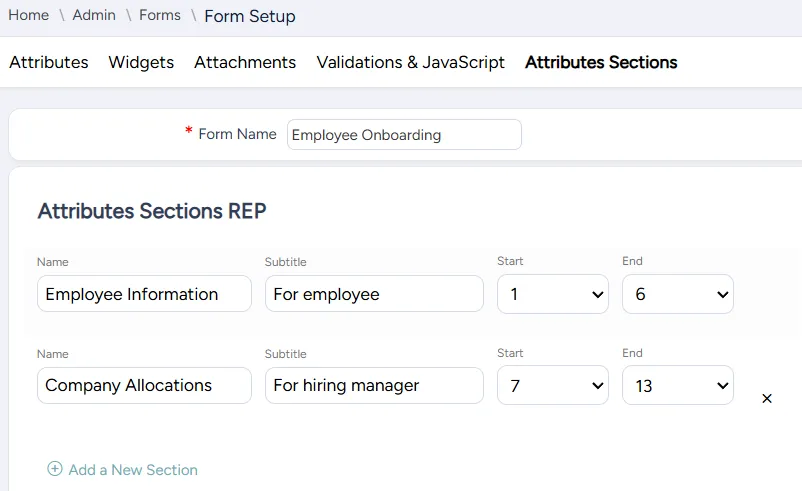
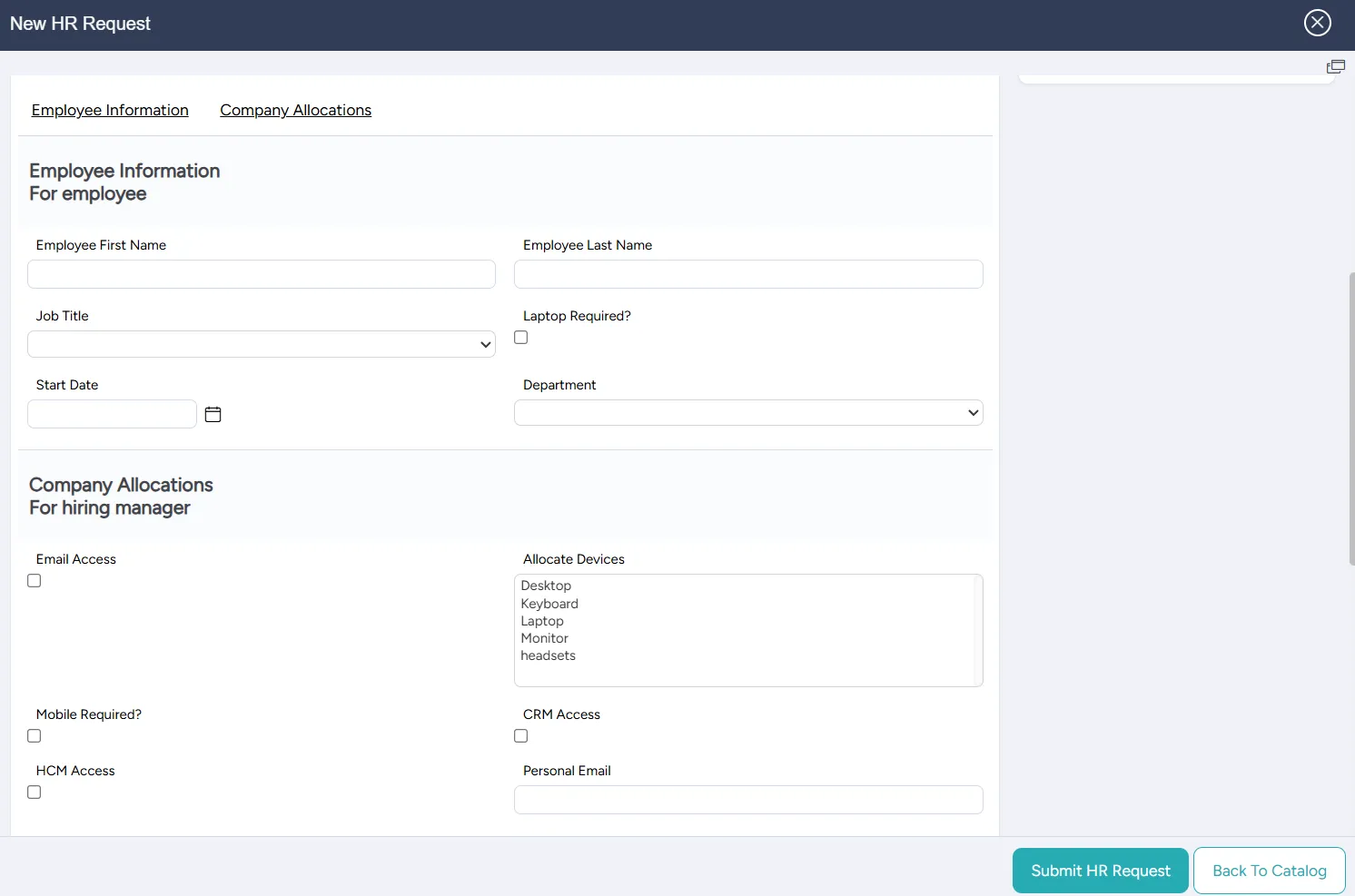
For example, in Employee Onboarding, some fields may need to be filled out by the employee and others by the hiring manager. You can split the form into two separate sections, so it is clear that one of them is for the employee and the other is for the hiring manager.
In this example, the Attributes Sections tab is set up as follows:
In this example, the resulting form appears as follows:
To divide a form into sections:
From the tabs at the top, choose Attributes Sections.

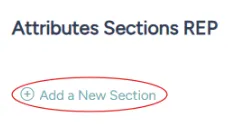
On the Attributes Section page that opens, select Add a New Section.
Enter the new section's settings:
Field | Description |
|---|---|
Name | Enter a meaningful name for the new section |
Subtitle | Enter a subtitle for the new section |
Start | Select the attribute that begins the new section |
End | Select the attribute that ends the new section |
Add as many sections as necessary.
Select Save. A preview of the form appears on the right.