Companies
What are companies? Companies overview
How do I define company types? Company types
What are contracts? Contracts
How do I set up contract types? Setting up contract types
How do I set up contract status codes? Setting up contract status codes
How do I add or edit a company? Adding or editing a company
How do I upload companies from a spreadsheet? Uploading companies from a spreadsheet
Companies overview
In the ITCC system, a company is any person or organization that interacts with your organization. Each company can have contacts and contracts associated with it. You can classify your companies into types.
For example, a company can be a supplier, a customer, or a partner.
If your organization provides services to external customers (MSP), you can set up each customer as a company and enter the contract information between you and the customer. Customer contacts are users who are employees of the customer. Each customer will see only their categories and tickets.
Companies are also used to define suppliers and agreements between the IT department and an external supplier. If the incident status changes to Pending 3rd Party, you can specify the supplier and the supplier’s incident number.
Company types
You can set up company types to meet your organization's needs.
For example, if your organization has both external customers and external suppliers, you can define company types Customer and Supplier.
Setting up company types
You can set up company types at any time. You can define as many company types as you need.
To set up company types:
On the left side menu, select Administration.
In the search bar under Search for Admin Configuration Options, enter Company Types and select the Company Types option that appears.
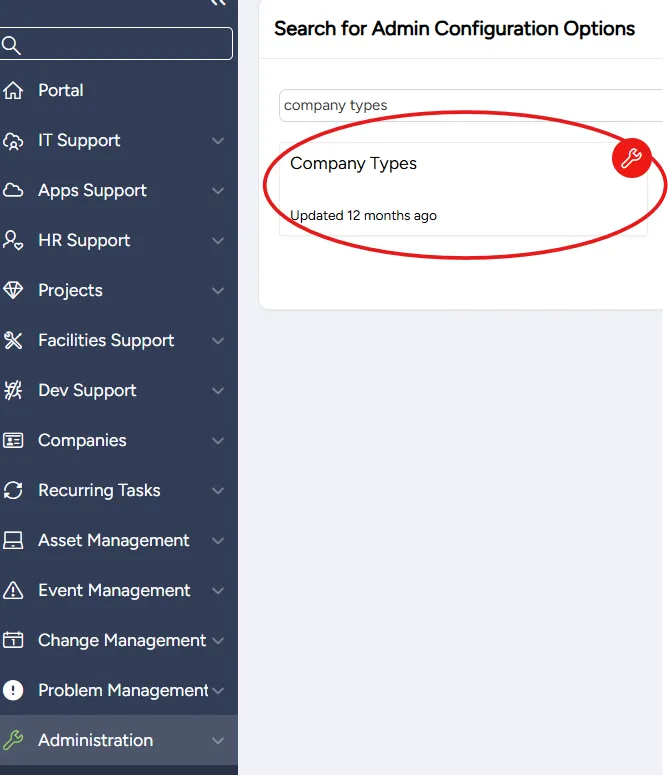
On the Company Type page that opens:
- to add a new company type, select Add
- to edit an existing company type, select the Edit icon in its corresponding row

In the Company Type dialog that opens, enter or edit the following settings:
Field | Description |
|---|---|
Type Name | Enter a meaningful name for this company type |
Form | (Optional) Select a form to attach to this company type |
Active | Select to activate the company type |
Select Save.
Contracts
A contract is a legally binding agreement between your organization and a company. The ITCC system enables you to organize your contracts by associating each company with a contract.
Your contracts can be classified into types. You can set up as many contract types as you need.
For example, your organization can have Support contracts, Supplier contracts, and Consulting contracts.
You can use contract status codes to manage your contracts' lifecycle. You can set up as many contract status codes as you need.
For example, your contract status codes can include Draft, New, Active, On Hold, and Cancelled.
If your organization is a Multiple Service Provider (MSP), you can use ITCC's contract management component to manage your client contracts.
Setting up contract types
You can set up contract types at any time.
To set up contract types:
On the left side menu, select Administration.
In the search bar under Search for Admin Configuration Options, enter Contract Types and select the Contract Types option that appears.
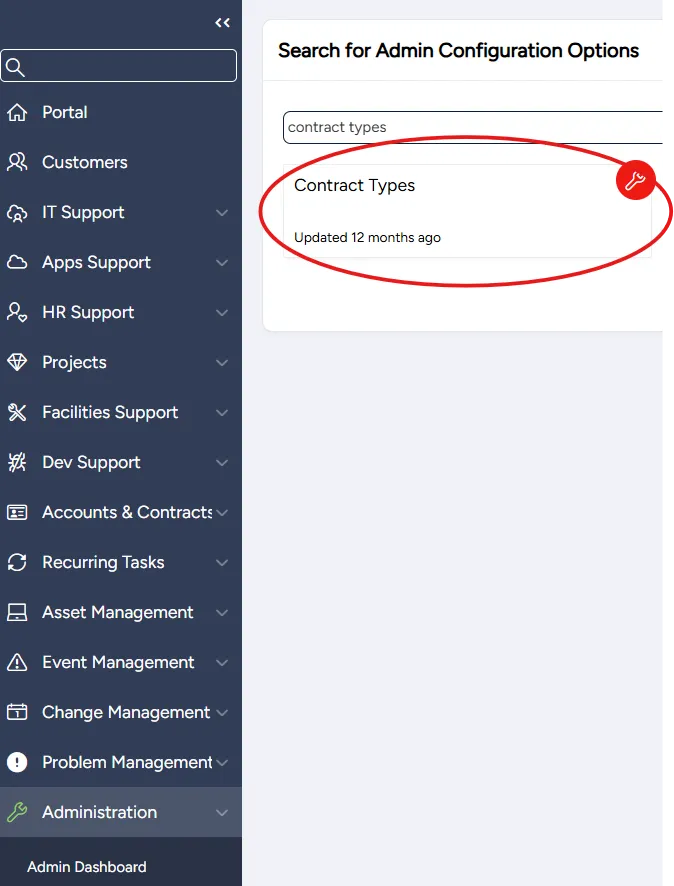
From the Contract Types page that opens, you can:
Adding or editing contract types
You can add a new or edit an existing contract type at any time.
To add or edit a contract type:
On the Contract Types page:
- to add a new contract type, select Add
- to edit an existing contract type, select the Edit icon in the row corresponding to the contract type you want to edit
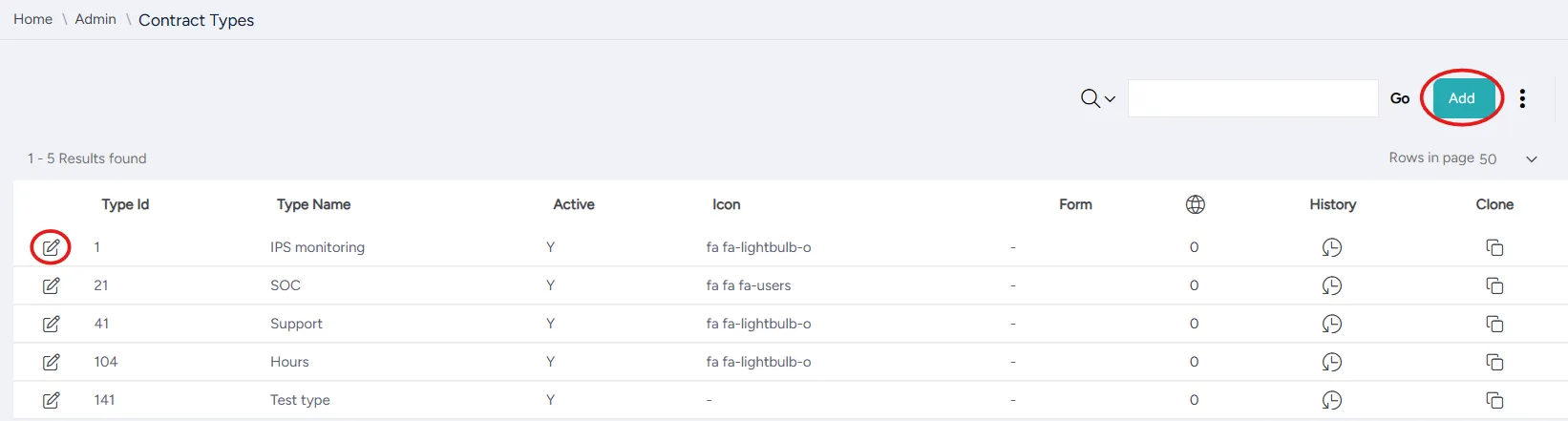
in the Contract Type dialog that opens, enter the type's settings:
Field | Description |
|---|---|
Active | Select to activate the contract type |
Type Name | Enter a meaningful name for the contract type |
Icon | Select an icon for the contract type |
Form | (Optional) Select a form to attach to the contract type |
Select:
- Add when adding a new contract type
- Save when editing an existing contract type
Deleting contract types
You can delete a contract type at any time.
To delete a contract type:
On the Contract Types page, select the Edit icon in the row corresponding to the contract type you want to delete.
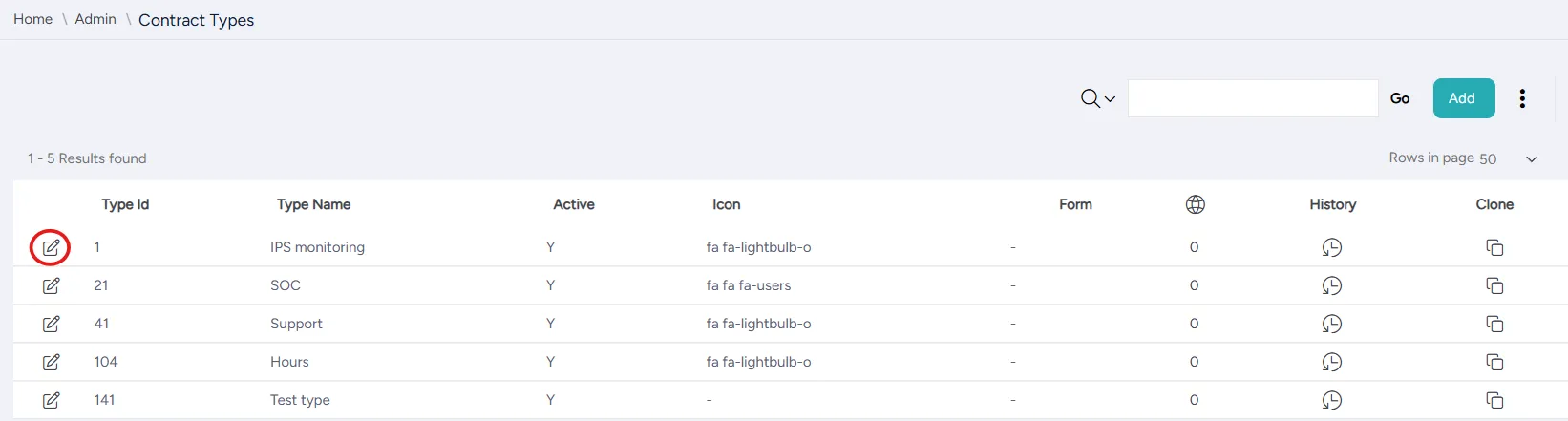
In the Contract Type dialog that opens, select Delete.
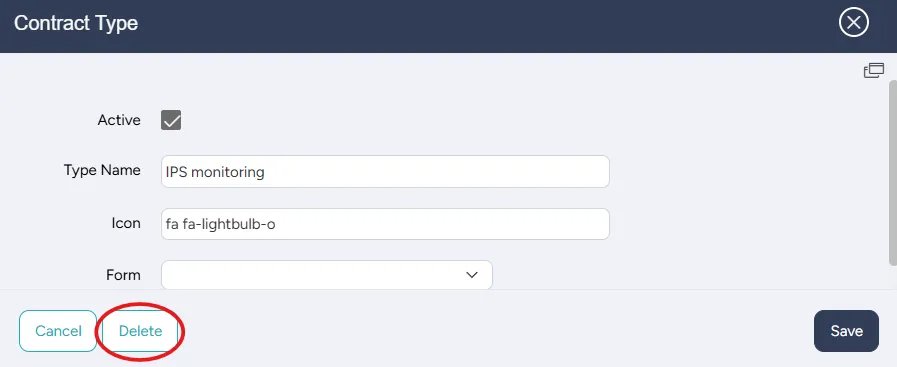
In the Would you like to perform this delete action? dialog that opens, select OK.
Cloning contract types
You can clone a contract type at any time.
To clone a contract type:
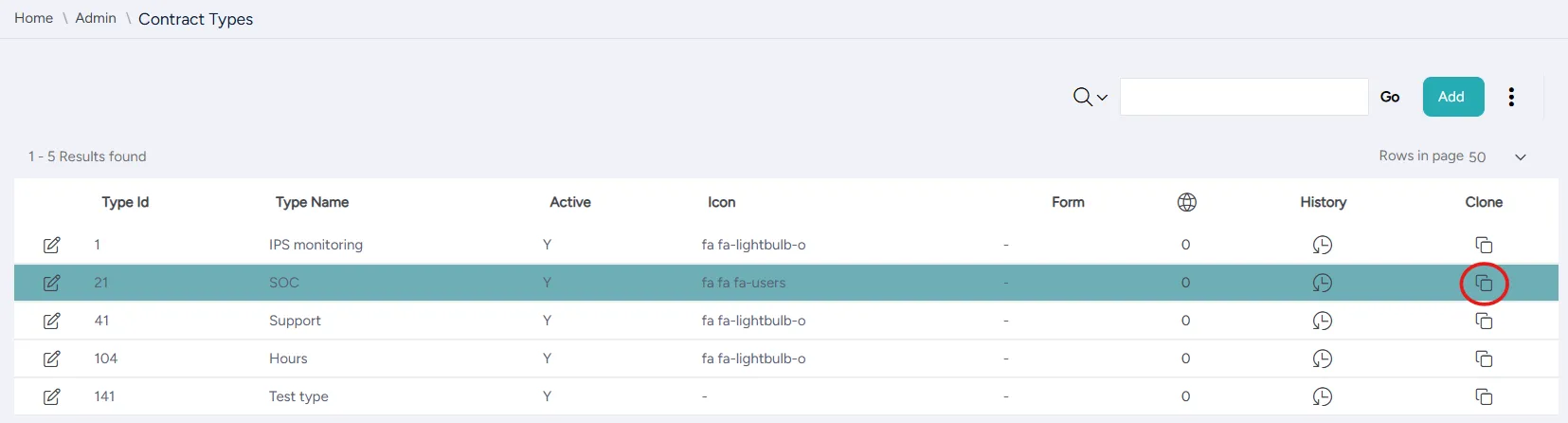
On the Contract Types page, select the Clone icon in the row corresponding to the contract type you want to clone.
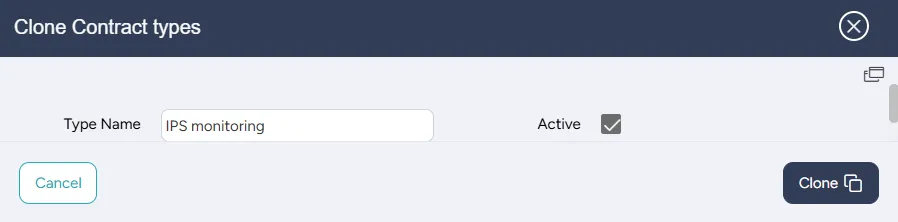
in the Clone Contract Type dialog that opens:
- Enter the name for the cloned type.
- Select the Active checkbox to activate the cloned type.
- Select Clone.
Setting up contract status codes
You can set up contract status codes at any time.
To set up contract status codes:
On the left side menu, select Administration.
In the search bar under Search for Admin Configuration Options, enter Contract Status Codes and select the Contract Status Codes option that appears.
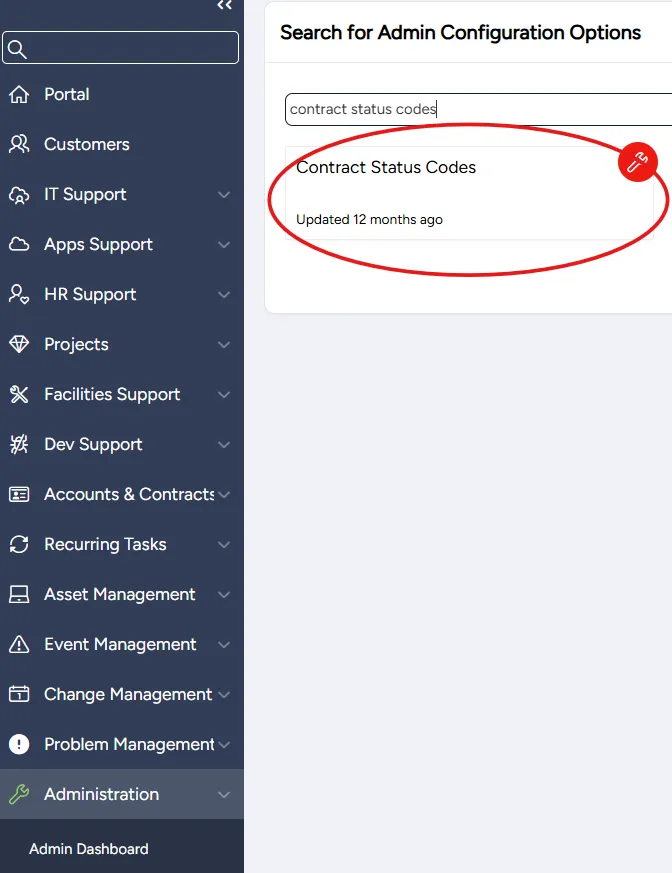
On the Contract Status Codes page that opens:
- to add a new contract status code, select Add
- to edit an existing contract status code, select the Edit icon in the row corresponding to the contract status code you want to edit
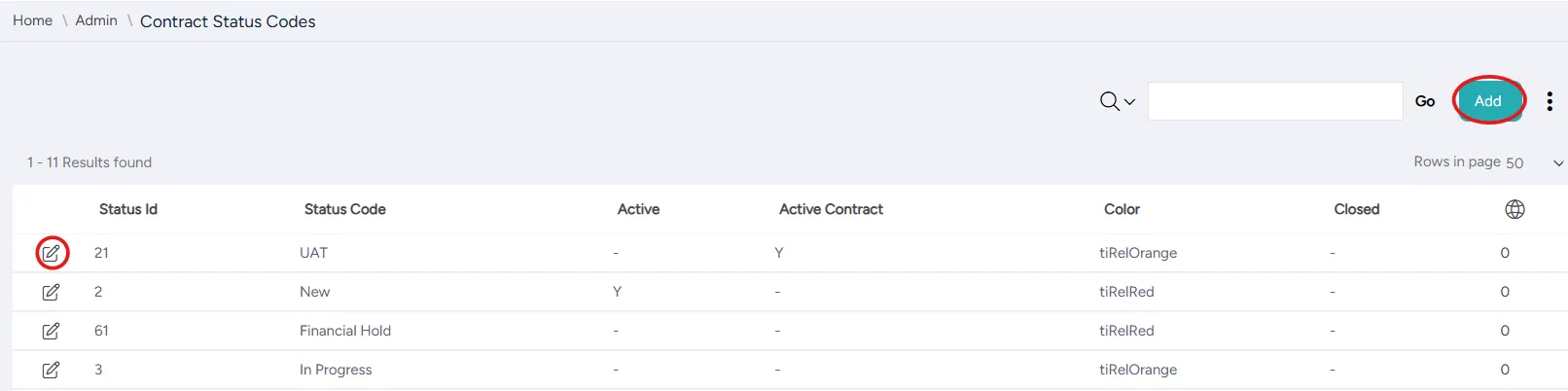
In the Contract Status dialog that opens, enter or edit the contract status code's settings:
Field | Description |
|---|---|
Status Code | Enter a meaningful name for the contract status code |
Active | Select to activate the contract status code |
Active Contract | Select if the contract is active when changed to this status |
Closed | Select if the contract is closed when changed to this status |
Color | Select the color to be used in the contract dashboard for this status |
Select:
- Add when adding a contract status code
- Save when editing a contract status code
Setting up companies
You can set up companies at any time.