Form examples
The following examples demonstrate some of the ways you can use Forms to customize your tickets in ITCC with additional fields, creating ticket templates.
Example 1: Webex Recording
The Webex Recording ticket template enables the user to report a problem with a Webex recording. The user is required to provide the number of the Webex meeting where the problem occurred and to describe the problem. This ticket is considered of high severity.
This ticket is of type Incident.
The ticket's categories are:
- Parent category: Communication
- Category: Webex
- Subcategory: Recording
By default, the severity is set to high.
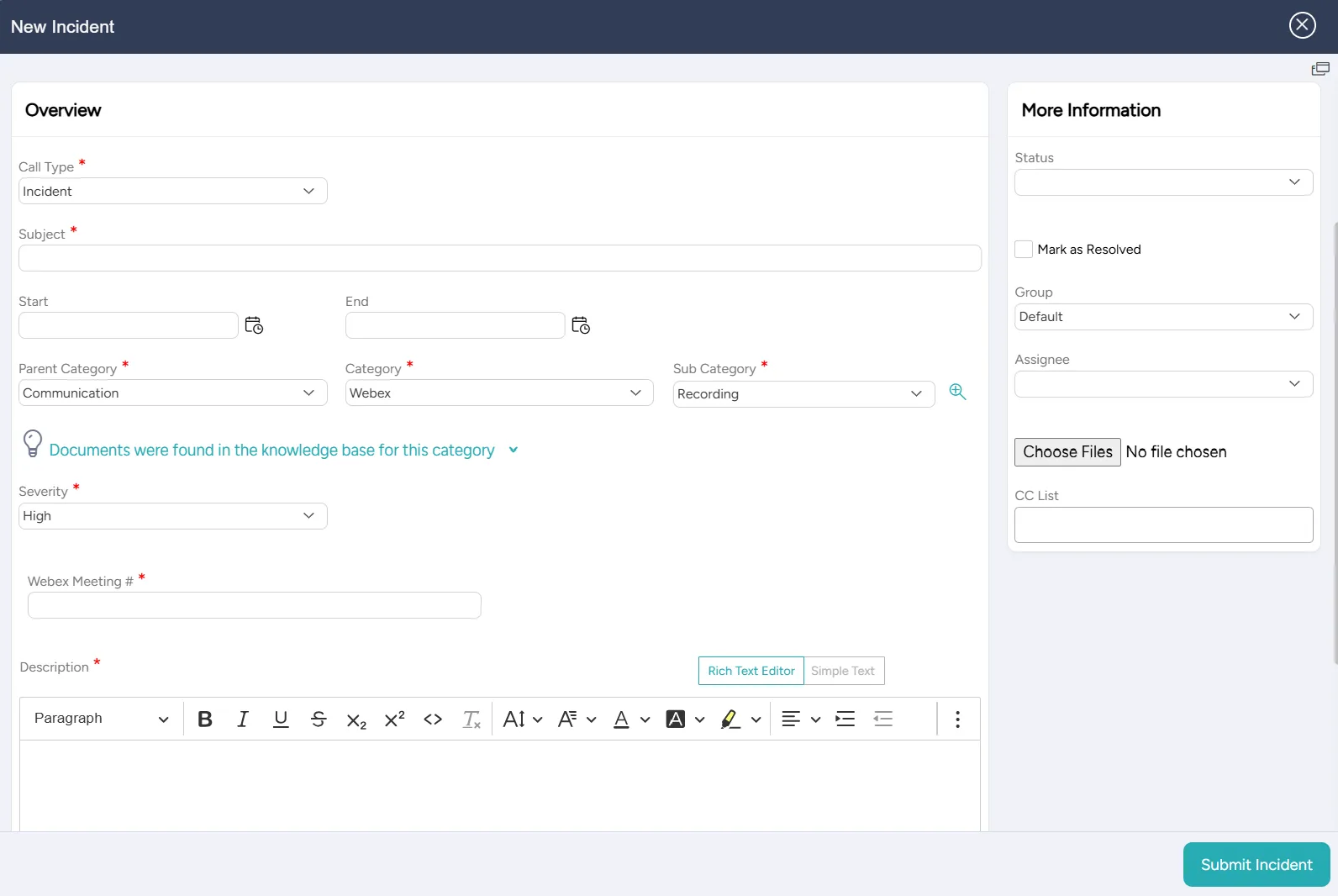
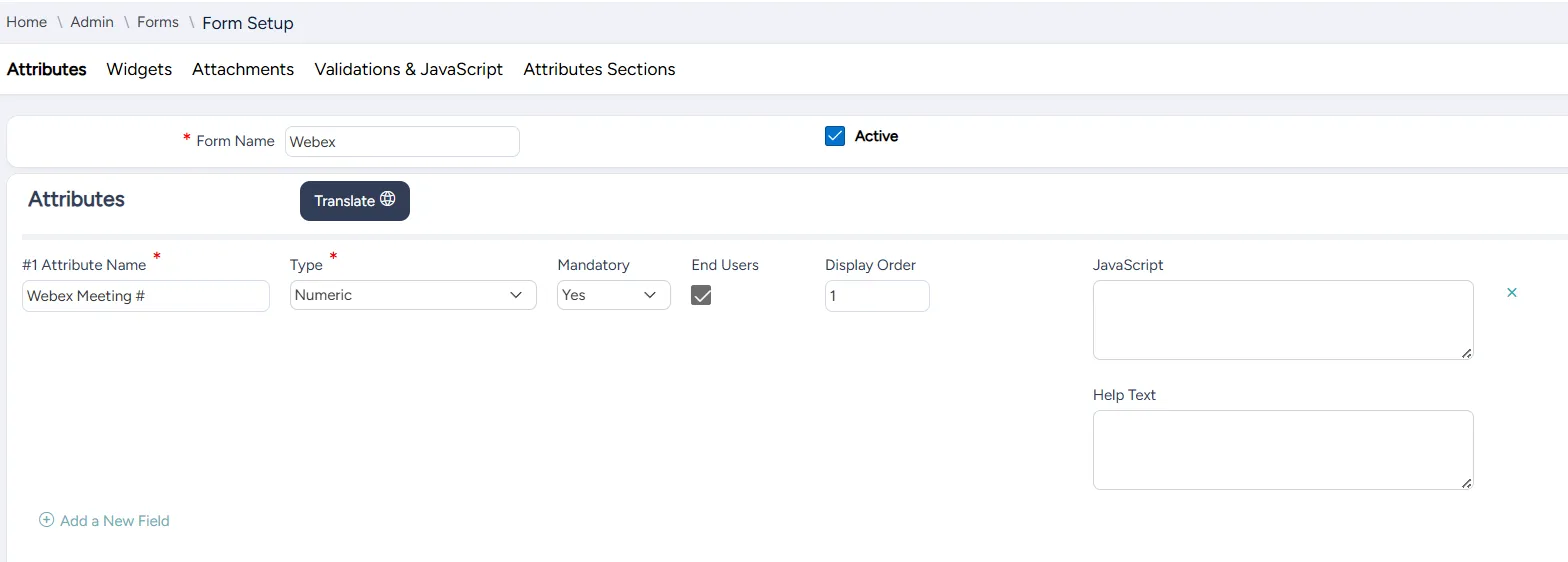
The Webex form, which is used to generate this ticket, includes one mandatory attribute, Webex Meeting #, of type Numeric.
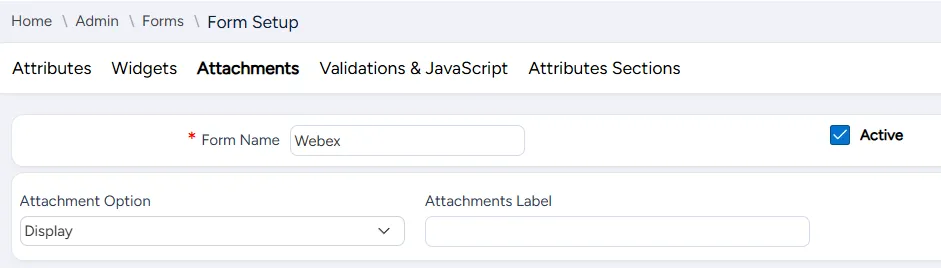
The Webex form also allows one optional file attachment.
Example 2: Employee Travel
The Employee Travel ticket template enables users to report their travel plans and to request travel arrangements.
The requester is required to provide the reason for travel, destination, and travel dates, and describe the request.
The requester can also check the appropriate boxes to request from HR to arrange event registration and book flights and accommodations.
This ticket is of type New HR Request.
Only two levels of categories are used for this ticket:
- Category: Employee
- Subcategory: Travel
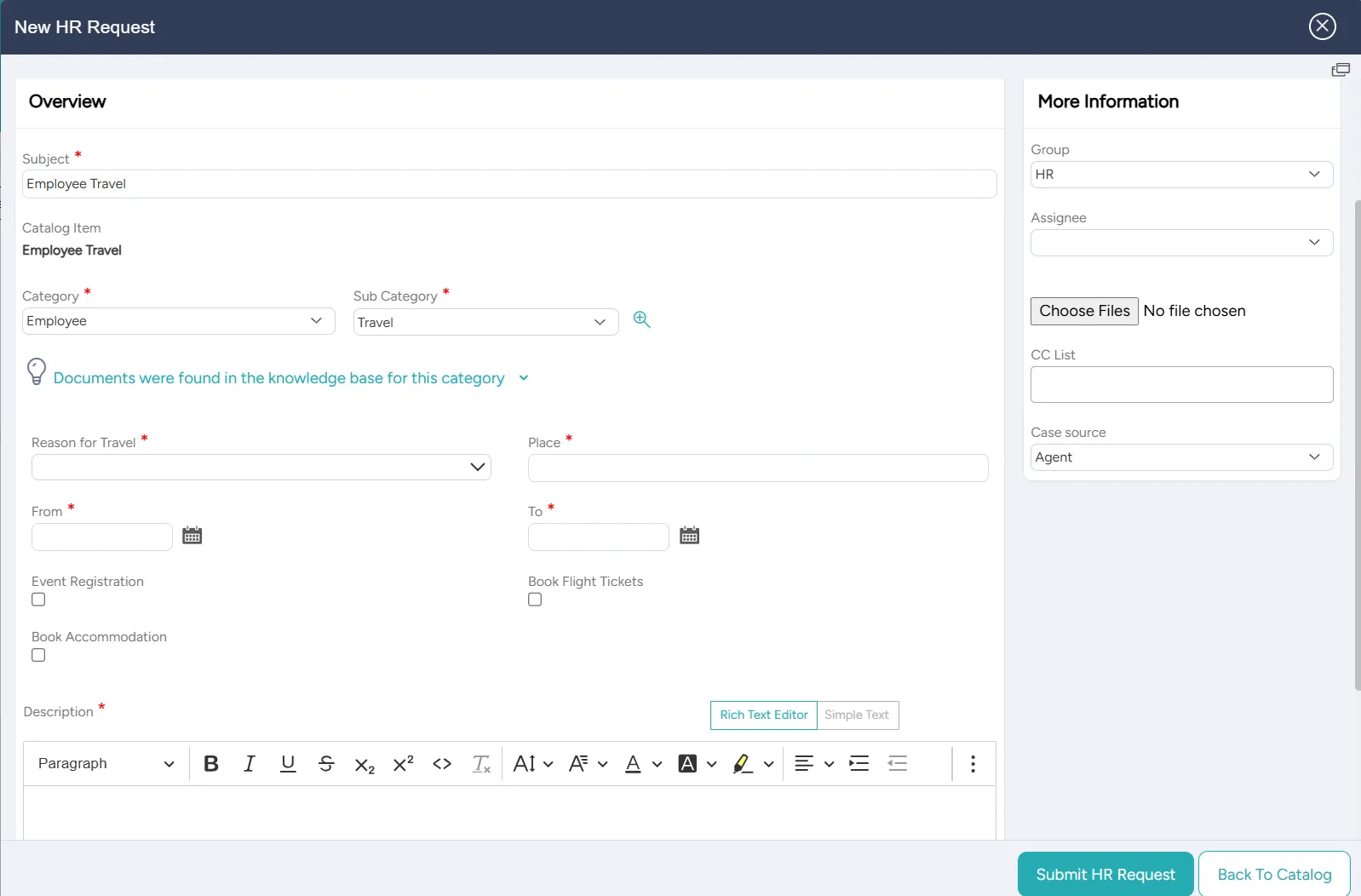
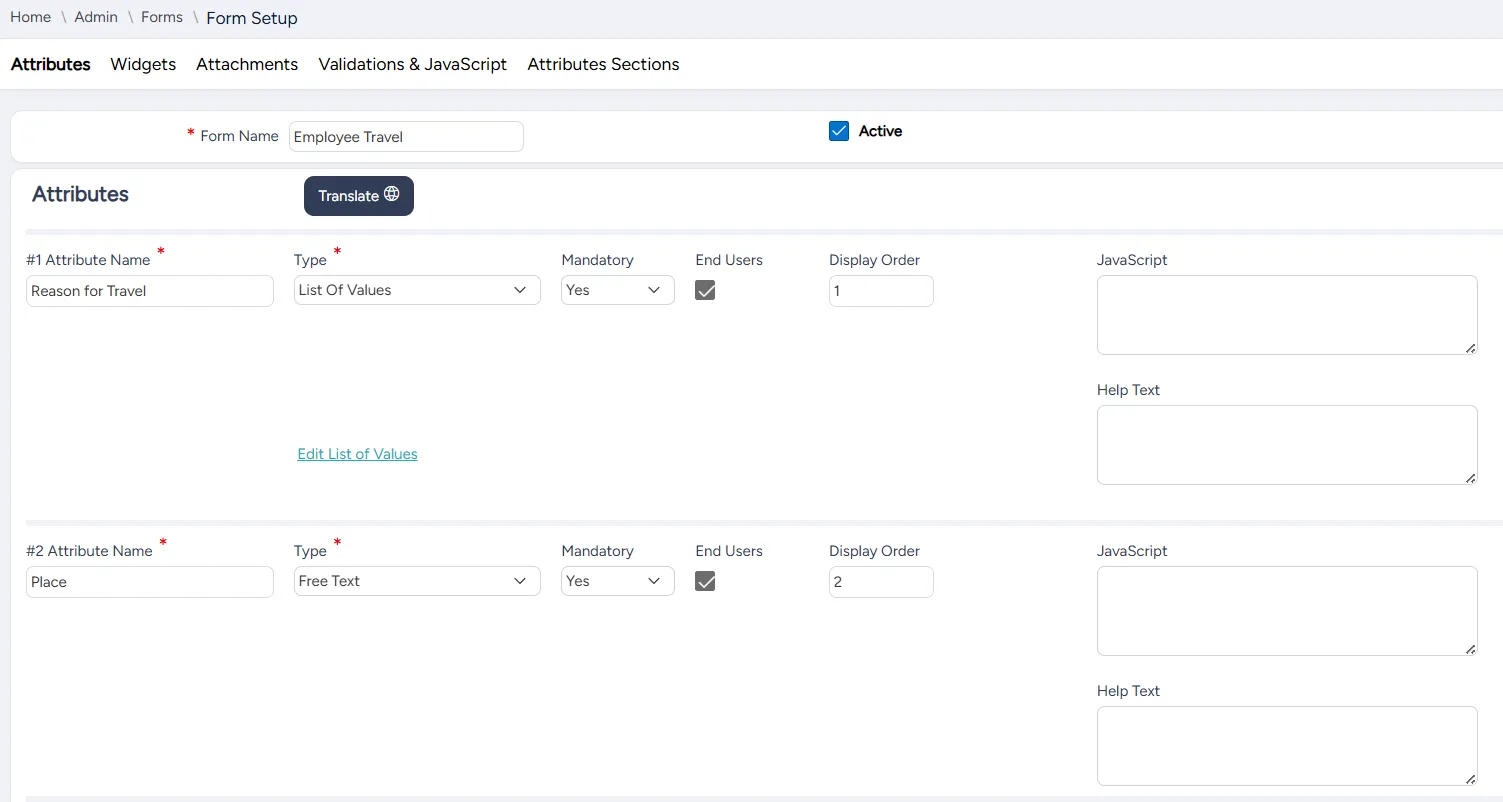
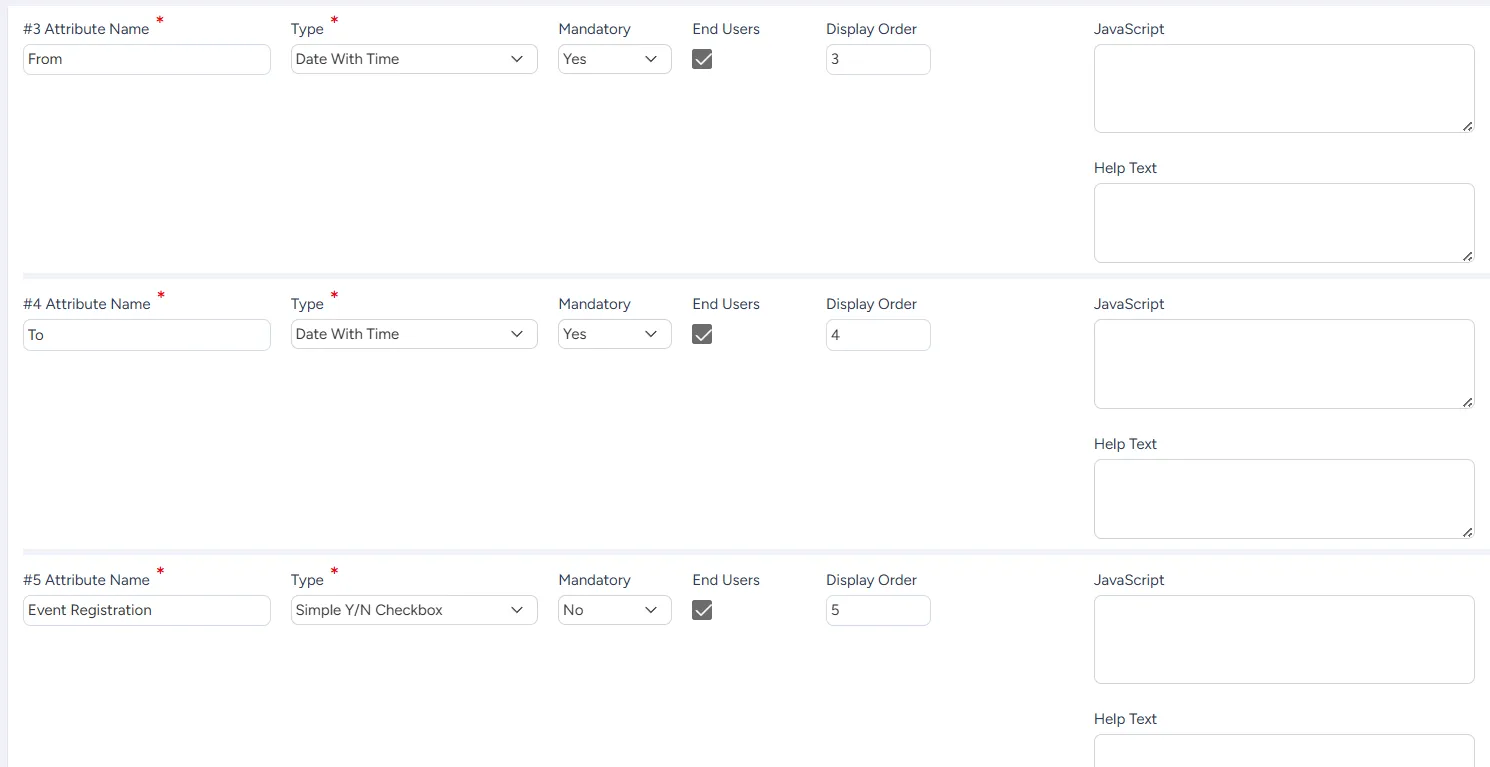
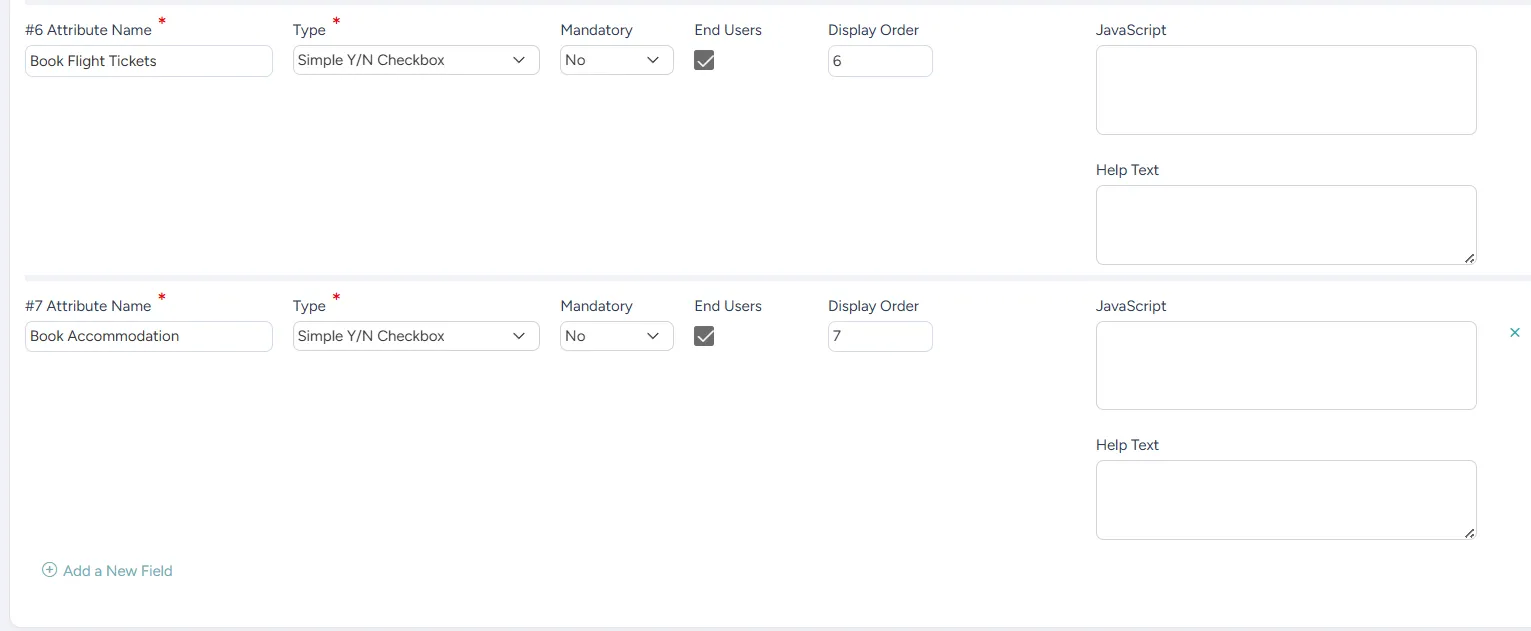
The Employee Travel form, which is used to generate this ticket, includes seven attributes:
- Reason for Travel (List of Values, mandatory): choose from a list of available values
- Place (Free Text, mandatory): enter the name of the destination
- From (Date With Time, mandatory): select travel start date
- To (Date With Time, mandatory): select travel end date
- Event Registration (Simple Y/N Checkbox, optional): select if event registration is requested
- Book Flight Tickets (Simple Y/N Checkbox, optional): select if flight booking is requested
- Book Accommodations (Simple Y/N Checkbox, optional): select if accommodations booking is requested
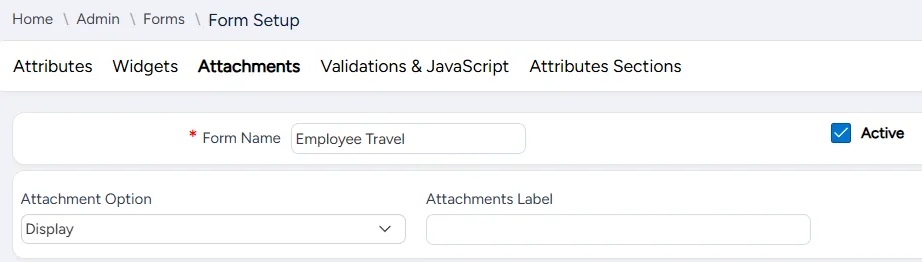
The Employee Travel form also allows one optional file attachment.
Example 3: Access to Network Folder
The Access to Network Folder ticket template enables the user to request access to a specific network folder.
The requester is required to provide the folder path and requested permission level, specify the user who needs this permission level, and enter a description of the request.
This ticket is of type New Catalog Request.
This ticket's categories are:
- Parent category: Catalog
- Category: Permissions
- Subcategory: Network Folder
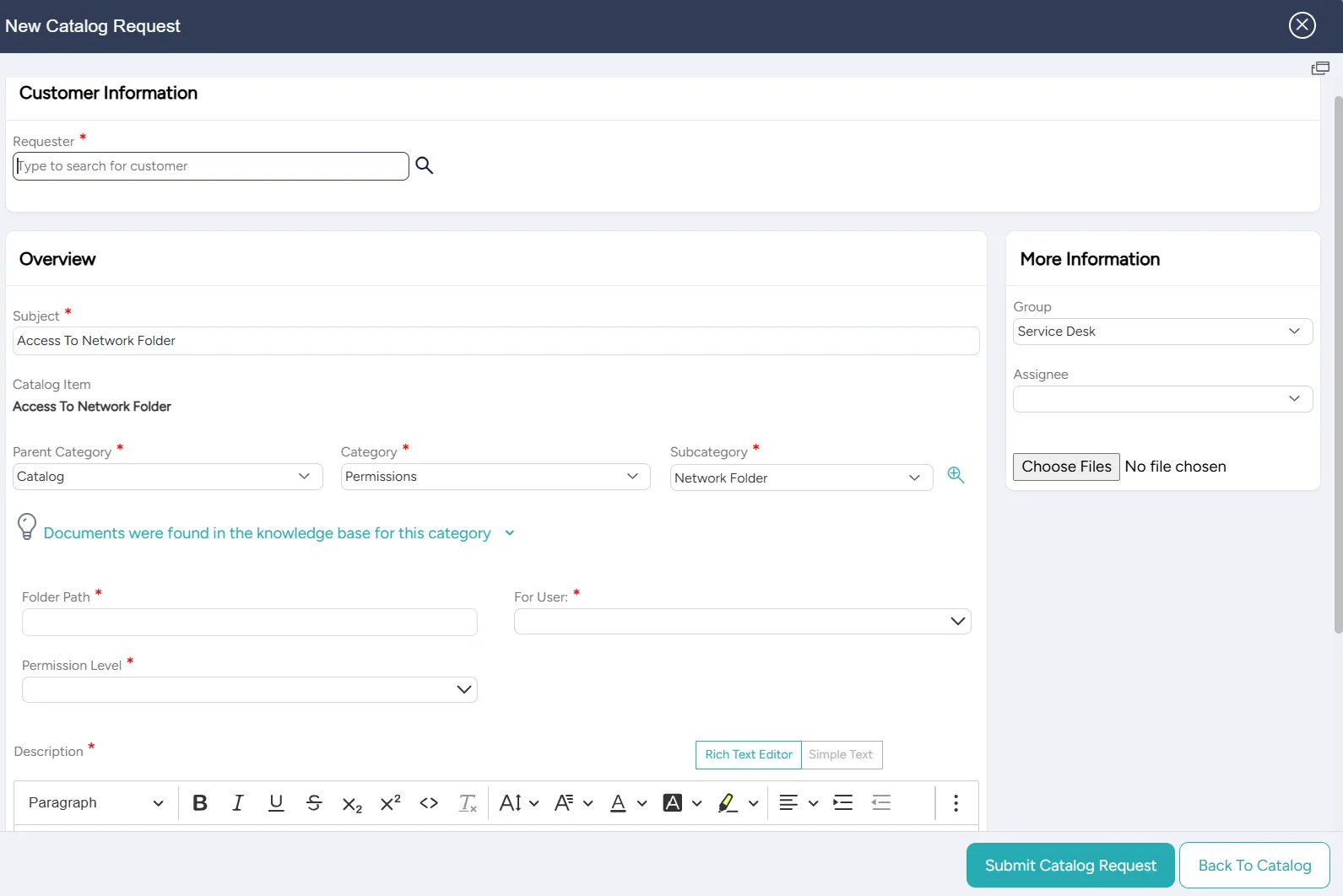
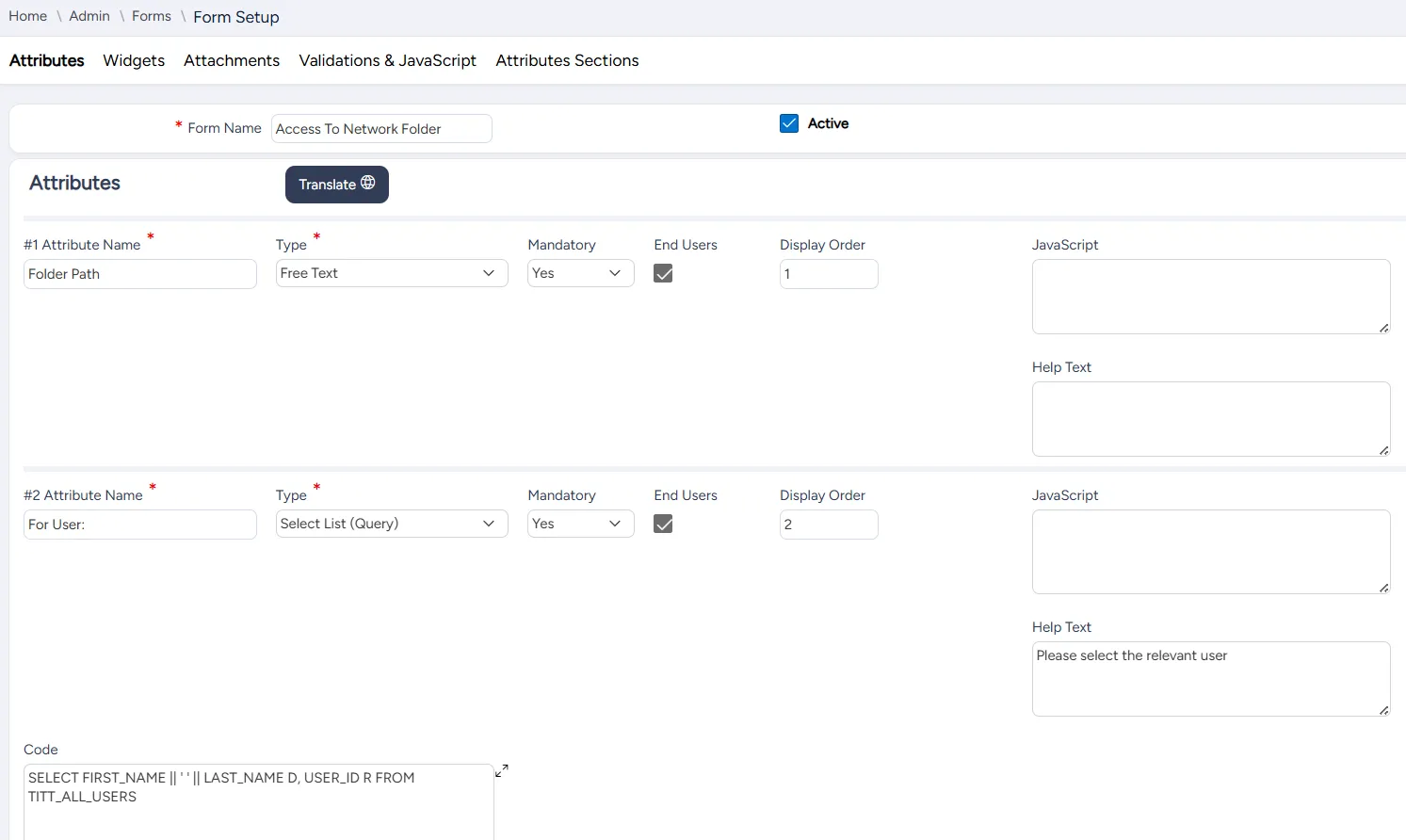
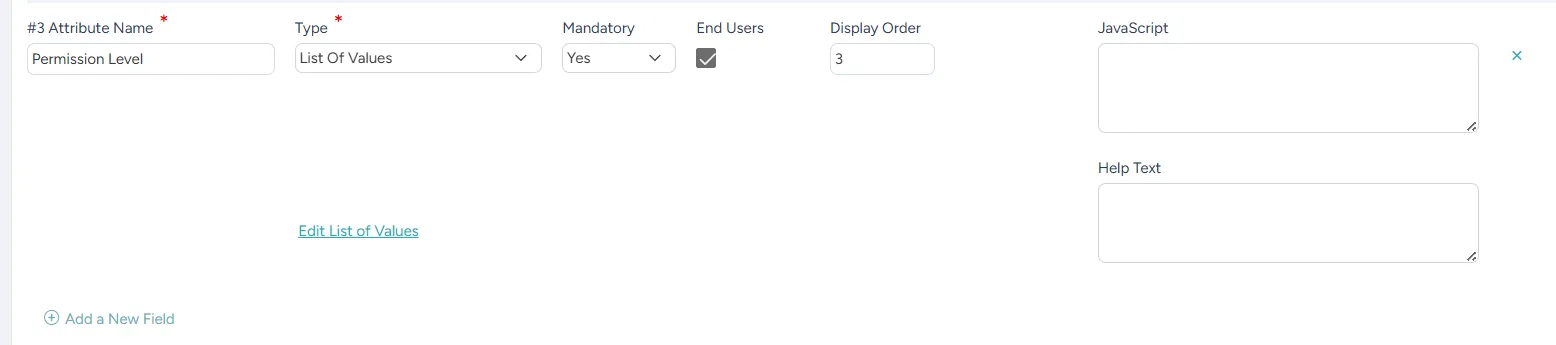
The Access to Network Folder form, which is used to generate this ticket, includes three mandatory attributes:
- Folder Path (Free Text): enter the folder path
- For User (Select List (Query)): select a user from the list of users retrieved from the database
- Permission Level (List of Values): select a permission level from a predefined list of values
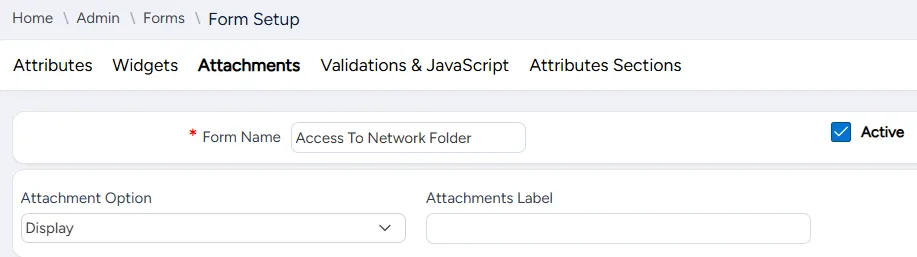
The Access to Network Folder form also allows one optional file attachment.
Example 4: Salary Question
The Salary Question ticket template enables the user to ask a question about their salary. The requester is required to provide the salary month and the question topic.
This ticket is of type New HR Incident.
Only two levels of categories are used for this ticket:
- Category: Salary
- Subcategory: Question
By default, the severity for this ticket is low.
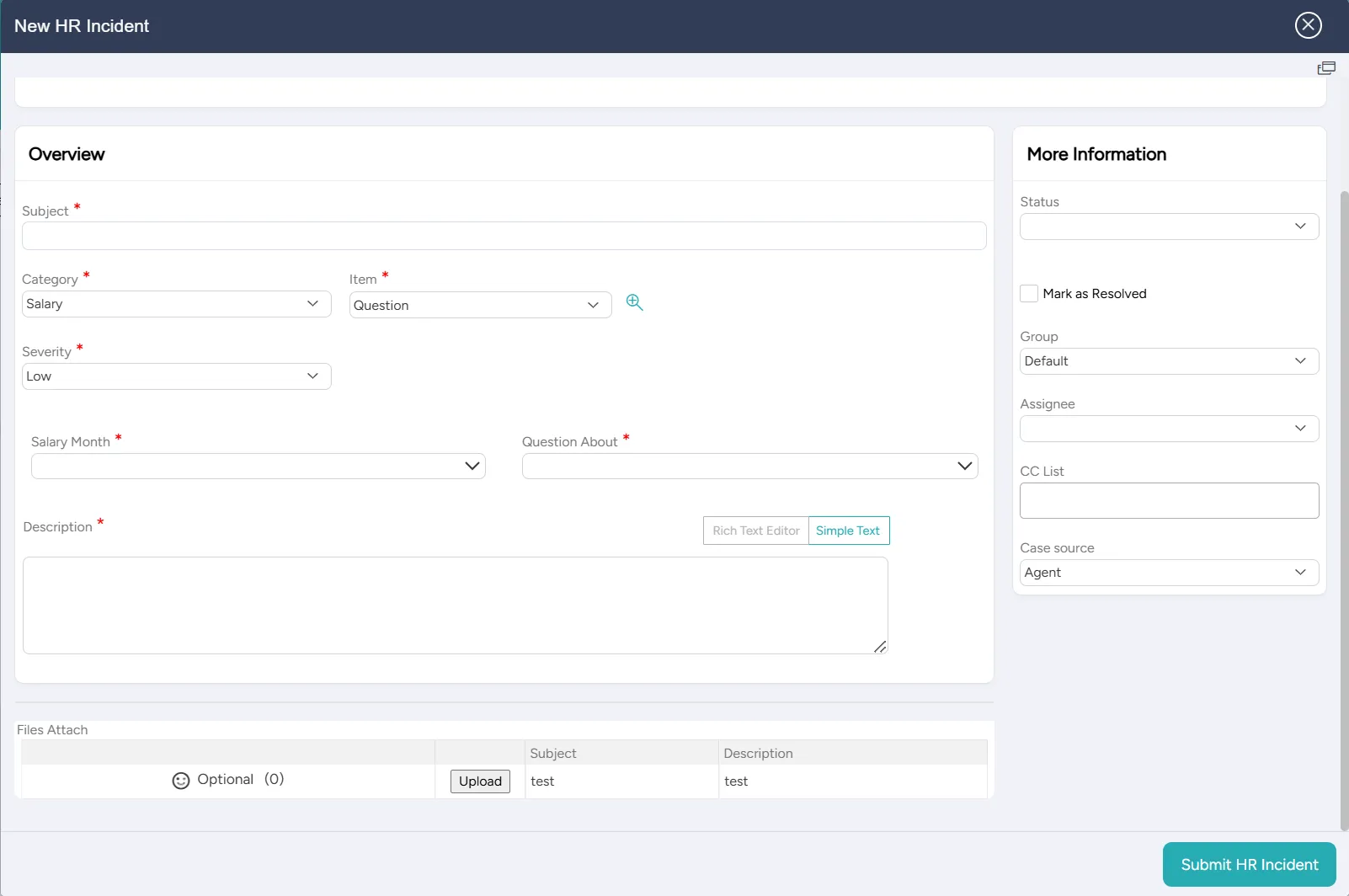
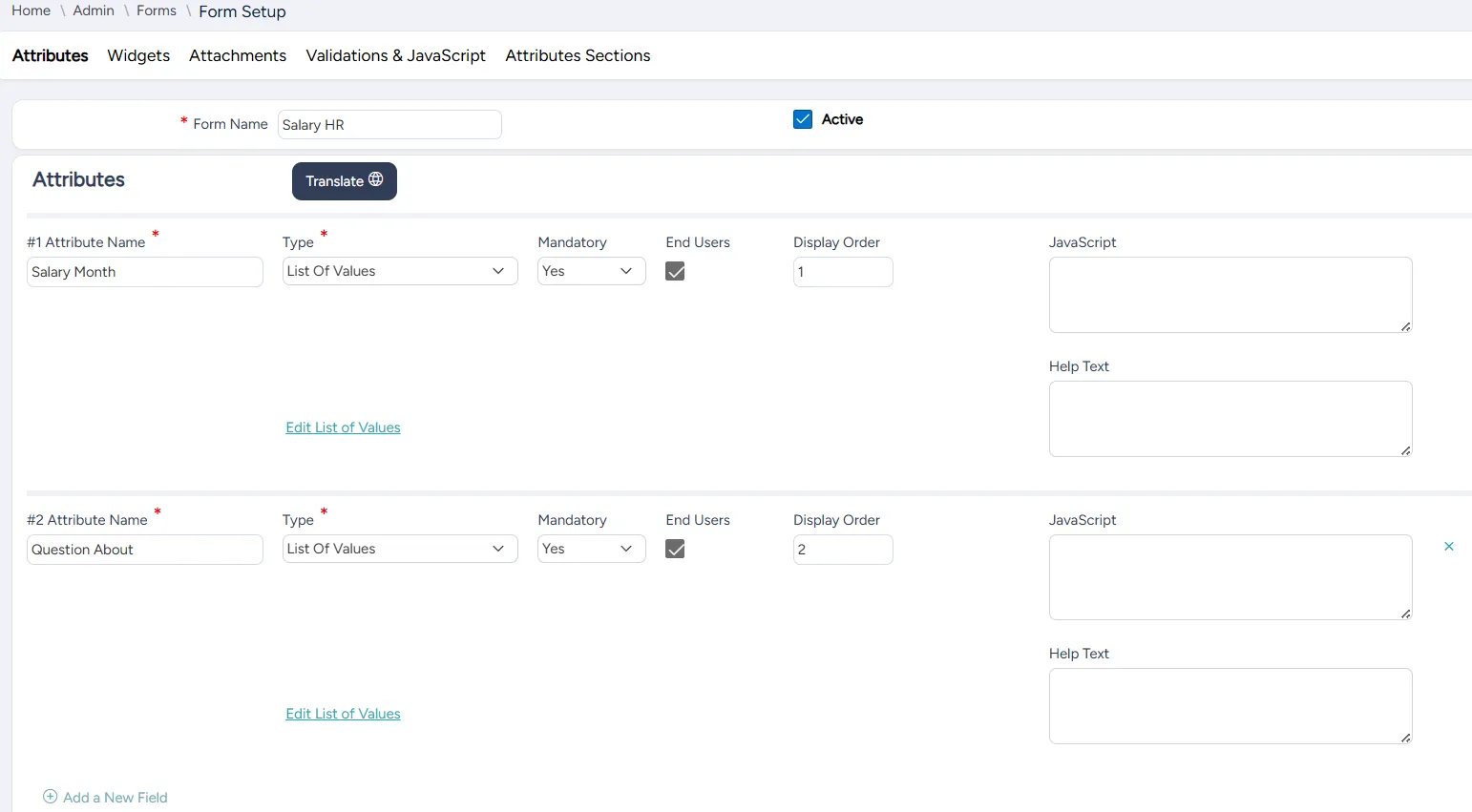
The Salary HR form, which is used to generate this ticket, includes two mandatory attributes. Both are lists of predefined values.
- Salary Month: select the month you have a question about
- Question About: select the topic of the question
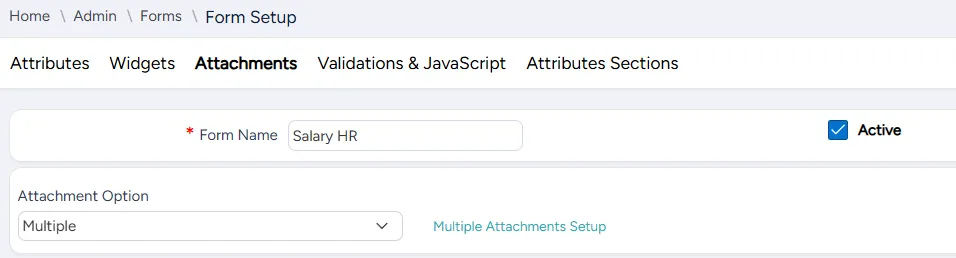
The Salary HR form allows the user to attach multiple files.
Example 5: New Hardware
The New Hardware ticket template enables a user to request new hardware.
The requester is required to attach a manager's approval. The requester can also select a hardware type from a dropdown list of available hardware and provide their floor and room numbers and a justification for the request.
This ticket is of type New Catalog Request.
This ticket's categories are:
- Parent Category: Catalog
- Category: Hardware Request
- Subcategory: Hardware
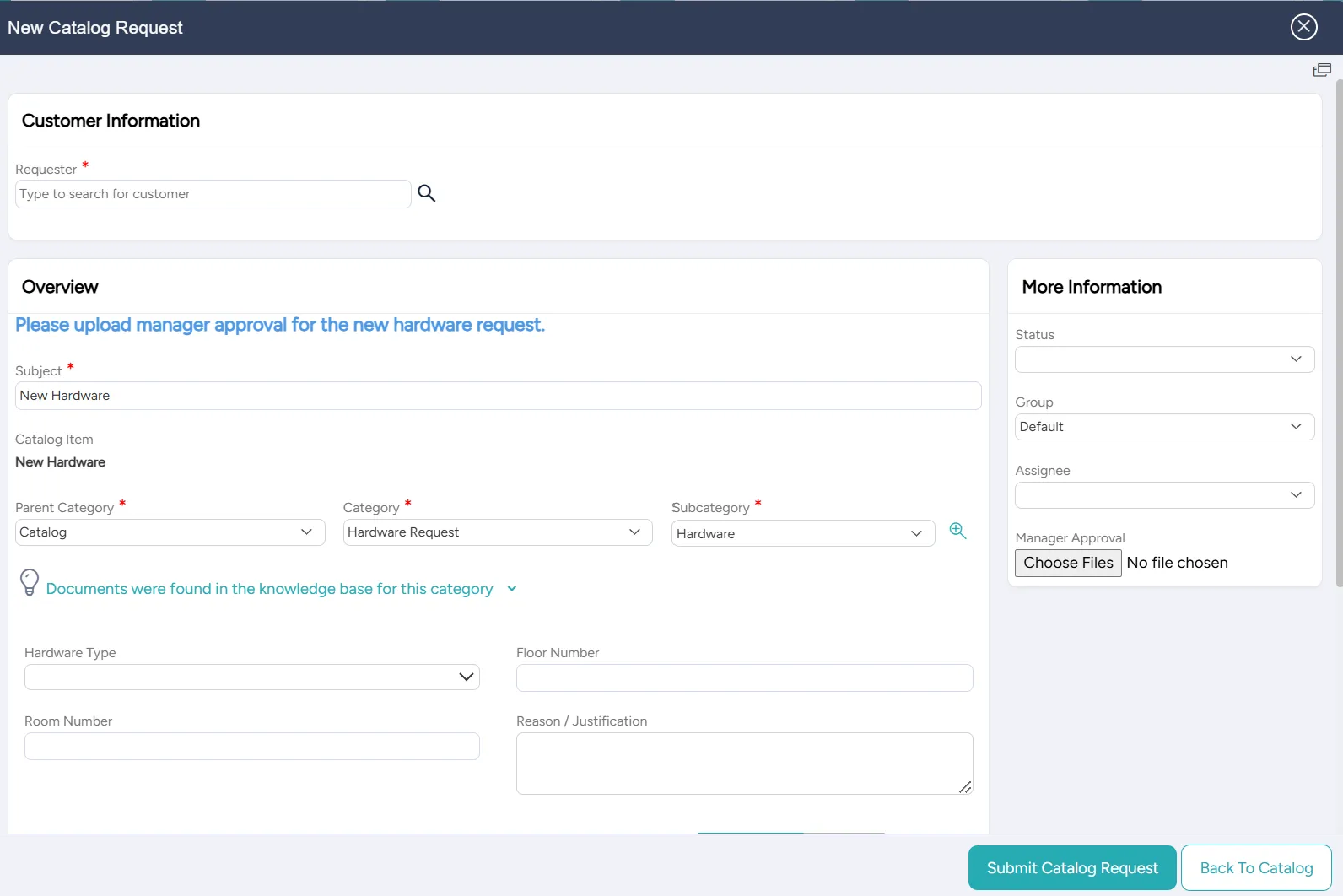
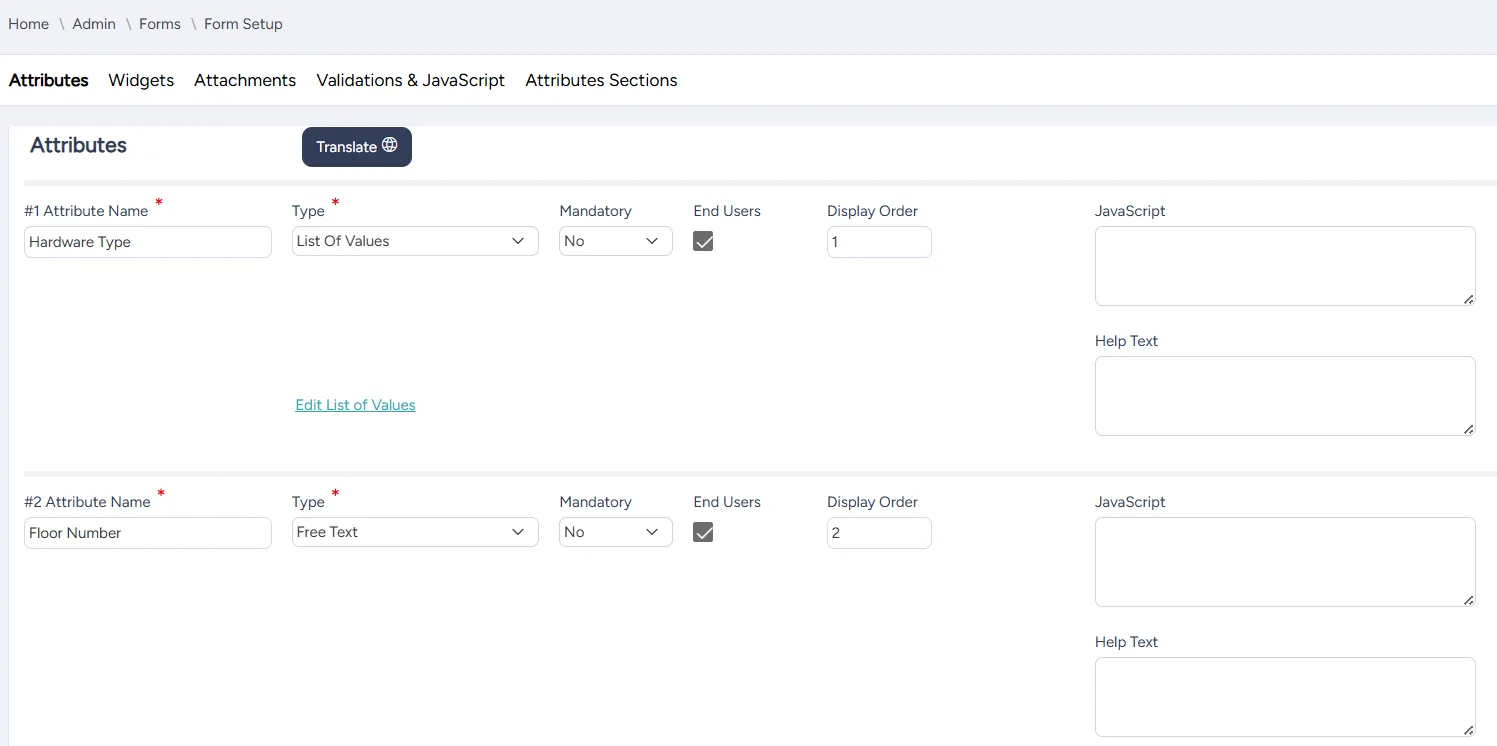
The New Hardware form, which is used to generate this ticket template, includes four optional attributes:
- Hardware Type (List of Values): select the type of hardware you are requesting
- Floor Number (Free Text): enter your floor number
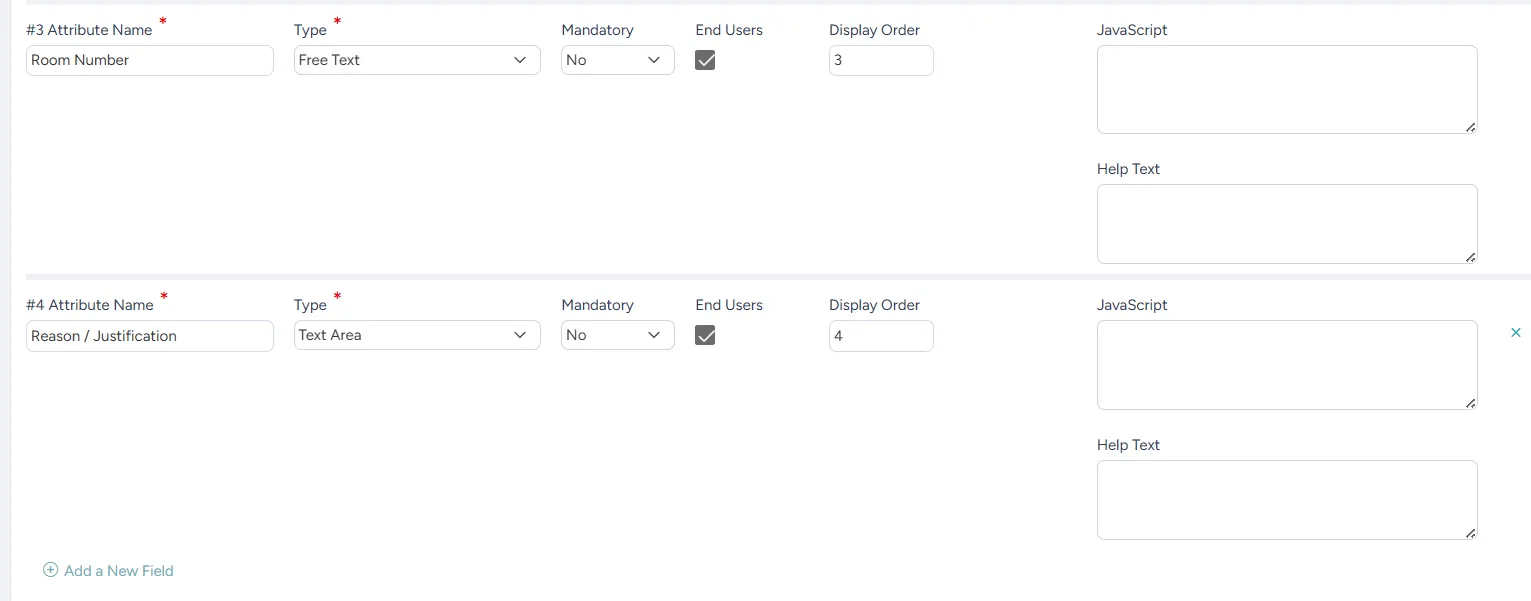
- Room Number (Free Text): enter your room number
- Reason/Justification (Text Area): enter reason/justification for your request
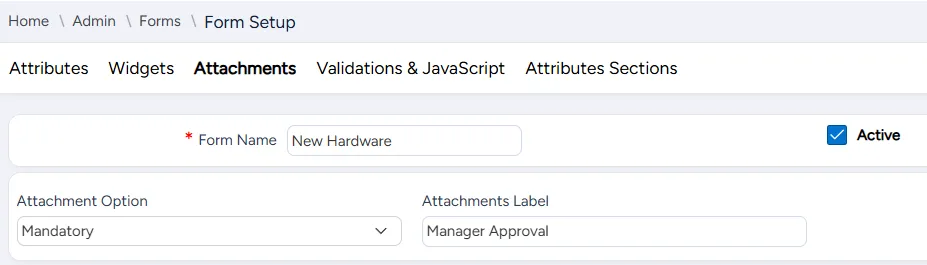
The New Hardware form also requires an attachment, labeled Manager Approval.
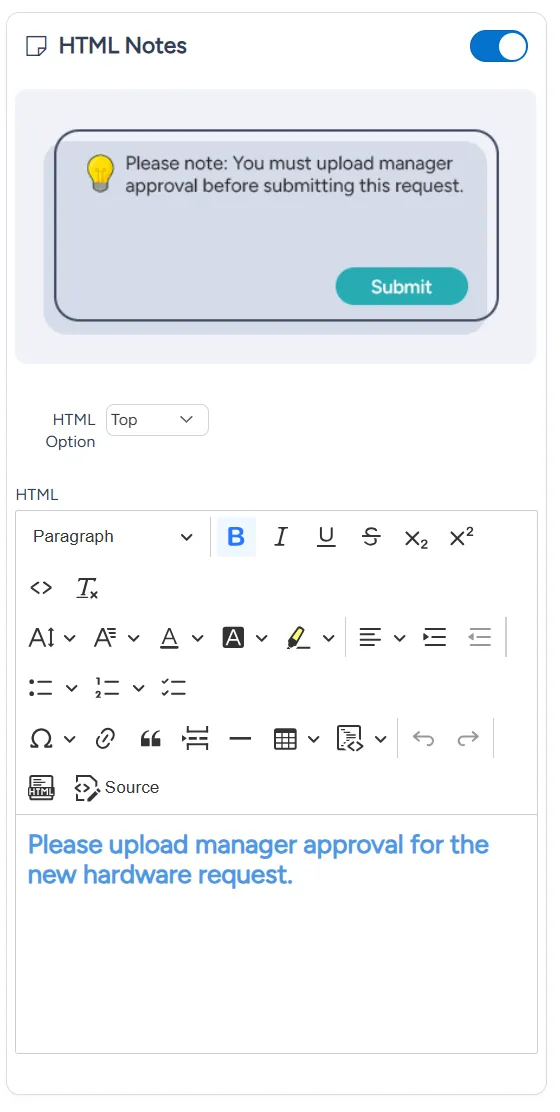
The New Hardware form also includes the HTML Notes widget, which displays the following message on the ticket:
Please upload manager approval for the new hardware request.
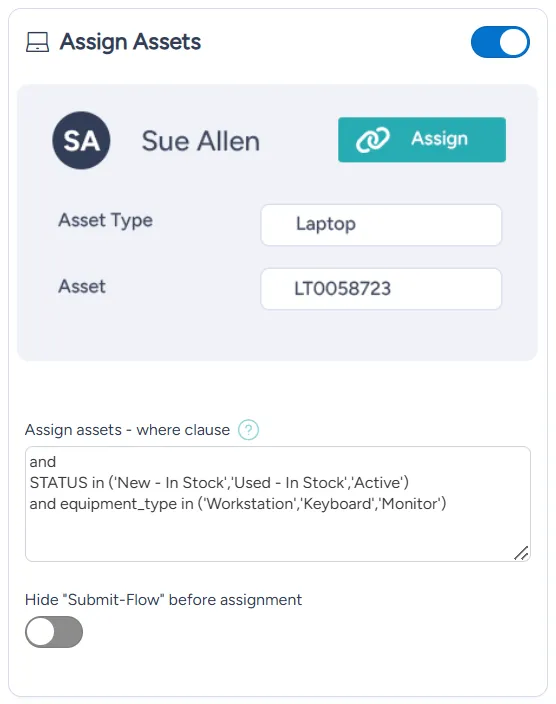
The New Hardware form also includes the Assign Assets widget, which is not visible to the end user and does not affect the appearance of the ticket.
An agent processing this ticket can use this widget to assign the new hardware asset to the user.