Organizations
What is an organization? Organizations overview
What organization types are available? Organization types
How do I add a new or edit an existing organization? Adding a new or editing an existing organization
How do I disable an organization? Disabling an organization
Organizations overview
In ITCC, the organization model is used to control both data visibility and assignment logic.
- Each user is assigned to an organization
- Each support group is also assigned to an organization
- Categories can be associated with specific organizations
- Assets can be associated with specific organizations
Based on this structure:
- Users are able to see and interact with data (e.g., tickets, users) within their own organization
- Support groups will handle and view tickets opened by users from the same organization
The system also supports an organizational hierarchy:
- A parent (top-level) organization has visibility across all its child organizations
- Sub-organizations have access only to:
- their own data
- (optionally) their subordinate organizations (depending on hierarchy)
Your ITCC setup can include one or multiple organizations.
Most setups include only one organization. If you are using only one organization, the ITCC team sets it up for you. You can change its settings at any time.
If your company is an MSP that provides services to many different customers, you may want to separate different branches of your company into different organizations.
Each organization has its own separate sets of:
- Users
- Customers (set up as Parties)
- Groups
Members of different organizations have different sets of permissions.
If your organizations setup is hierarchical in structure, the organizations higher up in the hierarchy can have more permissions than the organizations lower in the hierarchy.
Organization types
If your setup has multiple organizations, you can classify them by type.
The ITCC system includes the following organization types:
- Organization
- Supplier
- Business Unit
Setting up organizations
You can set up organizations at any time.
To set up organizations:
On the left side menu, select Administration.
In the search bar under Search for Admin Configuration Options, enter Organizations and select the Organizations option that appears.
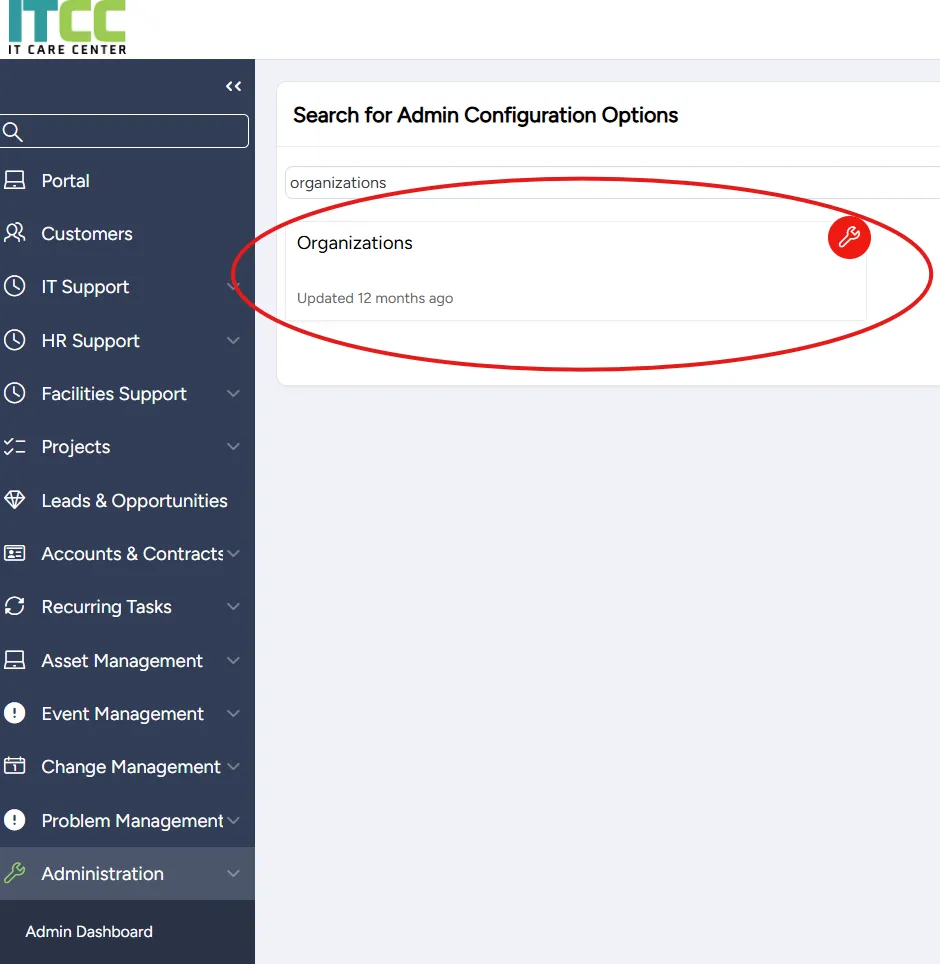
From the Organizations page that opens, you can:
Adding a new or editing an existing organization
You can add a new or edit an existing organization at any time.
To add or edit an organization:
On the Organizations page:
- To add a new organization: select Add
- To edit an existing organization: search for or scroll down to it and select its Edit icon

On the Organization page that opens, enter or edit the organization's settings:
Field | Description |
|---|---|
Organization Main Settings | |
Organization Code | Enter a meaningful code for the organization; if your setup has only one organization, you can use the company name |
Organization Name | Enter a meaningful name for the organization; if your setup has only one organization, you can use the company name |
Parent Organization | If this organization has a parent organization, select the parent organization |
Organization Type | Select an organization type |
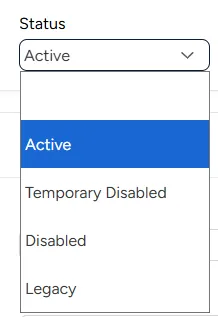
Status | Select if your organization is:
|
Support | |
Support Organization | Select the relevant organization from the hierarchy; if your setup only has one organization, select that organization |
Default Support Group | Select the default support group for routing those tickets where a support group is not specified |
Other | |
Icon | Select a file with the organization's icon |
Description | Enter the organization's description |
Select Save.
Disabling an organization
An organization can be temporarily or permanently disabled at any time.
To disable an organization:
On the Organizations page, search for or scroll down to the organization you want to disable and select its Edit icon.
On the Organization page that opens, from the Status dropdown menu, select:
- Temporarily Disabled to disable temporarily
- Disabled to disable permanently
Select Save.