Forms
Forms enable the administrators to customize many components of the system, such as tickets, catalog items, contracts, and others, to fit the needs of your organization.
You can create a new custom form or modify an existing form.
Adding form fields
In any form you create, you can add form fields of the following types:
Field type | Description |
|---|---|
Data fields; can be of different attribute types; fields' behavior can be controlled by JavaScript | |
Widgets | Additional components that enable users to perform certain actions, such as relating assets, managing ticket-related tasks, or adding custom tables or notes |
Additional files attached to the form | |
Validations enable conditions that control form fields; JavaScript enables controlling fields' behavior on page load | |
Form attributes can be divided into separate sections, for ease of use |
Use the tabs in Form Templates to navigate between different field types.

Setting up forms
You can set up ticket forms at any time. You can add as many forms as you need.
To set up ticket forms:
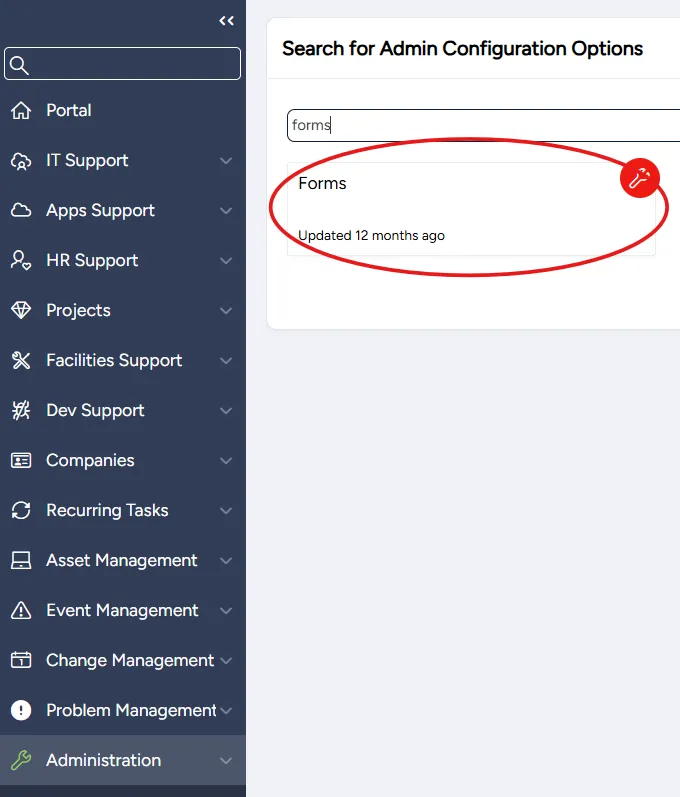
On the left side menu, select Administration.
In the search bar under Search for Admin Configuration Options, enter Forms and select the Forms option that appears.
Adding a new form
You can add a new form at any time.
To add a new ticket form:
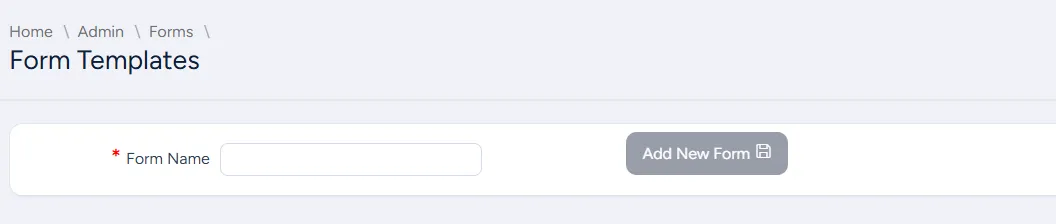
On the Forms page, in the top right corner, select New Form.

In the Form Name field, enter a meaningful name for the new form and select Add New Form. An empty form is created.
Complete the form by adding:
- Widgets
Select Save.
Editing an existing form
You can edit an existing ticket form at any time.
To edit an existing ticket form:
On the Forms page, select the form you want to modify.
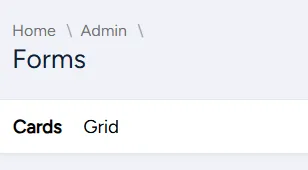
You can view the existing forms as cards or a grid; choose the view you want from the tabs:
When the form opens, you can:
Disabling a form
You can disable a form by marking it as inactive. You can enable a disabled form at any time.
To disable a form:
On the Forms page, select the form you want to disable.
You can view the existing forms as cards or a grid; choose the view you want from the tabs:
When the form opens, clear the Active checkbox.

At the bottom right of the page, select Save.