❓Q&A
❓Q: I get an error message when trying to upload a file:
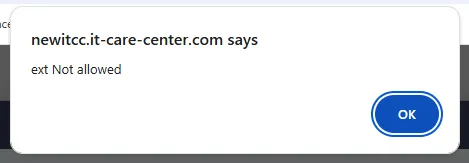
✅ "File Format Not Allowed" / "Ext Not Allowed" - These errors indicate that the file extension is not allowed in your ITCC installation.
To update the list of allowed file types, follow these steps:
Navigate to the Administration --> Defaulting Options

Search for "F_FILE_PROTECT" setup code, and click on the edit pencil icon
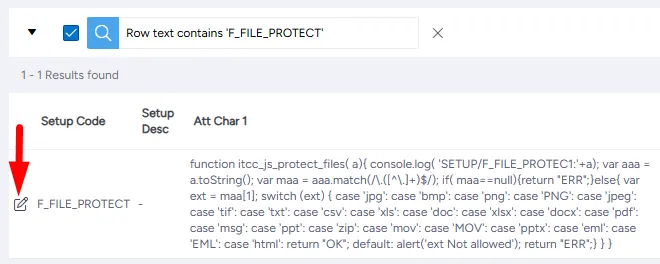
In the "Att Char 1" field, modify the list of allowed file extensions. You can add or remove extensions as needed.
Note: The list is case-sensitive (e.g., .PDF is not the same as .pdf). Separate each extension with a colon :
❓Q: I’ve added a new category, but it’s not showing up in the ticket category list.
✅ In most cases, this happens because a new parent category level was added but not configured properly, or due to an inconsistency in the parent category name. Please check the following:
If you intended to create a new parent category You must add the new parent category to the Parent Category Filter for the relevant ticket type:
Go to Administration→ Setup Ticket Type (or Setup Call Types, depending on your ITCC version)
Open the relevant ticket type setup
Add the new parent category to the Parent Category Filter field

If you did not intend to create a new parent category
Ensure the Parent Category field for the new category exactly matches the name of an existing parent category, without extra spaces or typos.
❓Q: The working list doesn’t seem to refresh.
✅ This issue can occur for two main reasons:
- Auto-Refresh setting is missing or set below 60 seconds
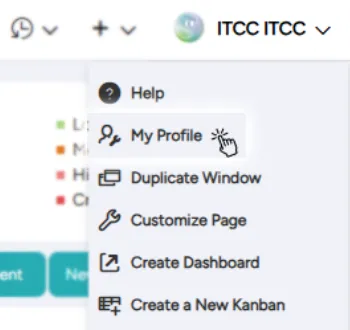
Open the logged-in user menu (top bar) and select My Profile
Check the value under Auto-Refresh
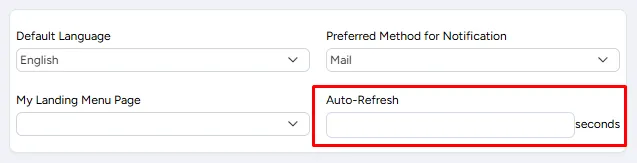
Set it to 60 seconds (minimum) or higher
Log out and log back in
2. Report is locked - Check if a lock icon is displayed next to the report name. If it is locked, please unlock it.

❓Q: How can I create a manual user without them being synced or disabled by the user sync integration?
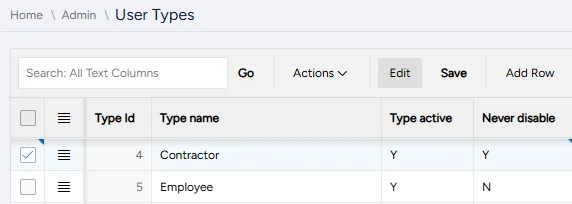
✅ To prevent a manually created user from being disabled automatically, assign them to a user type that is configured as Never Disable.
Go to Administration → User Types
Check if you already have a user type set to Never Disable
If yes → when creating the new user, select that user type If not → create a new user type with the Never Disable option enabled

❓Q: How can I fix Hebrew text that appears as gibberish in a downloaded CSV file?
✅ This issue usually occurs when Microsoft Excel (Office) is installed in English, while the CSV file contains Hebrew characters. Excel may open the file using an incorrect encoding by default.
To display Hebrew correctly, follow these steps:
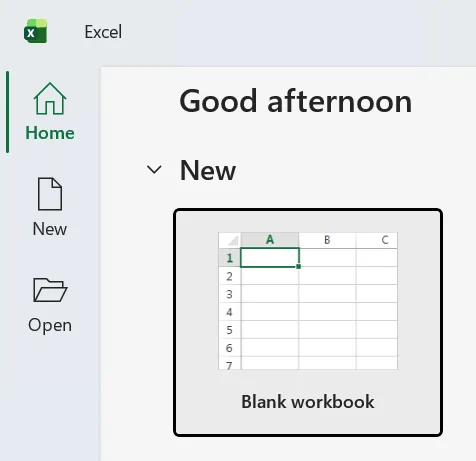
Open Microsoft Excel (do not open the CSV file directly). Create a new blank workbook.
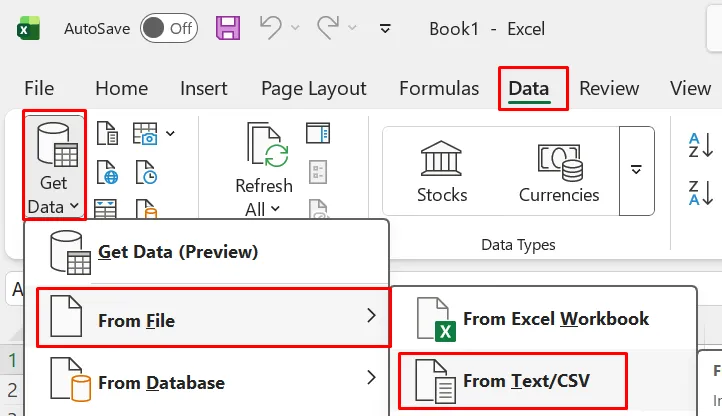
Go to the Data tab.

Click Get Data → From File → From Text/CSV.
Select the relevant CSV file.
In the import window:
- Set the File Origin to Unicode (UTF-8) (or another appropriate encoding).
- Verify the Delimiter (e.g., comma).
- Review the data preview to ensure Hebrew is displayed correctly.
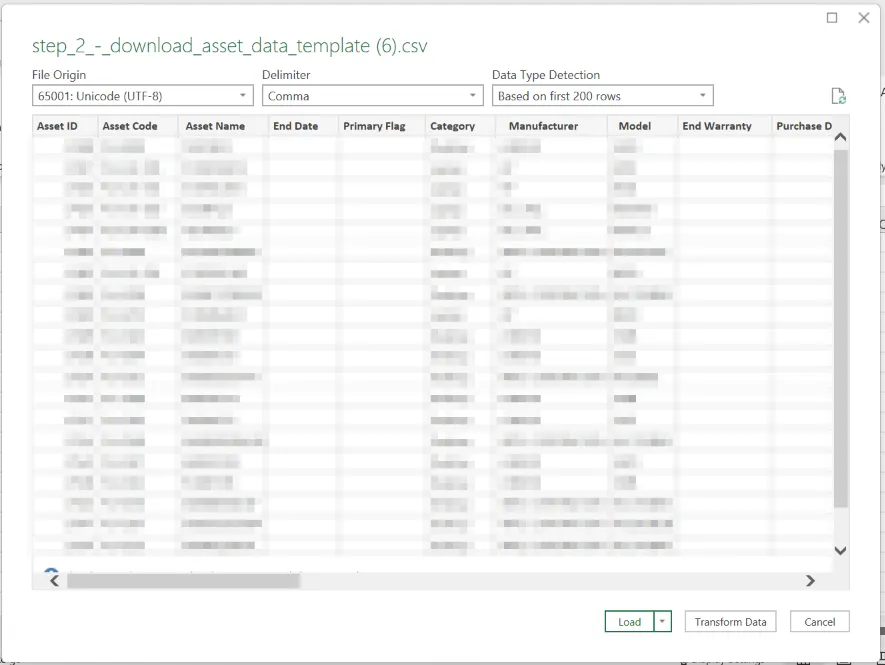
Click Load.
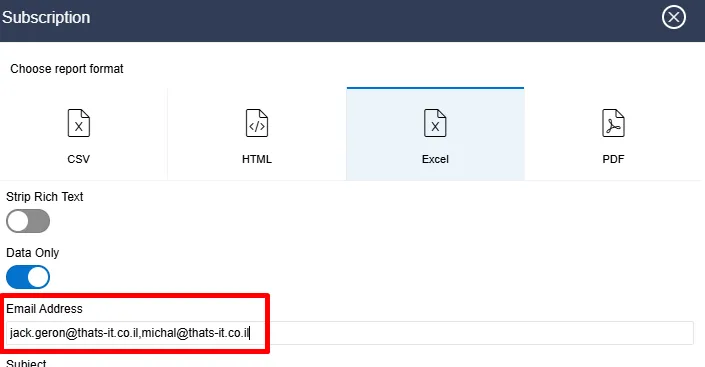
❓Q: What seperator should be used between email addresses when creating a subscription report?
Use commas to seperate the email addresses. Actions-->Subscription-->Email Address