Exporting and importing forms
How do I export a form? Exporting forms
How do I import a form? Importing form
In the ITCC system, you can export and import forms as needed.
This is useful for testing your forms in a staging environment before moving them to production.
Exporting forms
When you export a form, it is downloaded onto your device in JSON format.
You can export any form at any time.
To export a form:
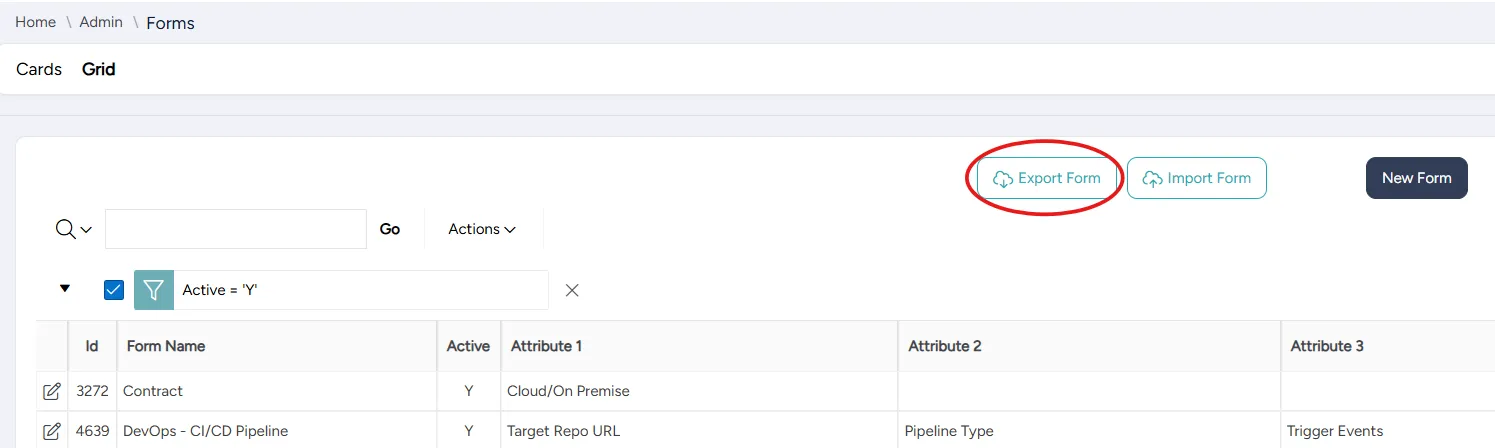
On the Forms page, in Grid view, select Export Form.
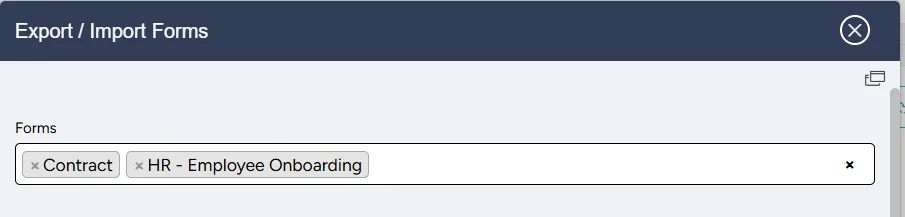
In the Export/Import dialog that opens, select one or more forms you want to export.
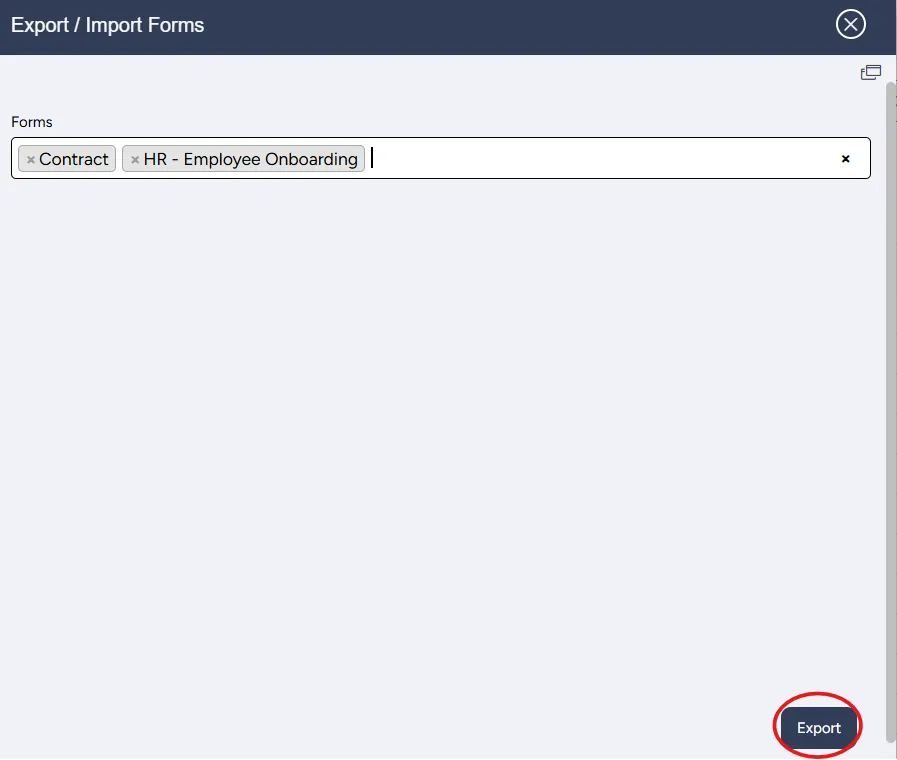
Select Export. The forms are downloaded onto your device in JSON format.
Importing forms
You can import a form at any time.
If you choose to import a form with a name that already exists in the system, you are given the options of overriding the existing form or creating a new form.
To import a form:
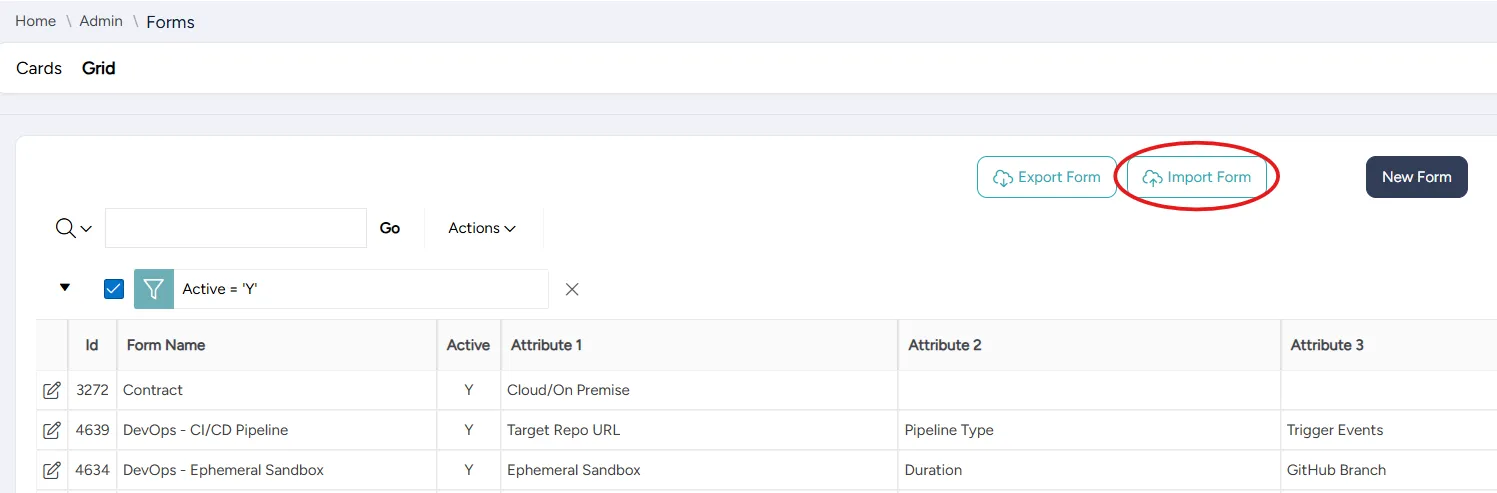
On the Forms page, in Grid view, select Import Form.
In the Upload File dialog that opens, select Choose File.
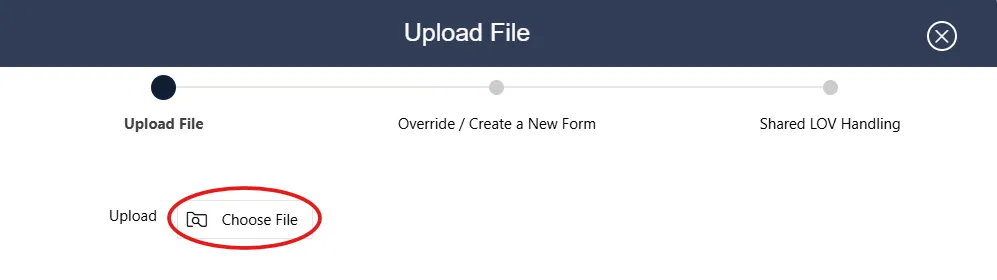
Select the file to upload.
Select Next.
If a form with the same name as the file already exists in the system, select if you want to:
- create a new form
- override the existing form
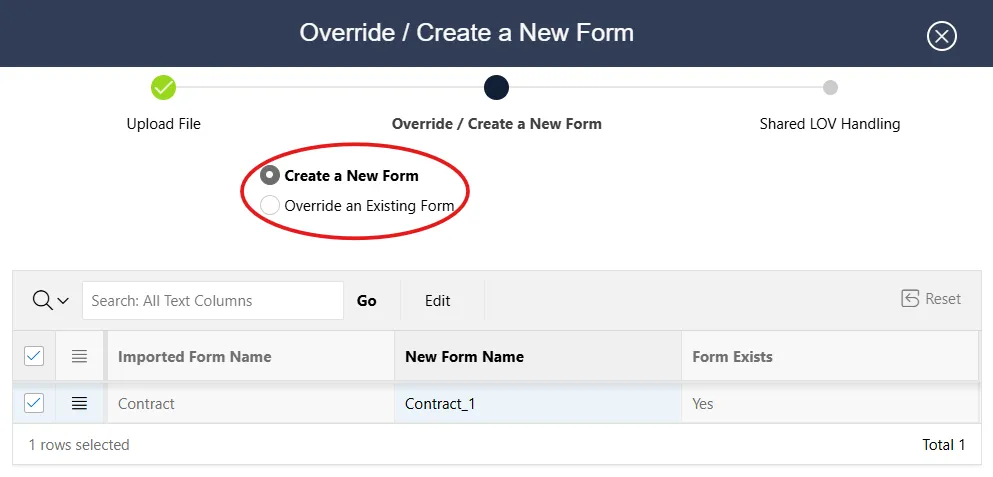
In the table, edit the imported form's name, if needed.
Select Next.
If your form uses a shared LOV, in the Action column of the table, for each of the shared LOVS, select how to handle it:
- Update the existing one
- Use existing
- Create a new shared LOV
Select Import. The form is imported and added to the list of forms in the system.