Mass Update User Assignment
The Mass Update User Assignment feature allows administrators to efficiently copy or transfer permissions and settings from one user to another within a single interface. This streamlines adjustments across various objects, including category default assignees, country-based routing rules, workflow steps, and more.
Key Benefits:
- Ideal for employee onboarding, offboarding, or role changes.
- Ensures seamless reassignment of permissions and tasks with minimal disruption.
Accessing the Mass Update User Assignment Screen
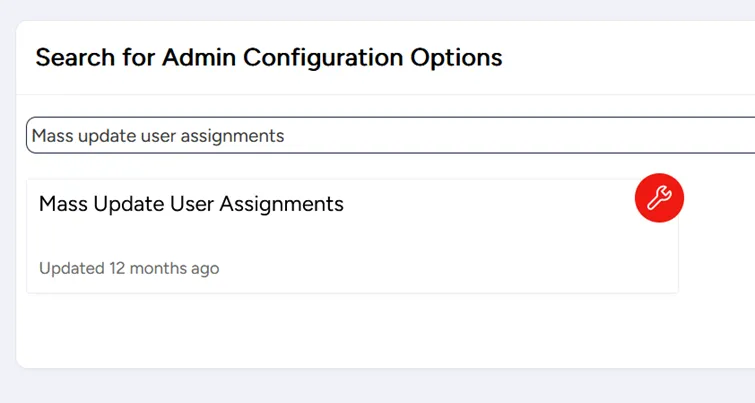
- Navigate to Administration.
- Search for Mass Update User Assignments and click on it.
Mass Update User Assignment Tabs and Descriptions

Tab Name | Description |
|---|---|
User Settings | Expire users or change user type/tier. |
Group Management | Expire group memberships, view information related to a user's groups, copy active/all groups. |
Roles Management | Expire roles, view information related to a user's roles, and copy roles. |
Categories | Replace categories assignments, or modify advanced category rules. |
Workflow | Replace workflow task assignments, including routing and advanced routing tables. |
Country-Based Routing Rules | Replace country-based routing rules. |
Incoming Mail Routing Rules | Replace incoming mail routing rules. |
Tickets Assignment | Replace ticket assignments. |
Pending Approvals | Replace pending approvals. |
Detailed Instructions
User Settings
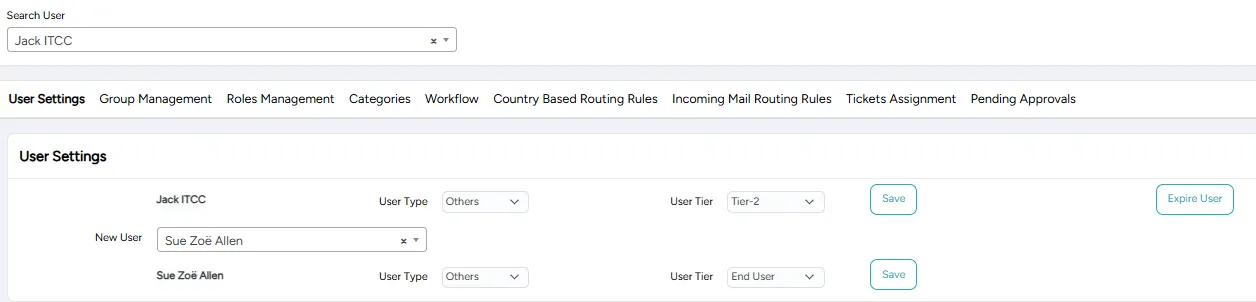
In this tab, you can expire users or change the user type/tier.
- Select 'New User'.
- Change the user type/user tier.
- Click Save to save the changes.
If you select a user in the upper field, you can compare or edit two users simultaneously.
Group Management
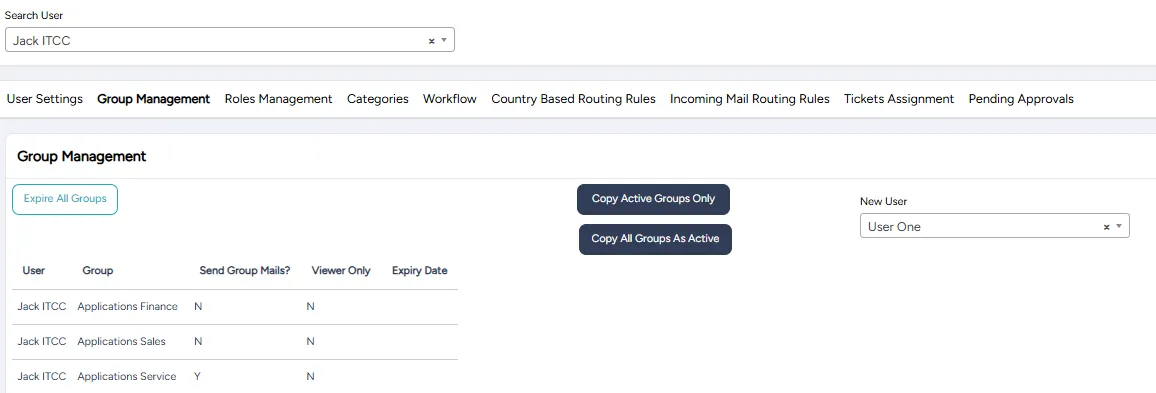
In this tab, you can view all group memberships for the user selected in the Search User field. You can choose to either expire all group memberships or copy these memberships to another user.
- In the Search User field (top left), select the user from whom you want to copy group membership settings.
- In the New User field, select the user to whom you want to apply these settings.
- Group membership details for both users will now be displayed, allowing you to perform the following actions:
- Expire All Groups: Expire all group memberships for the user in the Search User field.
- Copy Active Groups Only: Copy only active groups from the Search User to the New User
- Copy All Groups As Active: Copy all groups Search User to the New User
- , marking each as active.
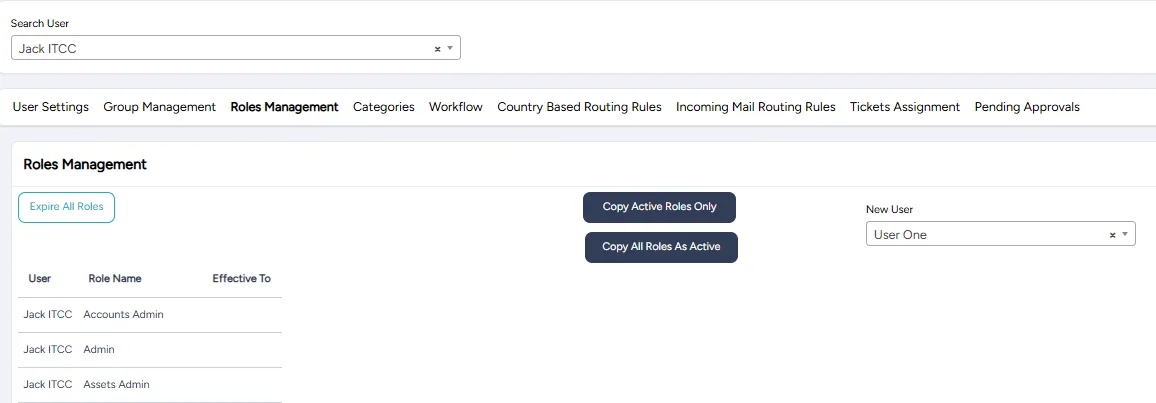
Roles Management
In this tab, you can view all assigned roles for the user selected in the Search User field. You can choose to either expire all roles or copy these roles to another user.
- In the Search User field (top left), select the user from whom you want to copy roles settings.
- In the New User field, select the user to whom you want to apply these settings.
- The roles assigned for both users will now be displayed, allowing you to perform the following actions:
- Expire All Roles: Expire all assigned roles for the user in the Search User field.
- Copy Active Roles Only: Copy only active roles from the Search User to the New User
- Copy All Roles As Active: Copy all assigned roles from the Search User to the New User, marking each as active.
Categories
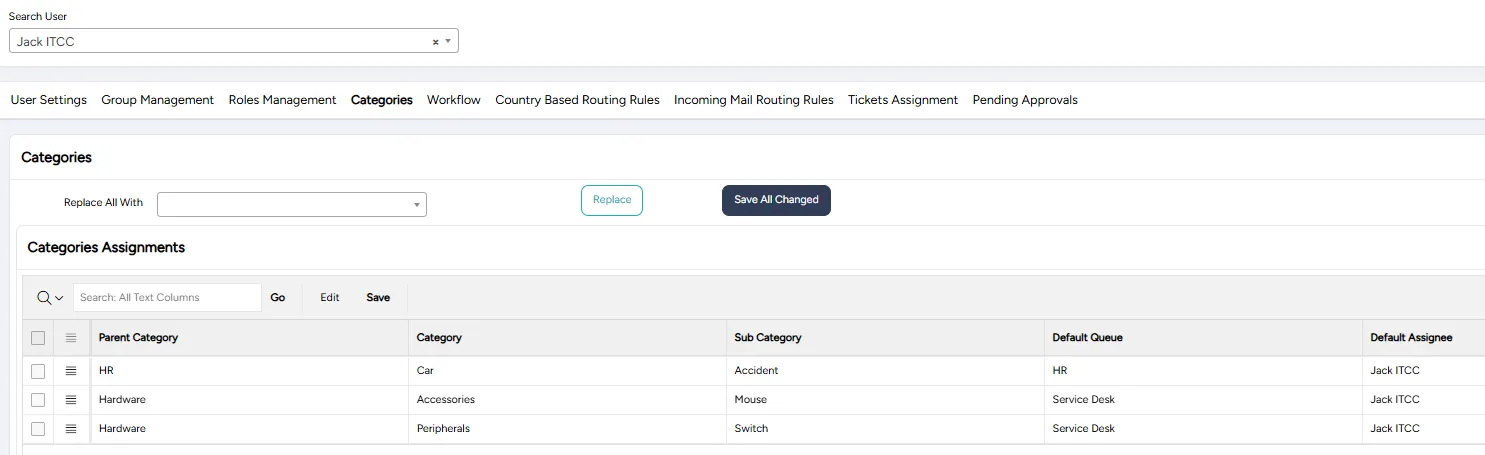
In this tab, you can view all category assignments, or routing rules associated with the selected user in the Search User field and apply these settings to another user.
- In the Search User field, select the user whose category assignments you want to use as the basis for replacement.
- The selected user’s category assignments will be displayed, allowing you to review and manage these settings.
- In the New User field, select the user to whom you want to assign these categories.
- Click Replace to transfer the default assignee and routing rules for each category to the New User. You can also customize each category assignment if needed.
- Once your selections are complete, click Save All Changes to apply the updates.
Workflow
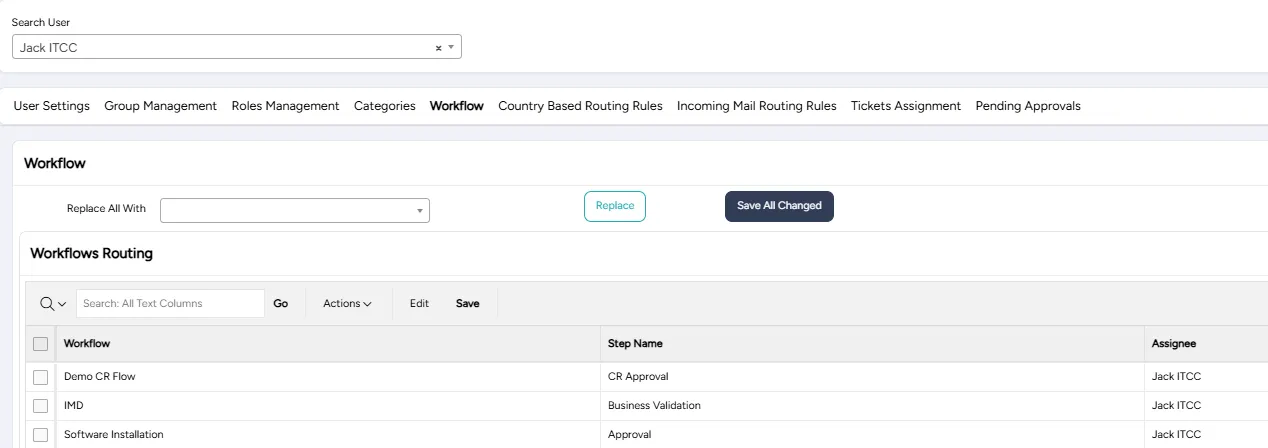
In this tab, you can view all workflow tasks automatically assigned to the user selected in the Search User field and transfer these assignments to another user.
- In the Search User field, select the user whose workflow task assignments you want to replace.
- The selected user’s workflow task assignments will be displayed, allowing you to review and manage these settings.
- In the New User field, select the user to whom you want to assign these workflow tasks.
- Click Replace to apply the workflow new assignments to the New User You can also customize each task assignment if needed.
- Once your selections are complete, click Save All Changes to apply the updates.
Country-Based Routing Rules
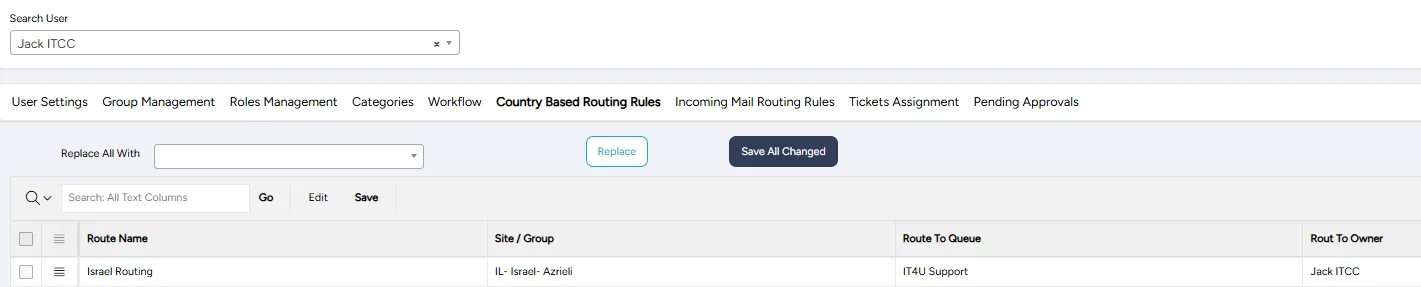
In this tab, you can view and manage country-based routing rules, which assign tickets to specific groups or assignees based on the customer’s country or site.
- In the Search User field, select the user whose routing rules you want to transfer.
- In the New User field, select the user to whom you want to assign these routing rules.
- Click Replace to transfer the default assignee for each country-based routing rule to the New User.
- Once complete, click Save All Changes to apply the updates.
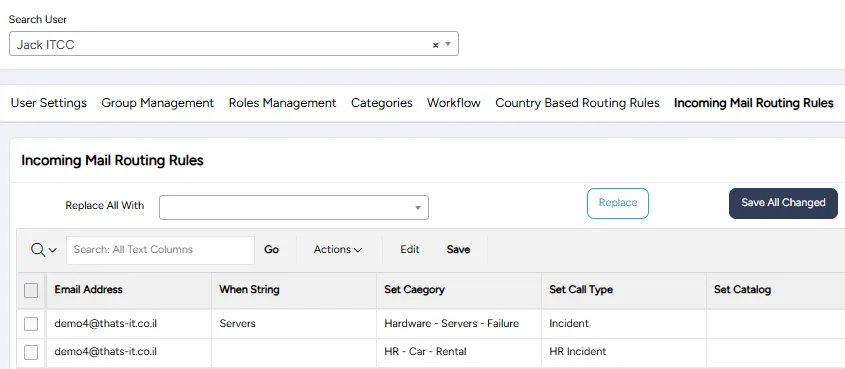
Incoming Mail Routing Rules
In this tab, you can replace specific or all incoming mail routing rules that assign tickets to a particular user.
- In the Search User field, select the user whose incoming mail routing rules you want to transfer.
- In the New User field, select the user to whom you want to assign these mail routing rules.
- Click Replace to transfer the default assignee for each incoming mail routing rule to the New User.
- After completing your selections, click Save All Changes to apply the updates.
Ticket Assignments
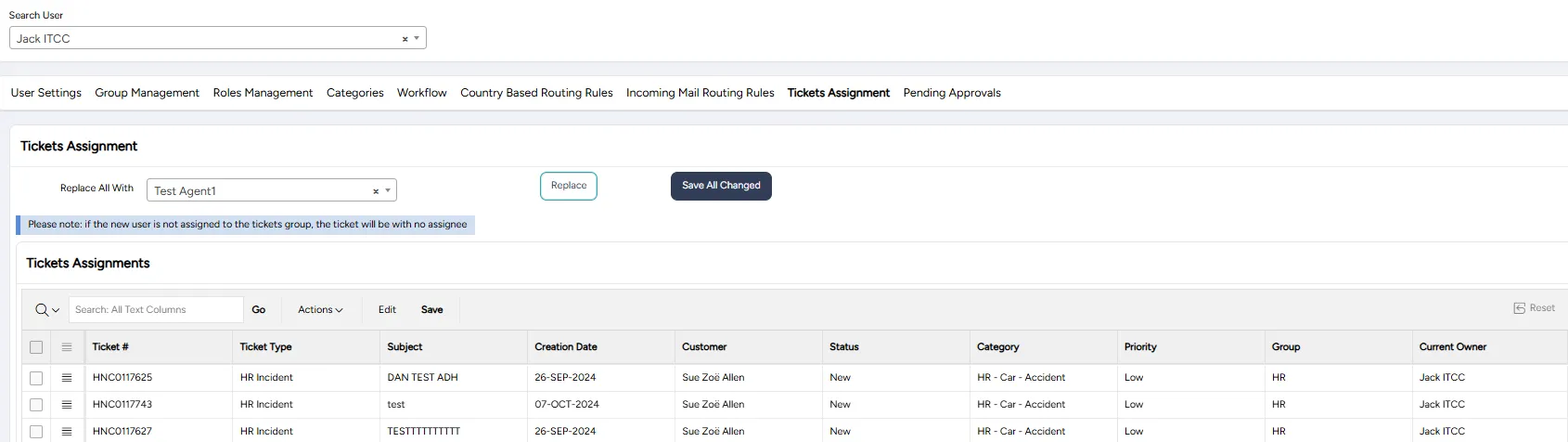
In this tab, you can reassign open tickets assigned to a particular user.
- In the Search User field, select the user whose open ticket assignments you want to reassign.
- In the New User field, select the user to whom you want to transfer these ticket assignments.
- Click Replace to view the new assignments. You can further customize each ticket assignment if needed.
- After finalizing your selections, click Save All Changes to confirm the updates.
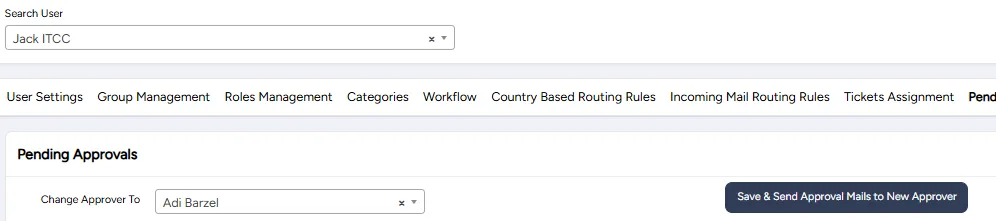
Pending Approvals
In this tab, you can reassign open or future approvals currently assigned to a specific user.
- In the Search User field, select the user whose open approval assignments you want to reassign.
- In the New User field, select the user to whom you want to transfer these approval assignments.
- Click Replace to view the new assignments. You can further customize each approval assignment as needed.
- After finalizing your selections, click Save & Send Approval Mails to New Approver to confirm the updates and send an approval mail to the new approver.