Outgoing email integration and templates
The ITCC system can send email notifications to users in response to events recognized by the system, such as creation of a new ticket, change of a ticket's status, or ticket resolution.
The administrators can customize the outgoing email settings and specify, for each event, whether an email is sent and what email template is used.
If your organization does not send out emails, you can disable outgoing emails.
Authentication requirements for Microsoft users
If you are using Microsoft software to send out your emails, you must comply with Microsoft authentication requirements.
Microsoft Office365 no longer allows basic authentication. Therefore, your options are as follows:
- Use the EWS method for your outgoing emails.
- Use the SMPT method with an extra layer of security. For example, you can use High Volume Email for Microsoft Office365 for internal communication, or you can use Azure Communication Services Email for both internal and external communication.
Setting up outgoing emails
You can set up outgoing emails at any time. The outgoing email settings are usually set up by ITCC during onboarding. Most likely, you will not need to change them.
To set up outgoing email:
On the left side menu, select Administration.
In the search bar under Search for Admin Configuration Options, enter Outgoing Email and select the Outgoing Email option that appears.

On the Outgoing Email page that opens, you can enter or edit the outgoing email settings:
Field | Description |
|---|---|
Outgoing Email Active | Select:
|
From Email Address | Enter the email address from which emails are sent |
ITCC URL | Enter your organization's unique ITCC URL (usually set up by ITCC during onboarding) |
Additional Email Address List | Enter email addresses of additional users to whom you want to send all email updates |
Email Language | Select the language of the outgoing emails |
Email Address | Enter the email address from which outgoing emails are sent |
Ticket URL | Enter your organization's ticket URL (usually set up by ITCC during onboarding) |
Method | Select:
|
Reply To System (Generic Name) | The name to which users' replies to the system's emails are addressed |
Ticket Checksum | Value that enables connection between separate ITCC sessions |
Select Save.
To add or edit an email template: in the Notification Events panel, search for or scroll down to the notification event associated with the template and select the Edit icon.
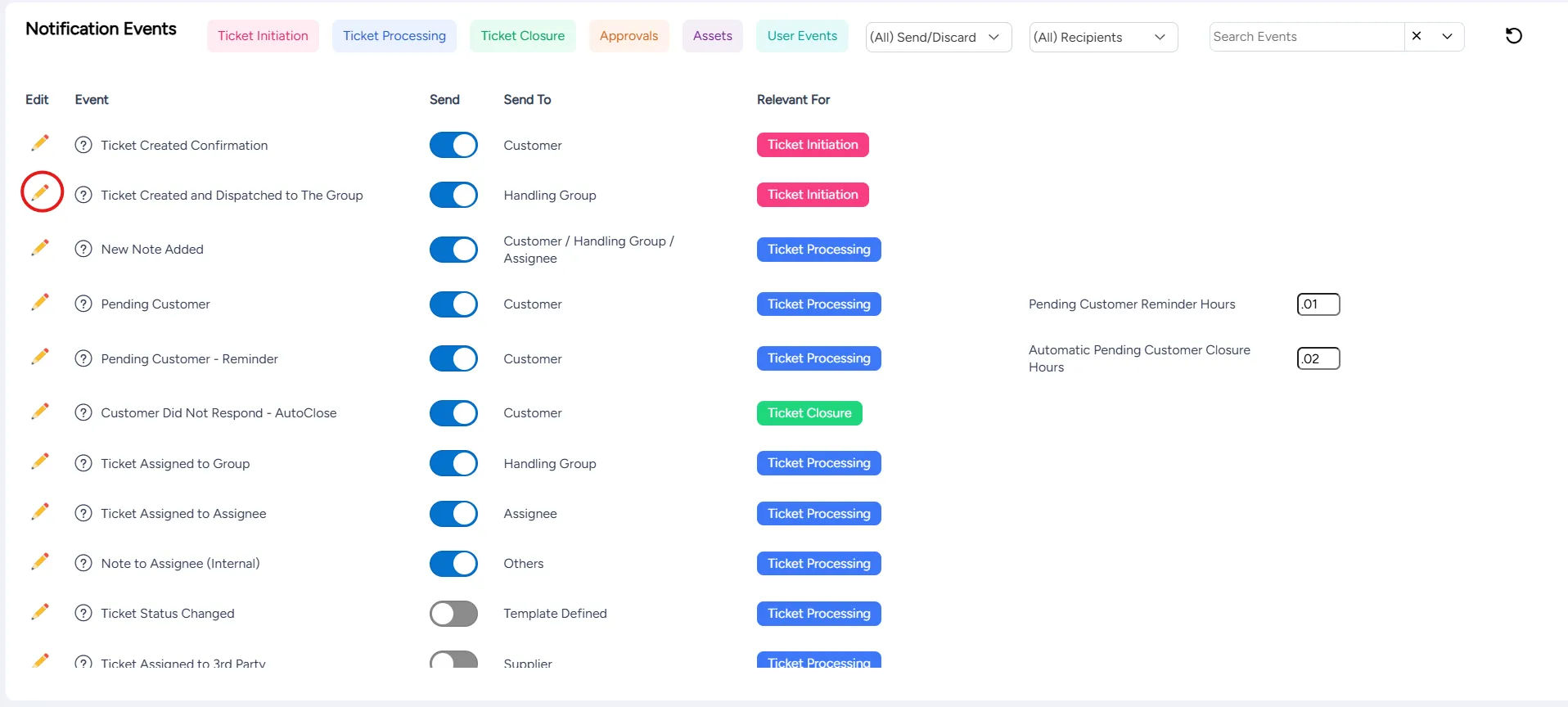
If needed, edit the After Hours settings:
Field | Description |
|---|---|
After Hours Message Enable | Select to send out After Hours emails |
Working Hours (SLA Template) | Select the SLA template used to determine working hours |
Replace String In HTML templates | Enter the string substitution that will be replaced with the After Hours Message in the template's HTML code |
Replace With After Hours Message | Enter the After Hours Message to be substituted Example: Please note our working hours:
Sunday - Thursday 08:00 - 19:00
Friday 08:00 - 13:00 |
Using string substitutions in email templates
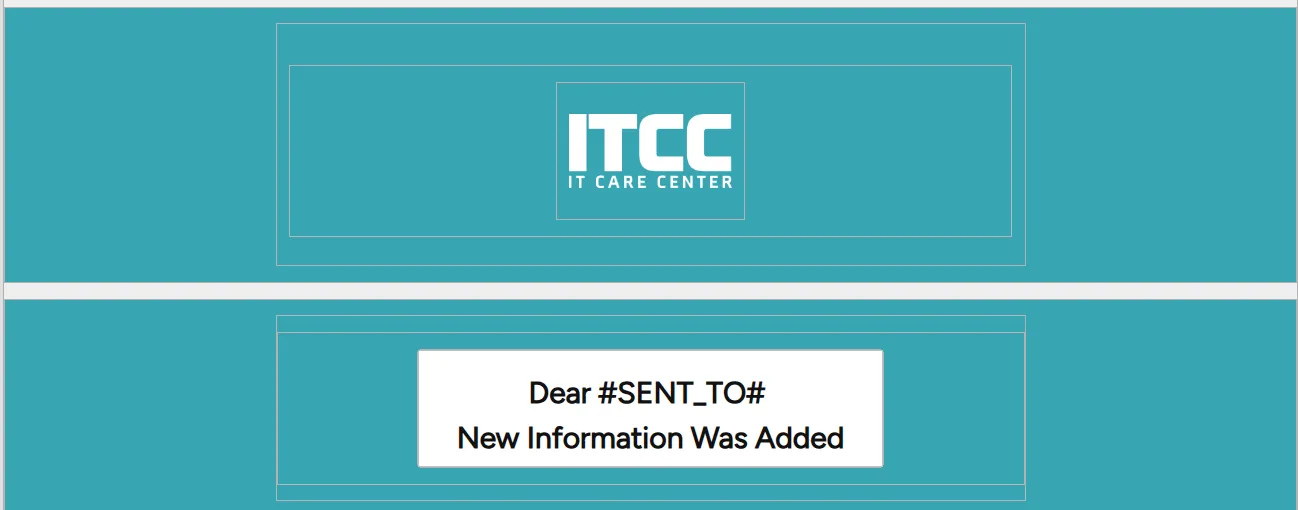
Your email templates can contain variables that are substituted for their values when the emails are sent out.
For example, in the template in the following figure, the #SENT_TO# variable is replaced by the name of the user to whom the email is sent.
Common string substitutions
The ITCC system includes many string substitutions. Some are only available for the body of the email, and others are also available for the subject.
Each template includes a list of frequently used string substitutions at the bottom of the template dialog.
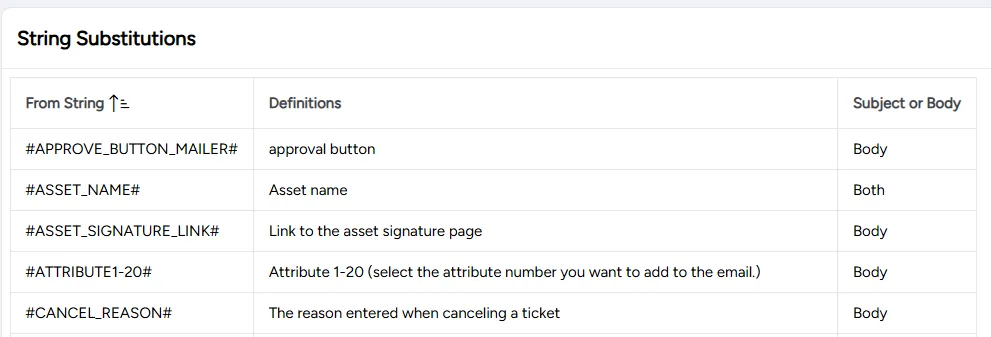
Some common string substitutions are listed in the following table.
String | Substitute for | Subject or body |
|---|---|---|
#CASE_ID# | Case number | Both |
#CASE_PROBLEM_DESC# | Case problem description | Both |
#CASE_URL# | Link to open the case | Body |
#CLOSE_DATE# | Date the case was closed | Both |
#CURRENT_OWNER# | User name of the current ticket owner | Both |
#END_USER# | User's full name | Both |
#FROM_USER# | User who sent the email | Both |
#RESOLVED_BY# | User name of the resolver | Both |
#STATUS_NAME# | Current status code of the ticket | Both |
Adding or editing an outgoing email template
You can add a new email template or edit an existing email template at any time.
To add or edit an outgoing email template:
On the Outgoing Email page, search for or scroll down to the event corresponding to the template you want to add or edit and select the Edit icon.

On the dialog that opens:
- To create a new email template: select Create New Format
- To edit an existing template: scroll down to or search for the template you want to edit and select the Edit icon

In the dialog that opens, enter or edit the email template's settings.
Field | Setting |
|---|---|
Event Secondary Code | (For escalation events only) Select the specific escalation event |
For Type | Select ticket type to associate this email template with; default is all ticket types |
Language | Select the language of this email template |
Active | Select to activate this template |
SMS | Select to send over SMS |
For category | Select category to associate this email template with; default is all categories |
Email Subject | Enter email subject |
Override Recipients | If you want this email to be sent out to someone other than the default recipient, enter the recipients' information, such as an email address or other identifying attributes |
Add CC | Enter additional email recipients |
HTML body | Enter the body of the email; use the Source icon to switch to HTML view |
Mobile Push Notification | Select to enable mobile push notifications from the ITCC system |
Text Only | Enter text to be sent when the email or message is text only |
List of variables that can be used in an email template, to be replaced by their values when the email goes out |
Select:
- Add to add a new email template
- Save to save changes to an existing email template
Recognized events
The following notification events are recognized by the system and are available for associating an email template with:
Event category | Event | Description | Additional field |
|---|---|---|---|
Ticket Initiation | Ticket Created Confirmation | Notify the requester that their ticket was created | |
Ticket Initiation | Ticket Created and Dispatched to The Group | Notify the group that a new ticket was dispatched to them | |
Ticket Processing | New Note Added | Notify the recipient of the new note
| |
Ticket Processing | Pending Customer | Notify the requester that their response is required | Pending Customer Reminder Hours |
Ticket Processing | Pending Customer - Reminder | After the time specified in Pending Customer Reminder Hours, remind the requester that their response is required | Automatic Pending Customer Closure Hours |
Ticket Closure | Customer Did Not Respond - AutoClose | After the time specified in Automatic Pending Customer Closure Hours, notify the requester that their ticket was automatically closed due to lack of response | |
Ticket Processing | Ticket Assigned to Group | Notify a group that an existing ticket was manually assigned to them | |
Ticket Processing | Ticket Assigned to Assignee | Notify an agent that a ticket was assigned to them, either automatically or manually | |
Ticket Processing | Note to Assignee (Internal) | Notify the note recipient that a note was sent to them | |
Ticket Processing | Ticket Status Changed | If corresponding template exists, notify the recipients specified in the template that the ticket status changed | |
Ticket Processing | Ticket Assigned to 3rd Party | When supplier selected and supplier notifications enabled, notify the supplier | |
Ticket Processing | Calendar Invitation (Outlook) | Notify meeting attendees of an upcoming meeting | |
Ticket Initiation; Ticket Processing | Ticket Escalated | When ticket meets an escalation condition, notify recipients specified in corresponding template | |
Ticket Closure | Ticket was Resolved | Notify the requester that their ticket was resolved and request resolution approval | Resolution Reminder Hours |
Ticket Closure | Ticket was Resolved - Reminder | After the time specified in Resolution Reminder Hours, remind requester to approve or reject ticket resolution | Automatic Closure Hours |
Ticket Closure | Ticket was Closed | After requester approves resolution or after the time specified in Automatic Closure Hours, notify requester that the ticket was closed | |
Ticket Closure | Request Rejection | For request ticket, if request was rejected, notify the requester | |
Ticket Closure | Ticket Cancellation Confirmation | Notify the requester that their ticket was canceled | |
Ticket Closure | Resolve Next Version To Customer | Notify the requester that the problem will be resolved in the next version of the product | |
Ticket Processing | Ticket Reopened Notification | Notify the handling group or the assignee that a ticket assigned to them is reopened | |
Approvals | Approval Request | Notify designated approvers of a new approval request | |
Approvals | Digital Approval Form | Send the digital approval form to the designated approver | |
Ticket Initiation | Ticket Plan Start Notification | Notify the handling group or assignee of the upcoming ticket planned start date | |
User Events | MFA Code Verification | Send a Multi-Factor Authentication (MFA) code to the user for verification | |
Assets | Asset Signature | Request a signature from the asset owner | |
Assets | Consolidated Asset Signature | Request a single signature for multiple asset assignments from the asset owner | |
Assets | Safety Stock Alert | If a corresponding template exists, notify the Safety stock group about minimum asset quantity | |
Assets | Asset Loan Return Reminder | Remind asset owner about upcoming loan due date; number of hours before the due date is specified in Asset Loan Return Reminder Hours | Asset Loan Return Reminder Hours |
Assets | New Installed Software Notification | If software item is configured to send a notification upon installation, notify members of the corresponding notification group | |
Ticket Initiation | Ticket Created and Dispatched to Dynamic Group | For a Change Request, notify agents in a group determined in real time that a Change management ticket was created and dispatched to them | |
Ticket Initiation | Ticket Created and Dispatched to Dynamic Group 2 | For a Change Request, notify agents in a group determined in real time that a Change management ticket was created and dispatched to them | |