Severities and priorities
What are severities and priorities? Severities and priorities overview
How do I add or edit a severity or priority? Adding or editing a severity or priority
How can severity be calculated automatically? Automatic calculation of severity
How do I relate severity or priority to a ticket type? Making a new severity or priority available to a ticket type
Severities and priorities overview
In the ITCC system, each ticket can be assigned values for severity, impact, and urgency. Your organization can use one or more of these designations.
These values are used to determine the order of handling open tickets and to calculate SLA target times.
During setup, an administrator determines possible values for severity, impact, and urgency and configures their visibility to agents and end users.
Many organizations only use severity, for simplicity. An end user can be given an option to assign severity when opening a ticket. An agent can assign a severity value to a ticket or change it at any time while processing a ticket.
The ITCC default values for severity are:
- Low
- Medium
- High
- Critical
For organizations that need more precise severity settings, ITCC offers the following:
Setting | Description | Default values |
|---|---|---|
Impact | Represents how the organization is affected by the issue, based on how many users are impacted |
|
Urgency | Represents how quickly the issue must be resolved |
|
Severity | Based on a combination of impact and urgency; can be set by user or calculated automatically |
|
For example, an organization can have the following severities and priorities:

When a new ticket is opened, it can have a default severity or the user can be asked to select a severity, as in the following figure:
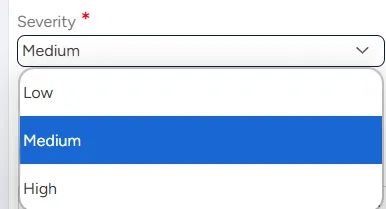
Severity can also be calculated automatically based on priority, impact, and urgency.
Setting up severities and priorities
You can set up severities and priorities at any time.
To set up severities and priorities:
On the left side menu, select Administration.
In the search bar under Search for Admin Configuration Options, type Severities & Priorities and select the Severities & Priorities option that appears.

On the Severities & Priorities page, you can:
Adding or editing a severity and priority
You can add or edit a severity and priority at any time.
To add a severity and priority:
On the Severities & Priorities page:
- To add a new severity or priority: select Add
- To edit a severity or priority: scroll down to the severity and priority you want to edit

Enter or edit the severities and priorities settings:
Field | Description |
|---|---|
Level | Enter a number value, with 1 being the lowest priority and each consecutive number corresponding to a higher level of priority than the previous one |
Name | Enter a meaningful name for this level of priority |
Active | Select to activate this priority in the system |
Priority | Select if this entry is used as priority |
Impact | Select if this entry is used as impact |
Urgency | Select if this entry is used as urgency |
Severity | Select if this entry is used as severity |
Language | Enter or edit Translations of the name into different languages |
History | Select to view the Administration Audit Log, listing all changes made to this severity and priority by the administrators |
Select Save.
Disabling a severity and priority
You can disable a severity or priority at any time. A disabled severity and priority can be enabled at any time.
To disable a severity and priority:
On the Severities & Priorities page, scroll down to the severity and priority you want to delete.
Clear the checkbox in the Active column.

Select Save.
Automatic calculation of severity
When impact, urgency, and severity calculation are enabled in ticket type setup, the system calculates severity automatically based on impact and urgency.
By default, the following matrix is used for severity calculation:
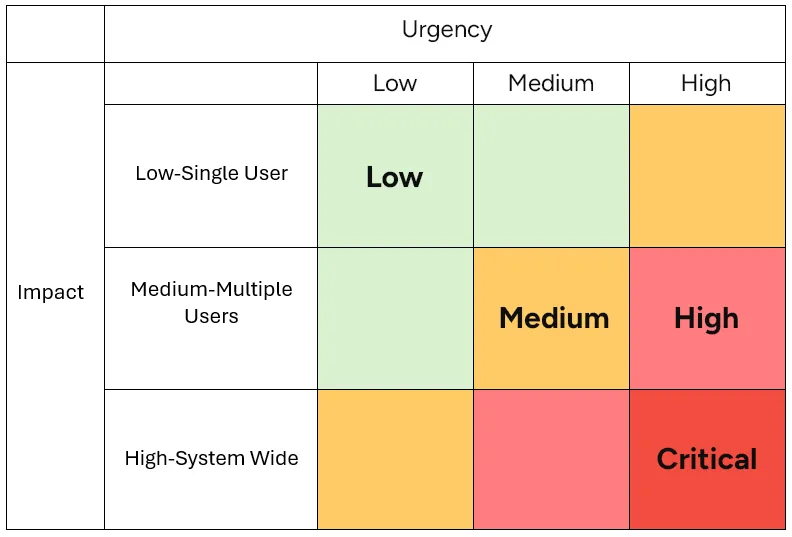
You can customize the calculation to meet your organization's needs.
Automatic severity calculation matrix settings
Each combination of impact and urgency appears as a separate rule in Defaulting Options.

The following fields are used in the rule setup:
Field | Description |
|---|---|
Setup Code | Common name for this set of rules, such as ITCC_DEF_SEVERITY |
Setup Desc | Descriptions of the variables and values used in this set of rules, such as: Char1=Impact
Char2=Urgency
result Char3=Severity |
Att Char 1 | For this particular rule, value of Char1 (Impact) |
Att Char 2 | For this particular rule, value of Char2 (Urgency) |
Att Char 3 | For this particular rule, value of Char3 (Severity result) |
Customizing automatic severity calculation
You can customize the automatic severity calculation at any time by editing the rules of the severity matrix.
To edit the severity matrix:
On the left side menu, select Administration.
In the search bar under Search for Admin Configuration Options, type Defaulting Options and select the Defaulting Options option that appears.
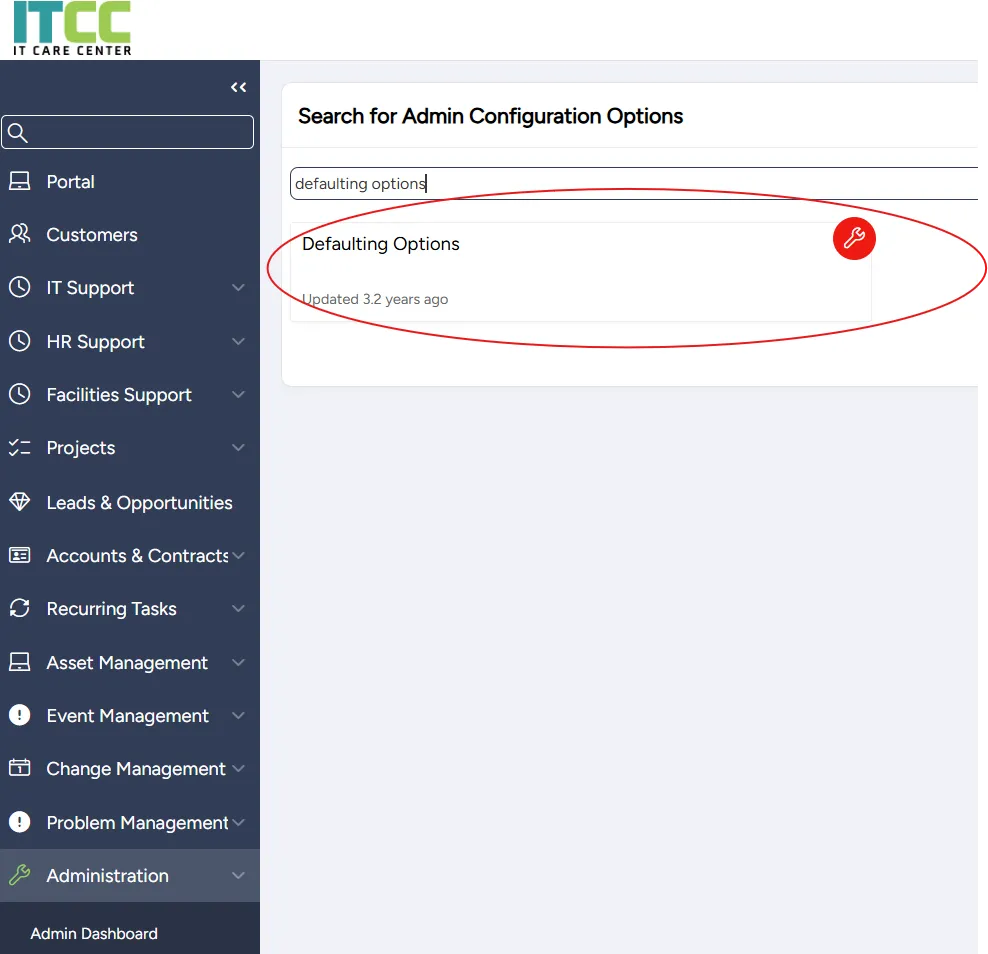
On the Defaulting Options page that opens, in the search bar, type severity and select Go.

- To add a new rule: select Add
- To edit an existing rule: select the Edit icon in the first column of its corresponding row

Enter or edit the rule's settings. To delete a rule, select Delete.
Select Save.
Making a new severity or priority available to a ticket type
When you add a new severity or priority, it is automatically available to those ticket types that allow all values of severities and priorities.
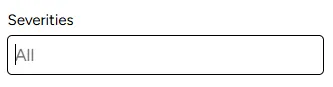
If a ticket type allows only certain values of severities and priorities and you want to make the new severity or priority available to it, you need to add it to the ticket type.
To add a severity or priority to a ticket type:
On the left side menu, select Administration.
In the search bar under Search for Admin Configuration Options, enter Ticket Types and select the Ticket Types option that appears.
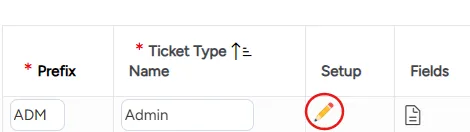
Search for or scroll down to the ticket type to which you want to add the severity or priority and select its Edit icon.
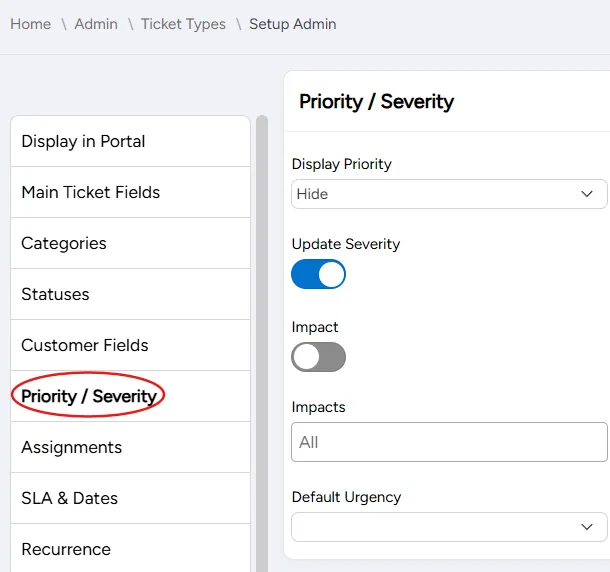
On the Setup Admin page that opens, on the menu on the right, select Priority/Severity.
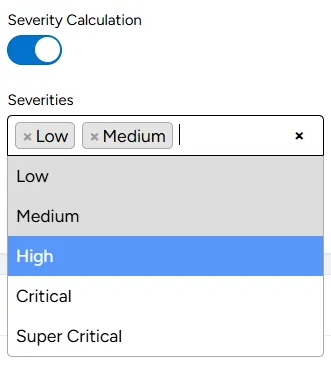
From the Severities dropdown menu, select the severity or priority you want to add.
Select Save.