Roles
What are roles? Roles overview
What roles are predefined in ITCC? Predefined roles
How do I add a new or edit an existing role? Adding or editing a role
How do I add a user to a role? Adding a user to a role
How do I disable a role? Disabling a role
Roles overview
The ITCC system includes the Roles capability, which enables you to manage authorizations and roles in your organization.
Roles in the system encapsulate specific permissions and are linked to a list of users. Role assignments govern what actions users are authorized to perform. Administrators can add or remove users from roles as needed.
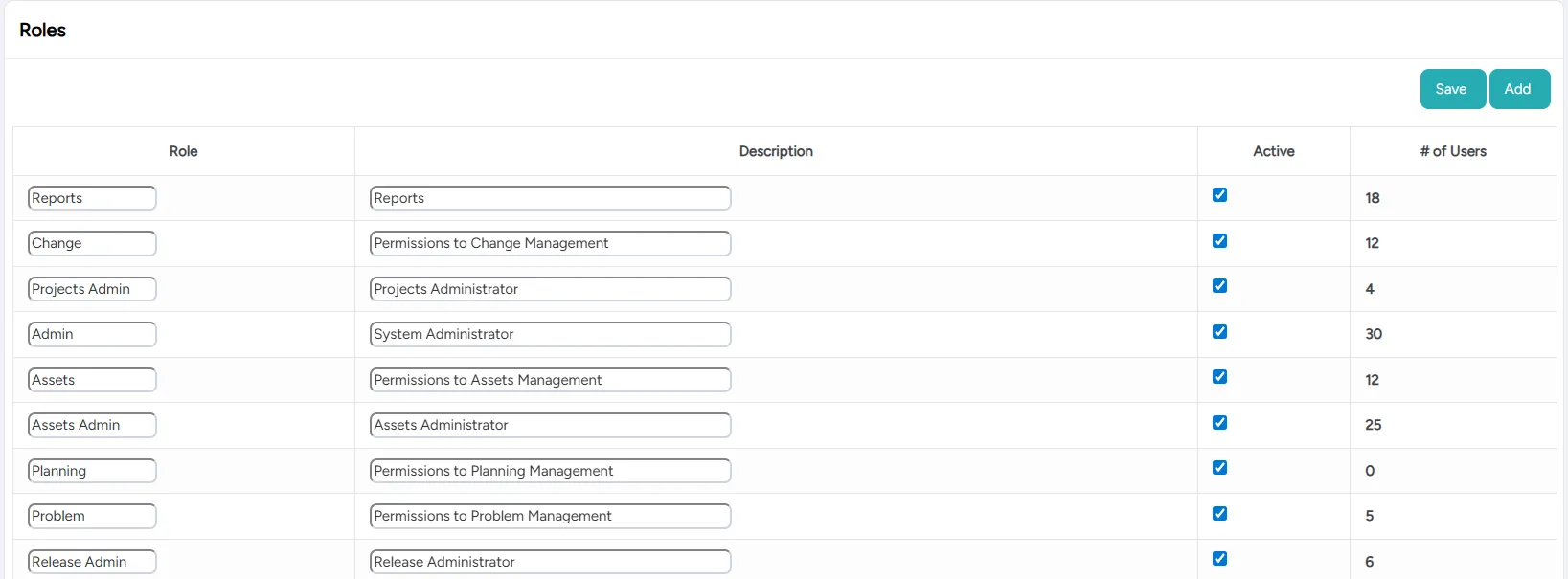
For example, the Admin role can include the system administrators who have full access to all system settings and user management features. The Change role can include those users who have access to the Change Management capability.
The following example demonstrates the roles set up in an organization:
Predefined roles
The ITCC system comes with the following predefined roles:
Role | Function |
|---|---|
Admin | Able to configure the system, access the Admin dashboard |
Assets | Access to the Asset Management module as a viewer |
Assets Admin | Access to the Asset Management module as an editor |
Knowledge Contributor | Access to the Knowledge Management module as an edit |
Change | Access to the Change Management module |
Problem | Access to the Problem Management module |
Planning | Access to the Project Managment module |
Reports | Access to the Analytics module |
Accounts Admin | Access to the Accounts & Contracts menu |
Setting up roles
You can set up roles at any time.
To set up roles:
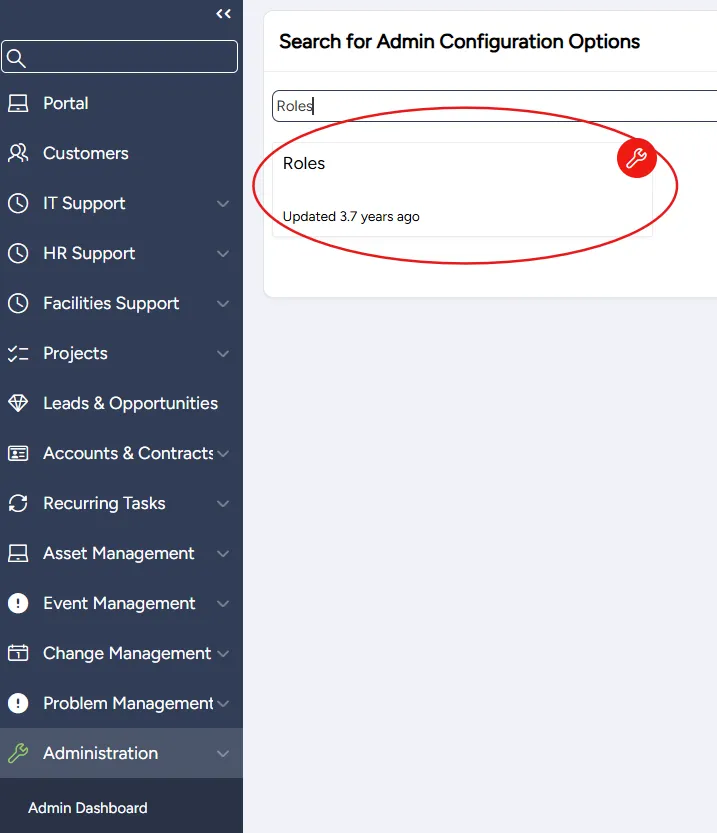
On the left side menu, select Administration.
In the search bar under Search for Admin Configuration Options, type Roles and select the Roles option that appears.
Adding or editing a role
You can add a new role or edit an existing role at any time.
To add or edit a role:
On the Roles page:
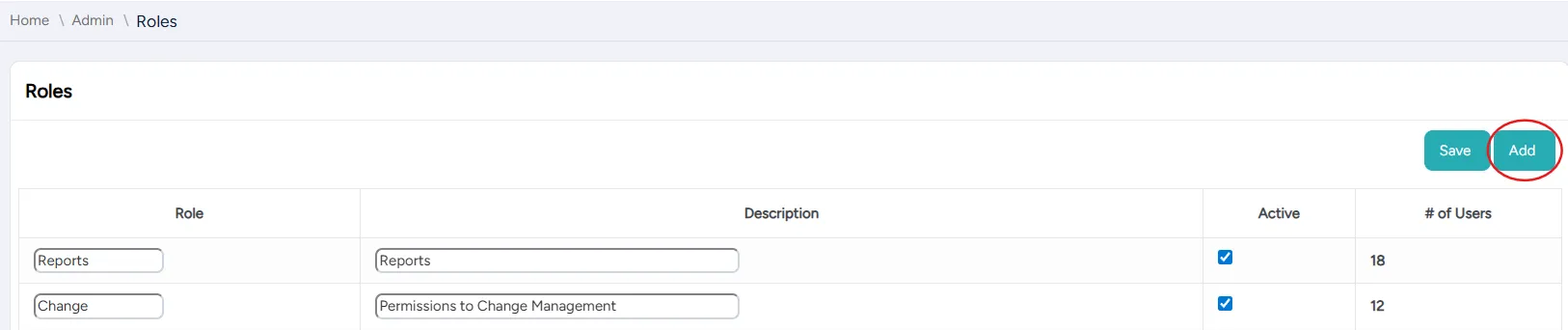
- To add a new role: select Add; a new row is added
- To edit a role: search for or scroll down to the role you want to edit
Enter or edit the following role settings:
Field | Description |
|---|---|
Role | Enter a meaningful name for the role |
Description | Enter a description of the role |
Active | Select to activate the role |
If adding a new Role, select Save.
Click on the entry in the # of Users column (a number or (null)) to add or edit users who have this role.

In the Roles Assigned to Users dialog that opens, use the spreadsheet to add or edit users. For temporary role assignments, enter the Effective End Date.

Select Save and close the dialog.

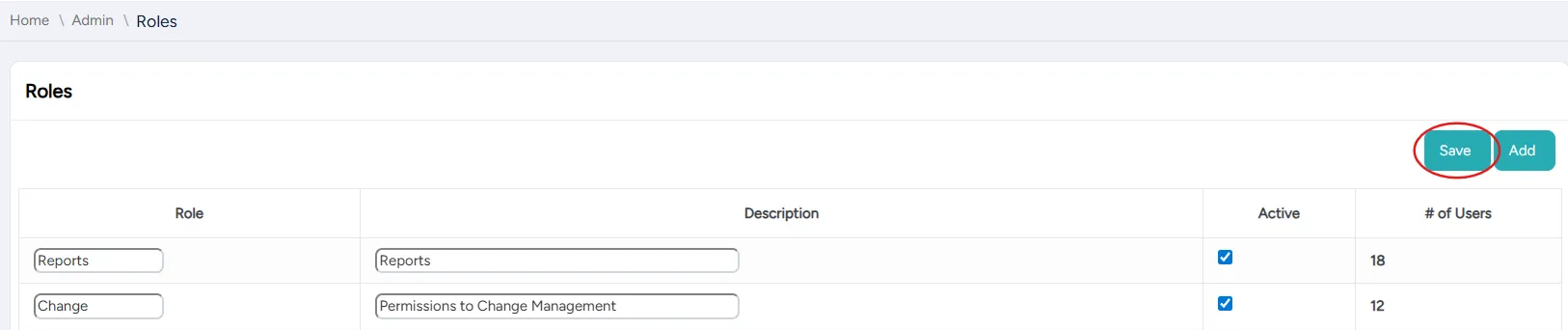
On the Roles page, select Save.
Disabling a role
You can disable a role at any time. A disabled role can be activated at any time.
To disable a role:
On the Roles page, search for or scroll to the role you want to disable.
In the row corresponding to the role, clear the checkbox in the Active column.
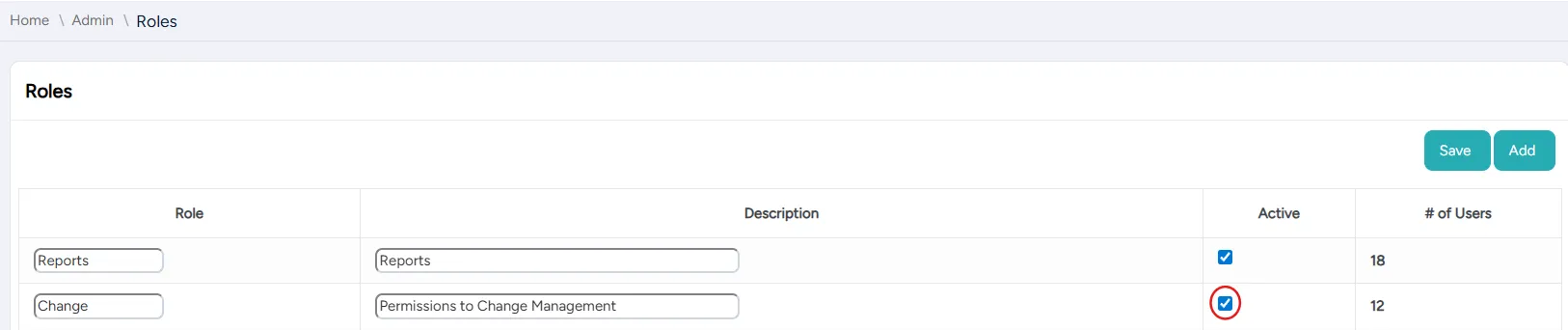
Select Save.
Adding a user to a role
You can add a user to a role at any time.
To add a user to a role:
On the Roles page, search for or scroll to the role to which you want to add a user.
In the row corresponding to the role, select the entry in the # of Users column (either a number or (null) if the role does not yet have users).
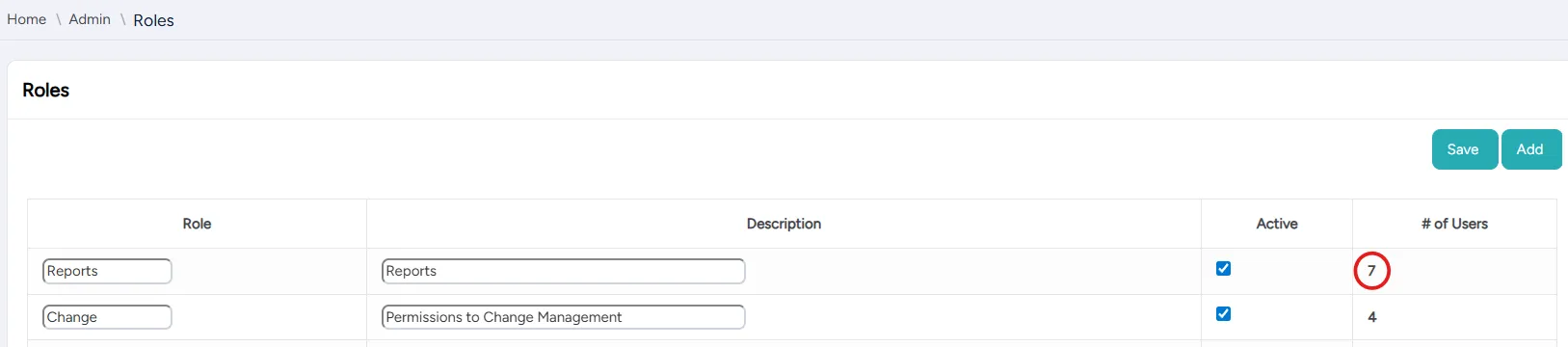
In the Roles Assigned to Users dialog that opens, select Add.

In the new row that appears:
- In the User column, select the user you want to add to this role.
- If the role is temporary, in the Effective End Date column, enter the end date.

Select Save.