Service Level Agreement (SLA)
How to create a new SLA template or edit an existing SLA template? Add a new or edit an existing SLA Template
How to attach an SLA template to ticket types/categories? Using an SLA template
How to disable an SLA template? Disable an SLA template
SLA Overview
SLA templates enable administrators to establish expectations about timeframes for ticket resolution.
An SLA target is a window of time, measured in hours, within which a ticket must be responded to, handled, or resolved.
If your organization provides service across multiple sites, and each site has different working hours, you can set up separate SLA templates for each site to define its working hours and specify the relevant timezone.
SLA targets can be calculated based on your organization's time zone or your user's time zone.
Each ticket type can have its own SLA template. Within a ticket type, each level of priority/severity can have its timeframes.
For example, SLA Targets by Priorities/Severities can look like this:
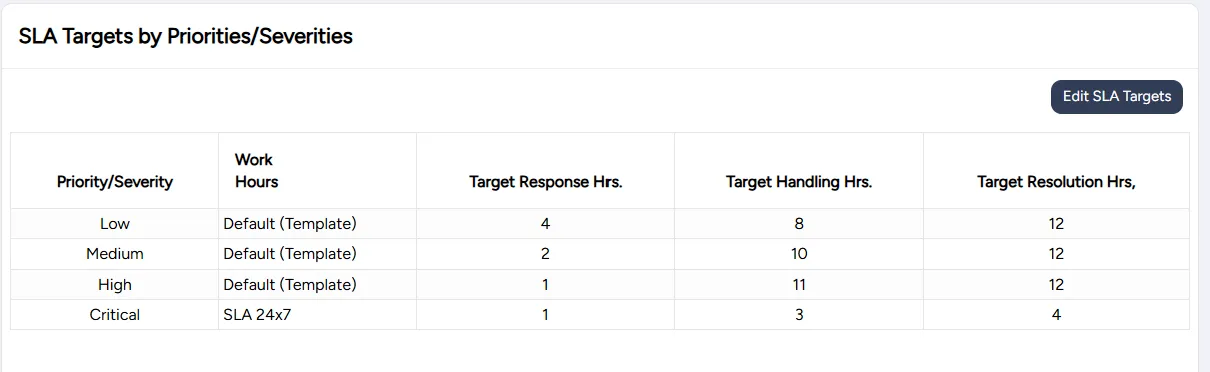
Each time frame consists of the following components:
Component | Description |
|---|---|
Target Response Hours | Maximum time from the moment a ticket is opened till the ticket is assigned to an agent or the ticket's status changes (i.e., from New to In Process) |
Target Handling Hours | Maximum time for resolving the ticket after the ticket is assigned to this agent, measured from when the Target Response Hours have been met |
Target Resolution Hours | Maximum total time to resolve the ticket from the moment it was opened (generally the sum of Target Response Hours and Target Handling Hours) |
SLA calculations begin as soon as a ticket is opened and continue throughout a ticket's lifecycle. When a ticket enters certain status codes, SLA can be paused. When a ticket changes its status, SLA is resumed.
For example, when an open ticket is pending a user's response, SLA is paused.
The administrators set up which status codes pause the SLA when setting up Ticket Lifecycle Status Codes
If your organization's support hours are not 24/7 then the SLA is calculated only during support hours. The SLA calculations are paused outside of service hours.
The SLA can also be paused for predefined exception dates. To set them up, see Adjusting for exception dates .
When a ticket is resolved, SLA calculations stop.
When an agent or an administrator views existing tickets, a flag icon indicates if a ticket is in compliance with the SLA. A green flag denotes compliance. A red flag denotes a breach in the SLA.

Supporting different time zones
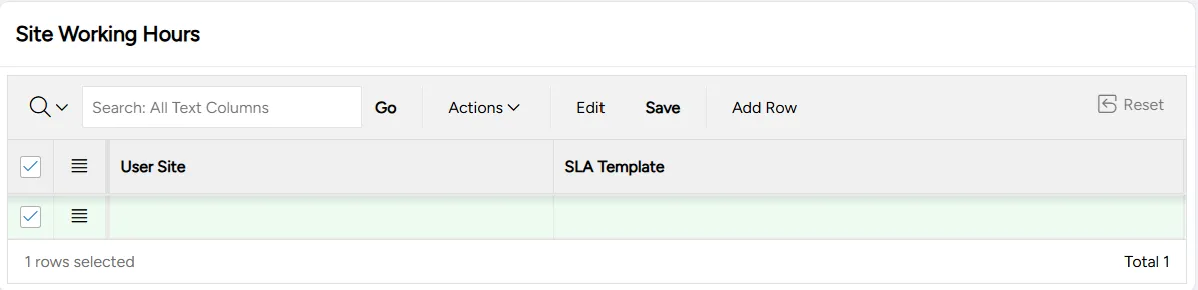
For organizations with multiple branches in different time zones, the ITCC system includes the Site Working Hours spreadsheet, where each site is listed together with its corresponding SLA template.
Each site's SLA template can maintain the same targets while accommodating different time zones and service hours.
You can set up the Site Working Hours spreadsheet when adding or editing an SLA template, in step 5.
Setting up SLA templates
You can set up SLA templates at any time.
To set up SLA templates:
On the left side menu, select Administration.
In the search bar under Search for Admin Configuration Options, type SLA Templates and select the SLA Templates option that appears.
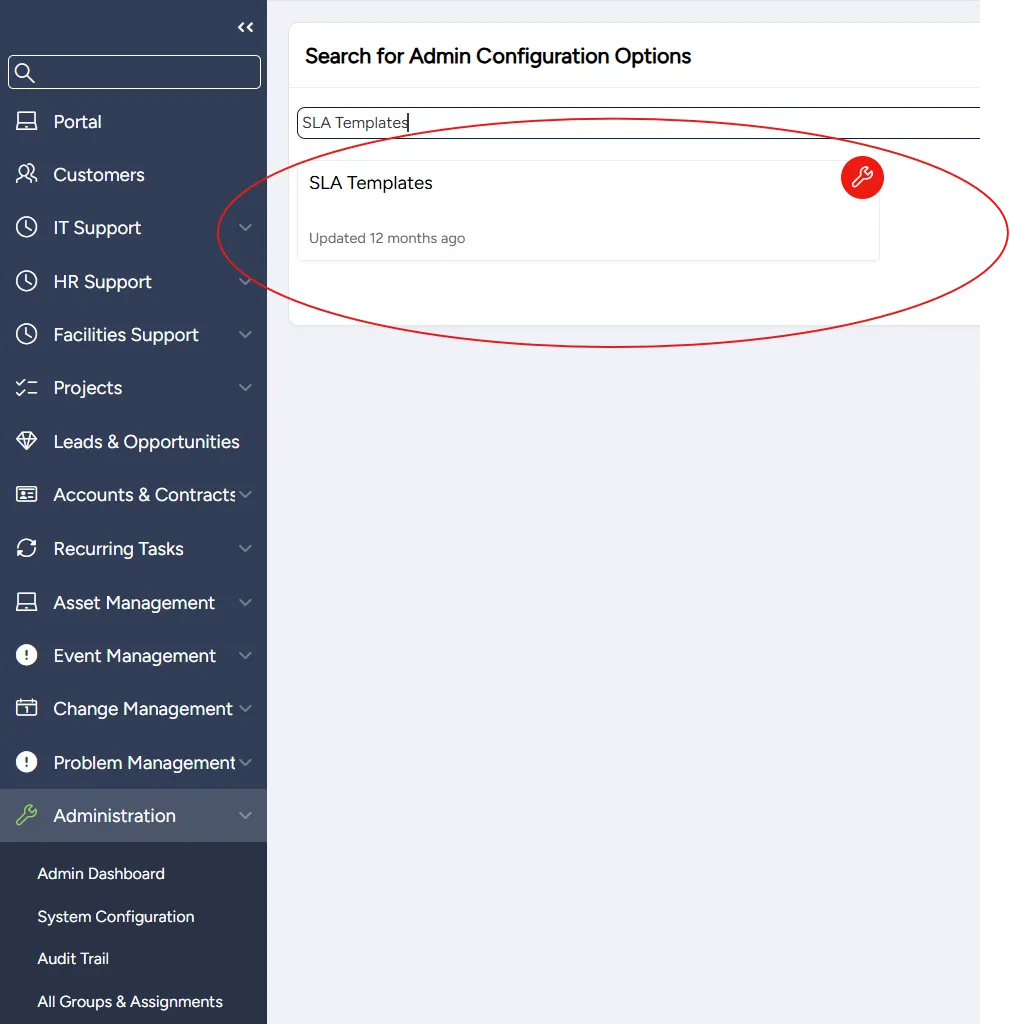
Adding a new or editing an existing SLA template
You can add a new or edit an existing SLA template at any time.
After you add a new SLA template, you need to attach the new template to a ticket type or a category.
To add or edit an SLA template:
On the SLA Templates page:
- To add an SLA template: select Add
- To edit an SLA template: scroll down to the template you want to edit and select the corresponding Edit icon
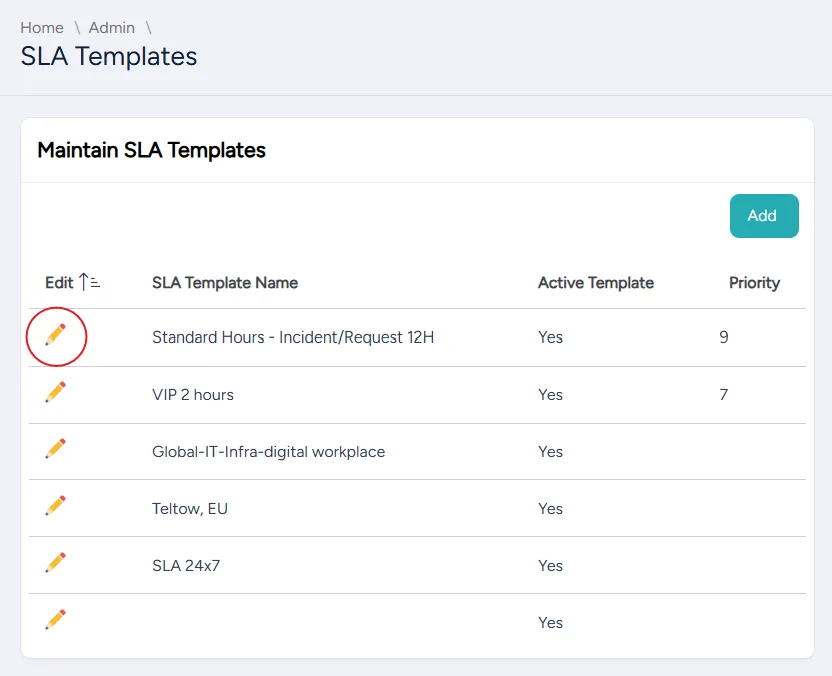
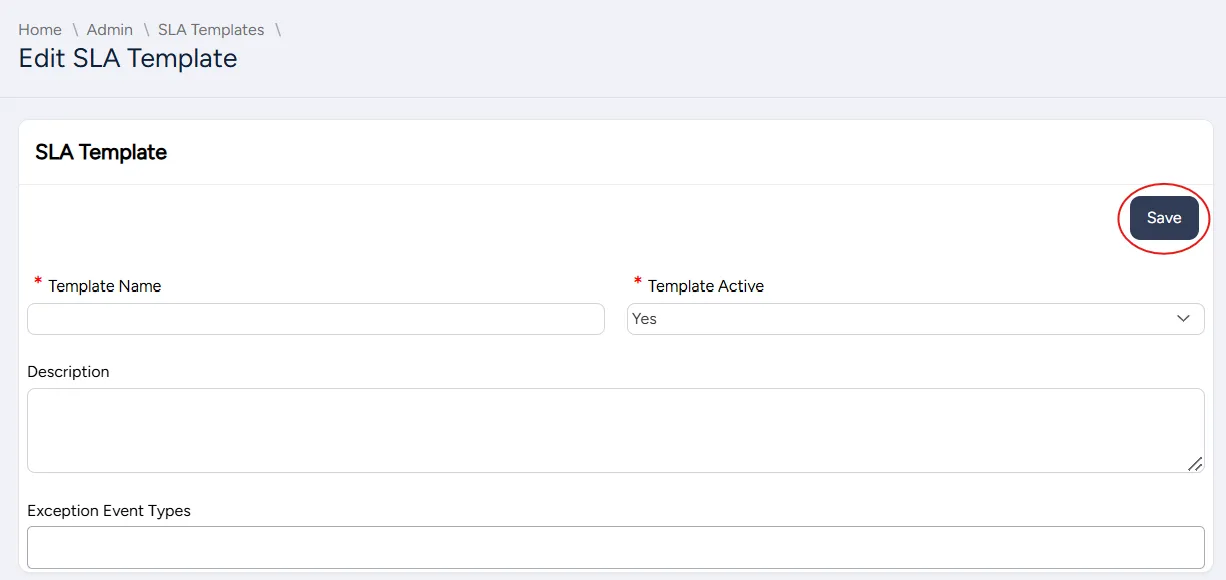
On the Edit SLA Template page that opens, enter or edit the SLA fields:
Field | Description |
|---|---|
Template name | Enter a meaningful name for the template |
Template active | Select to activate the template |
Description | Enter a description of the template |
Exception event types | Select types of exception dates when your organization does not provide support |
Service hours | Enter your organization's service hours |
24*7 | Select if your organization offers 24/7 support; this hides the days-of-the-week table |
Hours Based On | Select the time zone of your support hours:
|
Support Center Time Zone | Select the time zone where the support center is located |
Days-of-the-week table | Enter your service hours for each day of the week |
Select Save.
If you are adding a new SLA template:
- Action Processed message pops up
- SLA Targets by Priorities/Severities area and the Child SLA Template spreadsheet appear
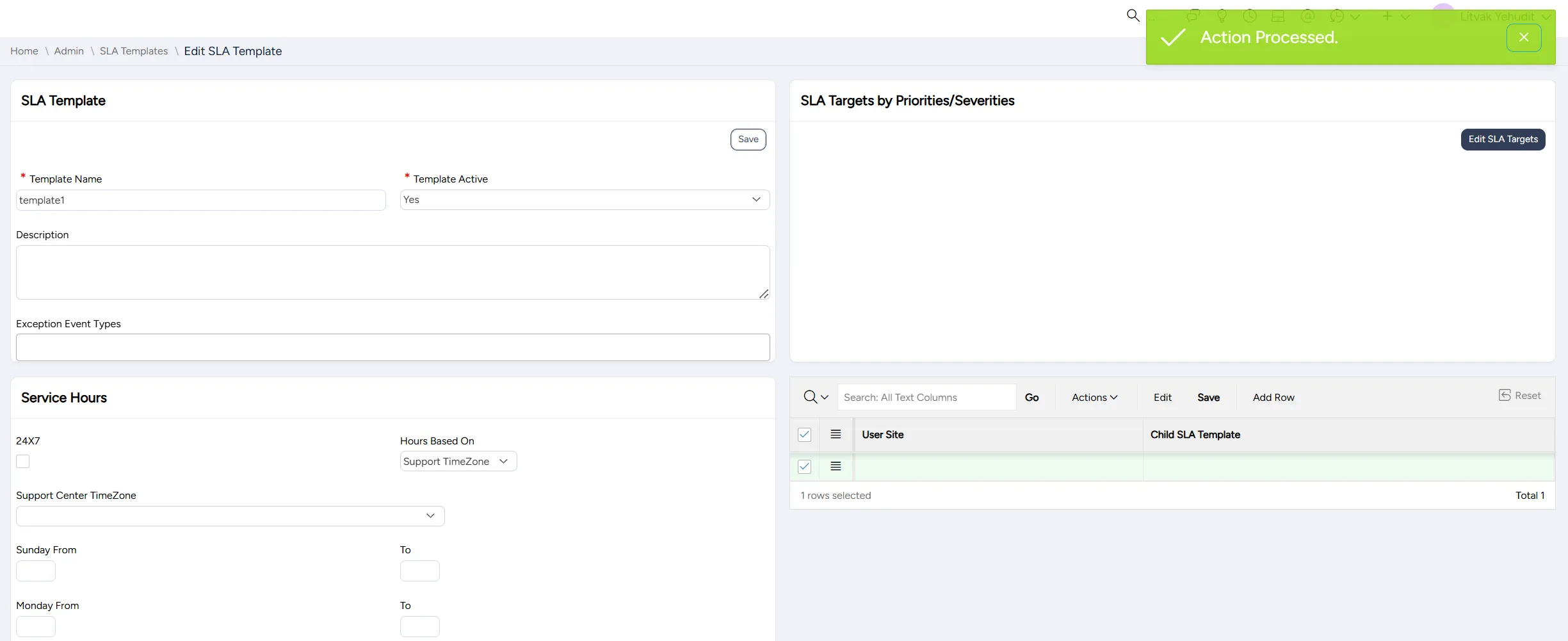
On the SLA Targets by Priorities/Severities, enter or edit your SLA targets:
Field | Description |
|---|---|
Target Response Hours | Set maximum time from the moment a ticket is opened till the ticket is assigned to an agent |
Target Handling Hours | Set maximum time for an agent to resolve the ticket after the ticket is assigned to this agent |
Target Resolution Hours | Set maximum total time to resolve the ticket from the moment it was opened (generally the sum of Target Response Hours and Target Handling Hours) |
If your organization has multiple locations with different SLA templates, fill in the Site Working Hours spreadsheet.
For each user site, select its corresponding SLA template.
Select Save.
Disabling an SLA template
You can disable an SLA template at any time. A disabled template can be enabled at any time.
To disable an SLA template:
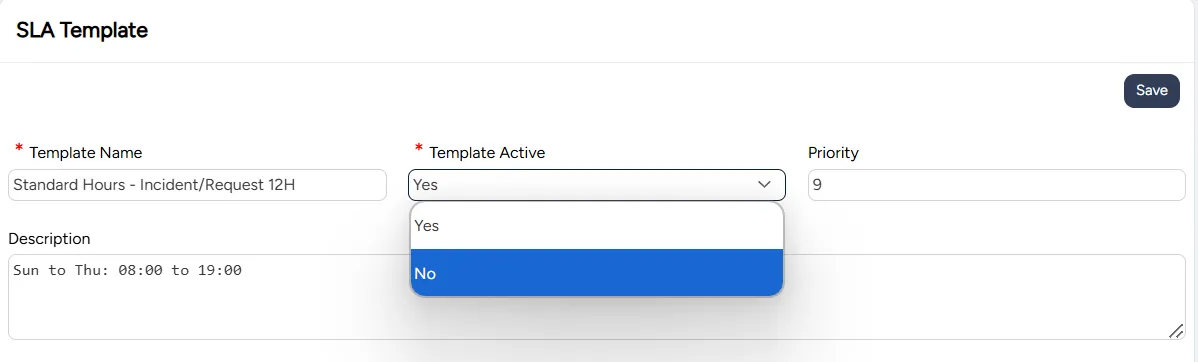
On the SLA Templates page, scroll down to the template you want to disable and select the pencil icon in the row corresponding to it.
On the SLA Template page that opens, in the Template Active dropdown list, select No.
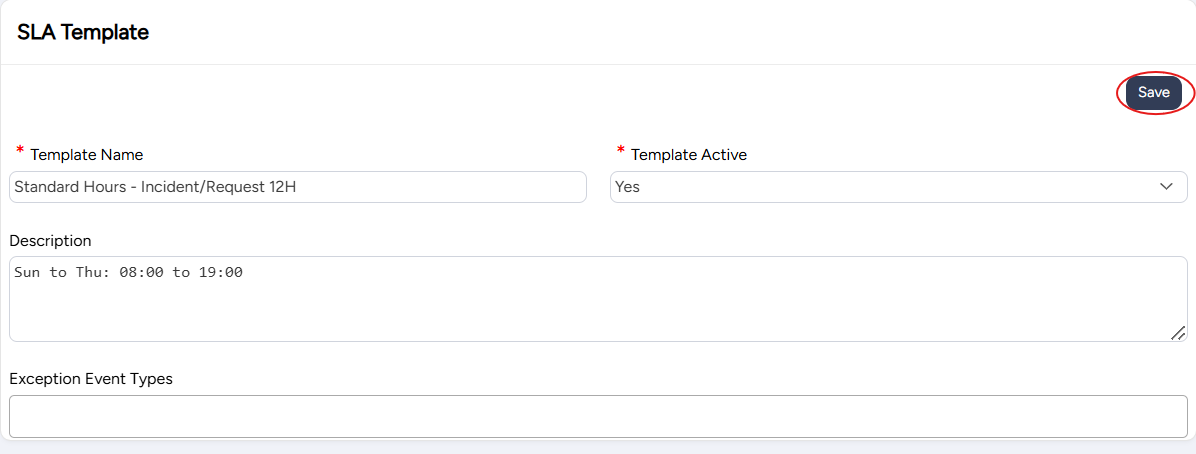
Select Save.
Using an SLA template
After you create an SLA template, you need to attach it to a ticket type in order to use it.
You can also attach an SLA template to a category. This is useful when you have different SLA targets for tickets of the same type. For example, if a certain category of tickets concerns critical services that need to be addressed immediately, you can create a separate SLA template for this category. The category SLA settings override the ticket type SLA settings.
Attaching an SLA template to a ticket type
You can attach an SLA template to a ticket type at any time.
To attach an SLA template to a ticket type:
On the left side menu, select Administration.
In the search bar under Search for Admin Configuration Options, type Ticket Types and select the Ticket Types option that appears.
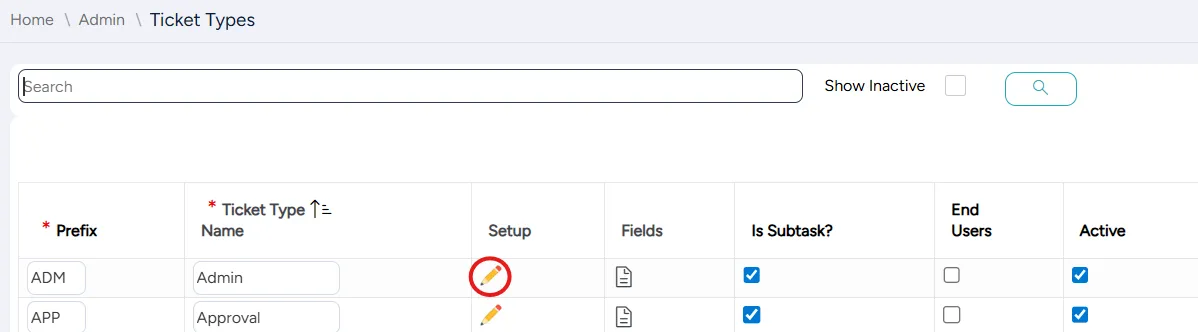
On the Ticket Types page, search for or scroll down to the ticket type you want to attach the SLA template to and select the Edit icon in its Setup column.
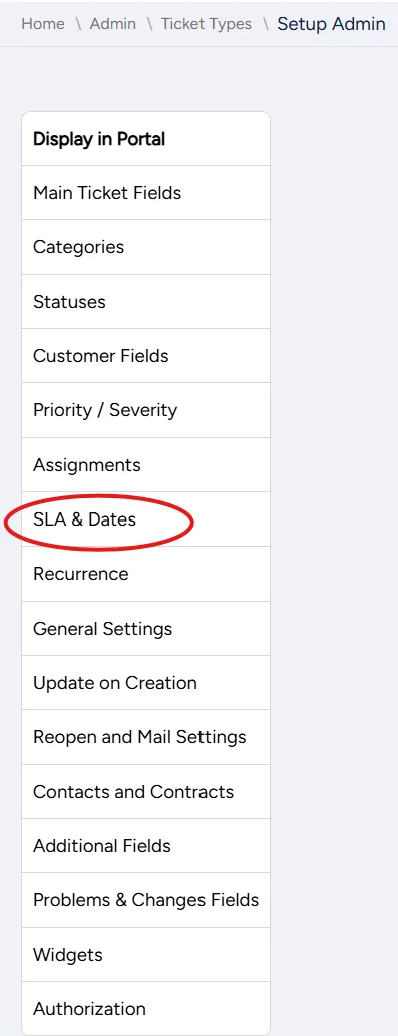
On the Setup Admin page, on the menu on the left, select SLA & Dates.
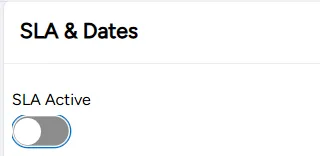
If SLA Active is off, toggle it on. The SLA Template dropdown menu appears.
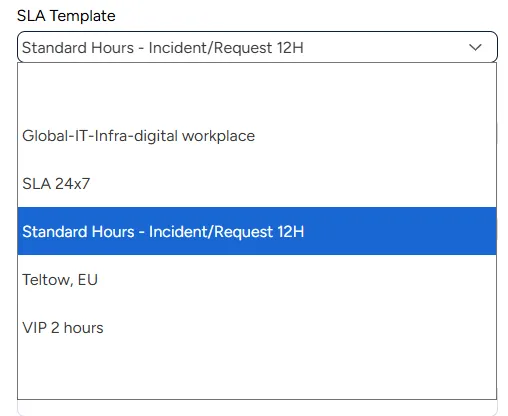
From the SLA Template dropdown menu, select the template you want to attach.
Select Save.
Attaching an SLA template to a category
You can attach an SLA template to a category at any time. The category SLA settings override the ticket type SLA settings.
To attach an SLA template to a category:
On the left side menu, select Administration.
In the search bar under Search for Admin Configuration Options, type Categories and select the Categories option that appears.
On the Categories page, search for or scroll down to the category you want to attach the SLA template to, and in its corresponding SLA column, select the SLA template you want to attach from the dropdown menu.
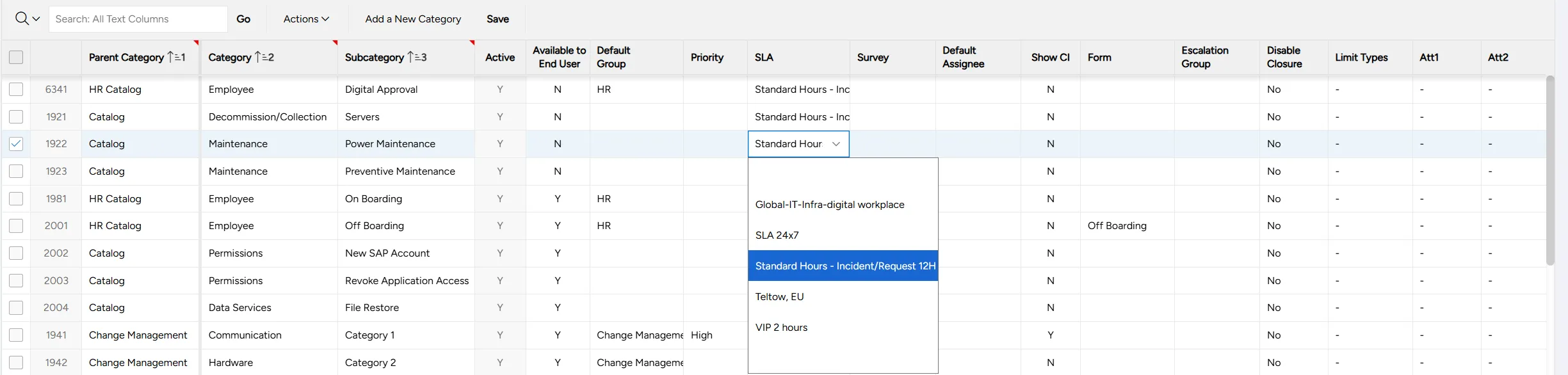
At the top of the spreadsheet, select Save.