Troubleshooting
This guide helps you identify and resolve common errors when generating a new token or experiencing a lost connection in ITCC.
New Token Possible Errors
Incorrect Client ID
The error message indicates an issue with the provided Client ID:
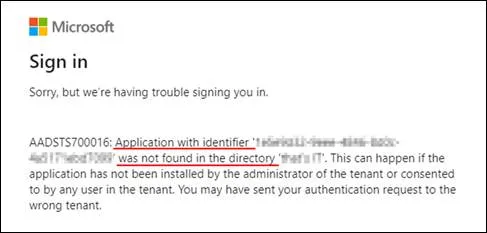
Solution: Verify your Client ID and ensure it matches the Azure app registration details.
Incorrect Tenant ID
The error message indicates an issue with the provided Tenant ID.
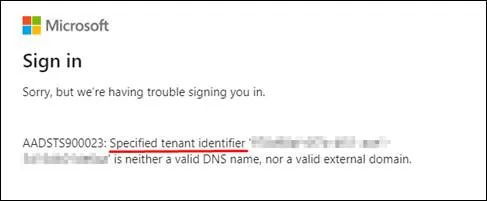
Solution: Verify your Tenant ID and ensure it matches the Azure app registration details.
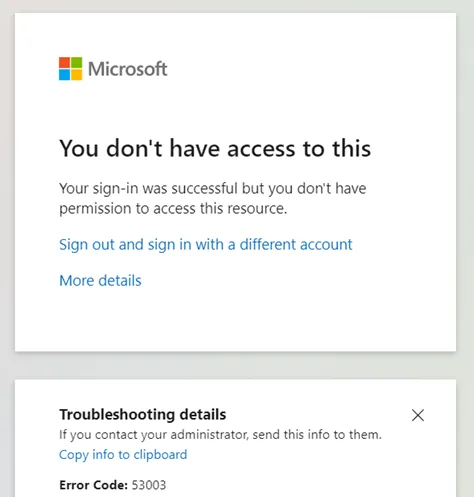
You don't have access to this
This error is likely caused by a permission issue related to a Group Policy Object (GPO).
For more details, refer to Microsoft's explanation: Your sign-in was successful, but you don’t have permission.
Lost Connection in ITCC
A lost connection between ITCC and Azure can occur for various reasons, including: network issues between the Azure server and the ITCC server (e.g., internal network problems or power outages), expired secret value, server restarts, or other unforeseen disruptions.
Client secret keys for app [app name] are expired
TKN.CODE/invalid_client AADSTS7000215: The provided client secret keys for app [app name] are expired.
This error signifies an expired Client Secret. Solution: 1. obtain a new client secret [how to create a new client secret] 2. Set the new client secret value in the ITCC connection: for incoming mail connection, open the Administration --> Incoming Mail Integration --> Enter the relevant mailbox --> Enter the new secret value in the "Client Secret" field --> Click on the save button. for Azure AD connection, open the Administration --> Azure AD Sync --> Enter the new secret value in the "Client Secret" field --> Click on the save button. for Azure Intune connection, open the Administration --> MS Azure Intune --> Enter the new secret value in the "Client Secret" field --> Click on the save button. for the oAuth2 connection, open the Administration --> Authentication --> Enter the new secret value in the "Client Secret" field --> Click on the save button.
3. Generate a new access code Generating Access Code [skip this step for oAuth2].
4. Click on the Save button and run by clicking on the "Run Once" button.
Invalid client secret provided
TKN.CODE/invalid_client AADSTS7000215: Invalid client secret provided
The error message points to an invalid Client Secret value being used. Solution: Verify you're copying the Client Secret value and not the Client Secret ID.