Surveys
After a ticket is resolved, the user can be asked to complete a survey about their experience.
The administrator can set up survey questions and rating scales, as well as the survey's visual appearance.
For example, a survey can look like this:
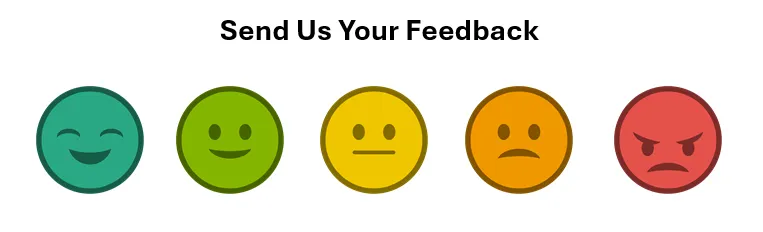
You can set up as many surveys as you want. Each survey can be associated with a ticket type or with a category.
Surveys can consist of:
- One question, included in the email informing the user of a successful resolution
- Multiple questions on a dedicated survey web page
It is recommended to use only one type of survey throughout the system in order to maintain accurate analytics.
Setting up an email survey
The email survey is included in the outgoing email template sent to the user upon ticket resolution or closure.
When the user clicks one of the survey icons in the email, their response is automatically sent back to the system via email.
Survey responses are recorded and reflected in the system's Analytics for reporting and evaluation purposes.
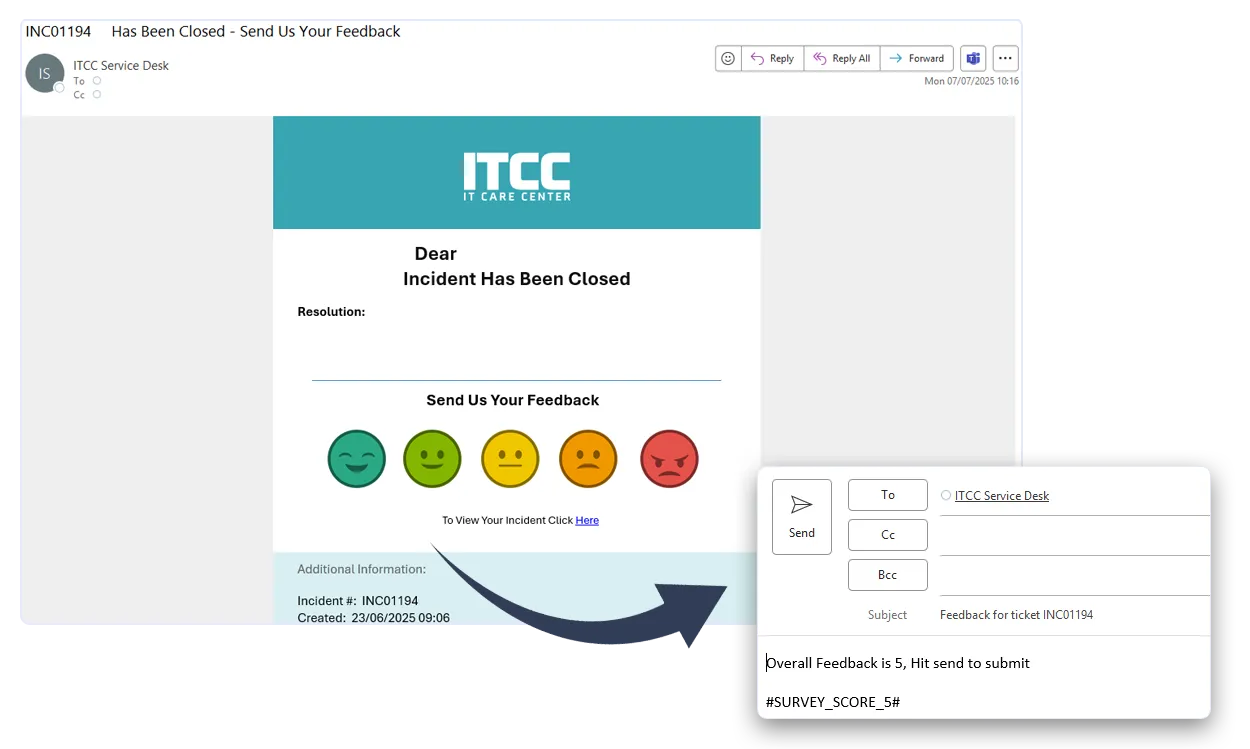
To include a survey in a resolution or closure email template, you have two options:
Option 1: Contact ITCC support
If you are not familiar with editing HTML templates, you can submit a request to the ITCC Support Team to insert the survey block into the relevant email event.
Option 2: Manual Configuration (Advanced)
To set up an email survey manually on your own:
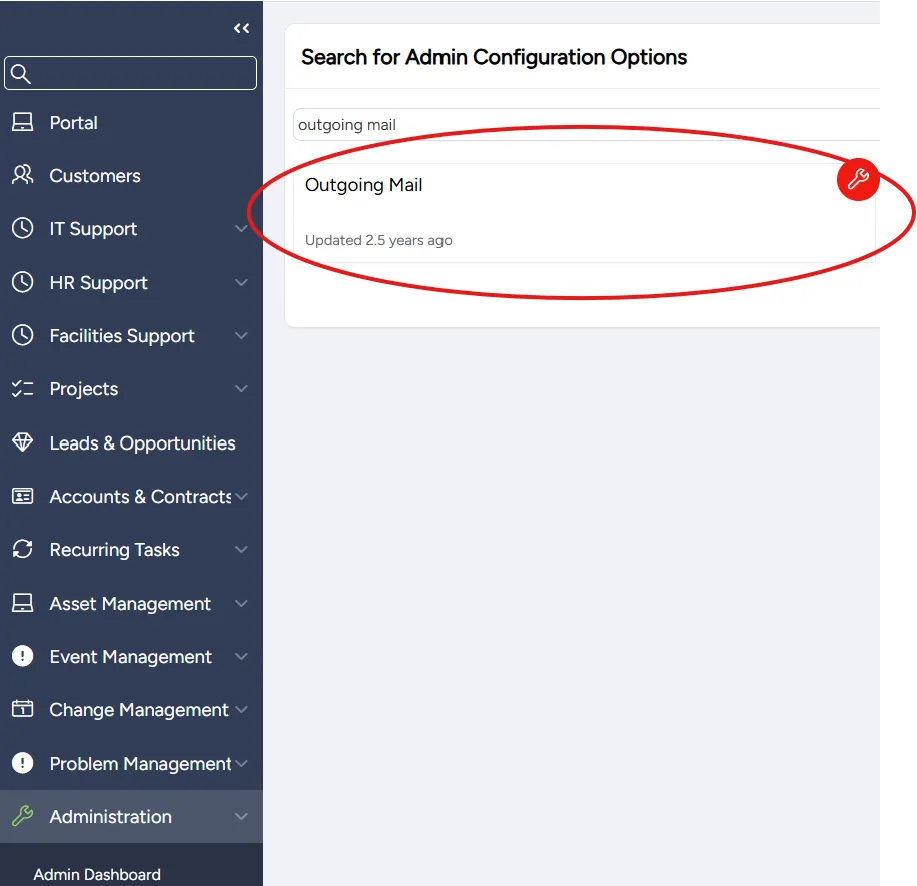
On the left side menu, select Administration.
In the search bar under Search for Admin Configuration Options, enter Outgoing Mail and select the Outgoing Mail option that appears.
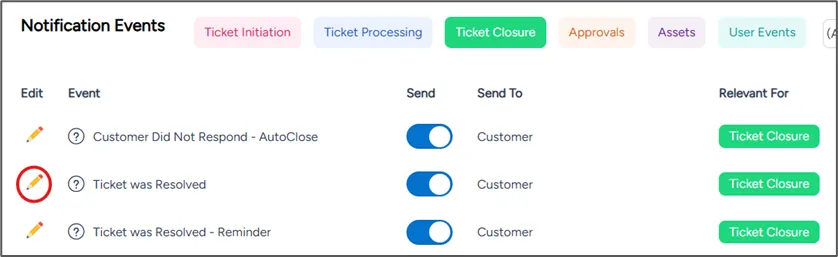
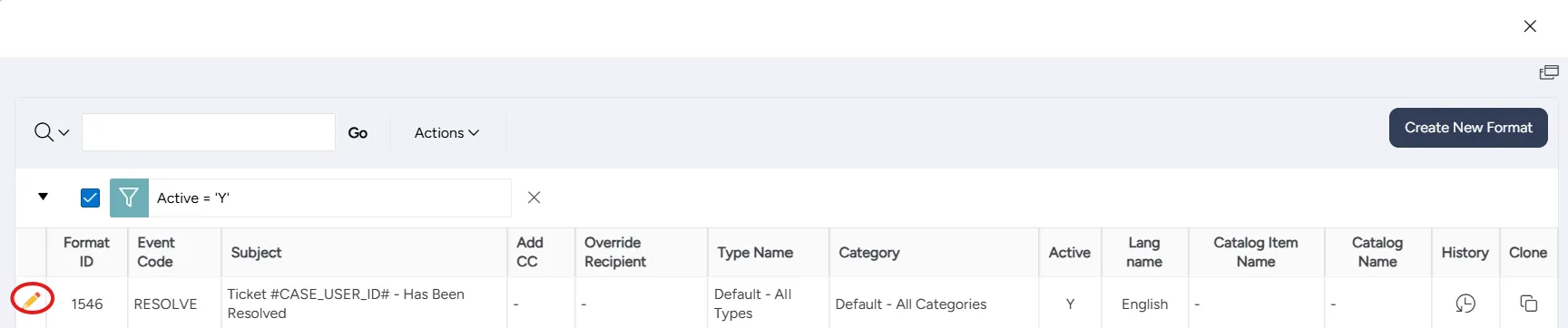
Search for or scroll down to the event to which you want to add a survey and select the Edit icon to open it.
(For closure emails: "Closure to Customer" or "Ticket was Closed." For resolution emails: "Resolution to Customer" or "Ticket was Resolved.")
On the dialog that opens, search for or scroll down to the template to which you want to add a survey and select the Edit icon.
Copy the HTML block below into Notepad (or any text editor), and replace [email protected] with your actual outgoing email address.
<span style="font-size:20px;"><strong>Send Us Your Feedback</strong></span>
<br>
<br>
<a href="mailto:[email protected]?subject=Feedback%20for%20ticket%20%23CASE_USER_ID%23&body=Overall%20Feedback%20is%205%2C%20Hit%20send%20to%20submit%20%0A%0A%23SURVEY_SCORE_5%23" data-cke-saved-href="mailto:[email protected]?subject=Feedback%20for%20ticket%20%23CASE_USER_ID%23&body=Overall%20Feedback%20is%205%2C%20Hit%20send%20to%20submit%20%0A%0A%23SURVEY_SCORE_5%23" data-cke-widget-data="%7B%22hasCaption%22%3Afalse%2C%22src%22%3A%22https%3A%2F%2Fnewitcc.it-care-center.com%2Fpublic_images%2F1.png%22%2C%22alt%22%3A%22%22%2C%22width%22%3A%2280%22%2C%22height%22%3A%2280%22%2C%22lock%22%3Atrue%2C%22align%22%3A%22none%22%2C%22link%22%3A%7B%22linkText%22%3A%22%22%2C%22type%22%3A%22email%22%2C%22email%22%3A%7B%22address%22%3A%22demo4%40thats-it.co.il%22%2C%22subject%22%3A%22Feedback%20for%20ticket%20%23CASE_USER_ID%23%22%2C%22body%22%3A%22Overall%20Feedback%20is%205%2C%20Hit%20send%20to%20submit%20%5Cn%5Cn%23SURVEY_SCORE_5%23%22%7D%2C%22url%22%3A%7B%22protocol%22%3A%22http%3A%2F%2F%22%2C%22url%22%3A%22%22%7D%2C%22anchor%22%3A%7B%22name%22%3A%22%22%2C%22id%22%3A%22%22%7D%2C%22target%22%3A%7B%22type%22%3A%22notSet%22%2C%22name%22%3A%22notSet%22%2C%22resizable%22%3A%22%22%2C%22status%22%3A%22%22%2C%22location%22%3A%22%22%2C%22toolbar%22%3A%22%22%2C%22menubar%22%3A%22%22%2C%22fullscreen%22%3A%22%22%2C%22scrollbars%22%3A%22%22%2C%22dependent%22%3A%22%22%2C%22width%22%3A%22%22%2C%22left%22%3A%22%22%2C%22height%22%3A%22%22%2C%22top%22%3A%22%22%7D%2C%22advanced%22%3A%7B%22advId%22%3A%22%22%2C%22advLangDir%22%3A%22%22%2C%22advAccessKey%22%3A%22%22%2C%22advName%22%3A%22%22%2C%22advLangCode%22%3A%22%22%2C%22advTabIndex%22%3A%22%22%2C%22advTitle%22%3A%22%22%2C%22advContentType%22%3A%22%22%2C%22advCSSClasses%22%3A%22%22%2C%22advCharset%22%3A%22%22%2C%22advRel%22%3A%22%22%2C%22advStyles%22%3A%22%22%7D%7D%2C%22classes%22%3Anull%7D" data-cke-widget-upcasted="1" data-cke-widget-keep-attr="0" data-widget="image"><span class="cke_widget_wrapper cke_widget_inline cke_image_nocaption cke_widget_selected" tabindex="-1" contenteditable="false" data-cke-widget-wrapper="1" data-cke-filter="off" data-cke-display-name="image" data-cke-widget-id="2" role="region" aria-label=" image widget"><img class="image_resized" style="width:12.85%;" src="https://newitcc.it-care-center.com/public_images/1.png" alt="" height="80" data-cke-saved-src="https://newitcc.it-care-center.com/public_images/1.png" width="80"></span></a> <a href="mailto:[email protected]?subject=Feedback%20for%20ticket%20%23CASE_USER_ID%23&body=Overall%20Feedback%20is%204%2C%20Hit%20send%20to%20submit%0A%0A%23SURVEY_SCORE_4%23" data-cke-saved-href="mailto:[email protected]?subject=Feedback%20for%20ticket%20%23CASE_USER_ID%23&body=Overall%20Feedback%20is%204%2C%20Hit%20send%20to%20submit%0A%0A%23SURVEY_SCORE_4%23" data-cke-widget-data="%7B%22hasCaption%22%3Afalse%2C%22src%22%3A%22https%3A%2F%2Fnewitcc.it-care-center.com%2Fpublic_images%2F2.png%22%2C%22alt%22%3A%22%22%2C%22width%22%3A%2280%22%2C%22height%22%3A%2280%22%2C%22lock%22%3Atrue%2C%22align%22%3A%22none%22%2C%22link%22%3A%7B%22linkText%22%3A%22%22%2C%22type%22%3A%22email%22%2C%22email%22%3A%7B%22address%22%3A%22demo4%40thats-it.co.il%22%2C%22subject%22%3A%22Feedback%20for%20ticket%20%23CASE_USER_ID%23%22%2C%22body%22%3A%22Overall%20Feedback%20is%204%2C%20Hit%20send%20to%20submit%5Cn%5Cn%23SURVEY_SCORE_4%23%22%7D%2C%22url%22%3A%7B%22protocol%22%3A%22http%3A%2F%2F%22%2C%22url%22%3A%22%22%7D%2C%22anchor%22%3A%7B%22name%22%3A%22%22%2C%22id%22%3A%22%22%7D%2C%22target%22%3A%7B%22type%22%3A%22notSet%22%2C%22name%22%3A%22notSet%22%2C%22resizable%22%3A%22%22%2C%22status%22%3A%22%22%2C%22location%22%3A%22%22%2C%22toolbar%22%3A%22%22%2C%22menubar%22%3A%22%22%2C%22fullscreen%22%3A%22%22%2C%22scrollbars%22%3A%22%22%2C%22dependent%22%3A%22%22%2C%22width%22%3A%22%22%2C%22left%22%3A%22%22%2C%22height%22%3A%22%22%2C%22top%22%3A%22%22%7D%2C%22advanced%22%3A%7B%22advId%22%3A%22%22%2C%22advLangDir%22%3A%22%22%2C%22advAccessKey%22%3A%22%22%2C%22advName%22%3A%22%22%2C%22advLangCode%22%3A%22%22%2C%22advTabIndex%22%3A%22%22%2C%22advTitle%22%3A%22%22%2C%22advContentType%22%3A%22%22%2C%22advCSSClasses%22%3A%22%22%2C%22advCharset%22%3A%22%22%2C%22advRel%22%3A%22%22%2C%22advStyles%22%3A%22%22%7D%7D%2C%22classes%22%3Anull%7D" data-cke-widget-upcasted="1" data-cke-widget-keep-attr="0" data-widget="image"><span class="cke_widget_wrapper cke_widget_inline cke_image_nocaption cke_widget_selected" tabindex="-1" contenteditable="false" data-cke-widget-wrapper="1" data-cke-filter="off" data-cke-display-name="image" data-cke-widget-id="1" role="region" aria-label=" image widget"><img class="image_resized" style="width:13.04%;" src="https://newitcc.it-care-center.com/public_images/2.png" alt="" height="80" data-cke-saved-src="https://newitcc.it-care-center.com/public_images/2.png" width="80"></span></a> <a href="mailto:[email protected]?subject=Feedback%20for%20ticket%20%23CASE_USER_ID%23&body=Overall%20Feedback%20is%203%2C%20Hit%20send%20to%20submit%0A%0A%23SURVEY_SCORE_3%23" data-cke-saved-href="mailto:[email protected]?subject=Feedback%20for%20ticket%20%23CASE_USER_ID%23&body=Overall%20Feedback%20is%203%2C%20Hit%20send%20to%20submit%0A%0A%23SURVEY_SCORE_3%23" data-cke-widget-data="%7B%22hasCaption%22%3Afalse%2C%22src%22%3A%22https%3A%2F%2Fnewitcc.it-care-center.com%2Fpublic_images%2F3.png%22%2C%22alt%22%3A%22%22%2C%22width%22%3A%2280%22%2C%22height%22%3A%2280%22%2C%22lock%22%3Atrue%2C%22align%22%3A%22none%22%2C%22link%22%3A%7B%22linkText%22%3A%22%22%2C%22type%22%3A%22email%22%2C%22email%22%3A%7B%22address%22%3A%22demo4%40thats-it.co.il%22%2C%22subject%22%3A%22Feedback%20for%20ticket%20%23CASE_USER_ID%23%22%2C%22body%22%3A%22Overall%20Feedback%20is%203%2C%20Hit%20send%20to%20submit%5Cn%5Cn%23SURVEY_SCORE_3%23%22%7D%2C%22url%22%3A%7B%22protocol%22%3A%22http%3A%2F%2F%22%2C%22url%22%3A%22%22%7D%2C%22anchor%22%3A%7B%22name%22%3A%22%22%2C%22id%22%3A%22%22%7D%2C%22target%22%3A%7B%22type%22%3A%22notSet%22%2C%22name%22%3A%22notSet%22%2C%22resizable%22%3A%22%22%2C%22status%22%3A%22%22%2C%22location%22%3A%22%22%2C%22toolbar%22%3A%22%22%2C%22menubar%22%3A%22%22%2C%22fullscreen%22%3A%22%22%2C%22scrollbars%22%3A%22%22%2C%22dependent%22%3A%22%22%2C%22width%22%3A%22%22%2C%22left%22%3A%22%22%2C%22height%22%3A%22%22%2C%22top%22%3A%22%22%7D%2C%22advanced%22%3A%7B%22advId%22%3A%22%22%2C%22advLangDir%22%3A%22%22%2C%22advAccessKey%22%3A%22%22%2C%22advName%22%3A%22%22%2C%22advLangCode%22%3A%22%22%2C%22advTabIndex%22%3A%22%22%2C%22advTitle%22%3A%22%22%2C%22advContentType%22%3A%22%22%2C%22advCSSClasses%22%3A%22%22%2C%22advCharset%22%3A%22%22%2C%22advRel%22%3A%22%22%2C%22advStyles%22%3A%22%22%7D%7D%2C%22classes%22%3Anull%7D" data-cke-widget-upcasted="1" data-cke-widget-keep-attr="0" data-widget="image"><span class="cke_widget_wrapper cke_widget_inline cke_image_nocaption cke_widget_selected" tabindex="-1" contenteditable="false" data-cke-widget-wrapper="1" data-cke-filter="off" data-cke-display-name="image" data-cke-widget-id="0" role="region" aria-label=" image widget"><img class="image_resized" style="width:13.13%;" src="https://newitcc.it-care-center.com/public_images/3.png" alt="" height="80" data-cke-saved-src="https://newitcc.it-care-center.com/public_images/3.png" width="80"></span></a> <a href="mailto:[email protected]?subject=Feedback%20for%20ticket%20%23CASE_USER_ID%23&body=Overall%20Feedback%20is%202%2C%20Hit%20send%20to%20submit%0A%0A%23SURVEY_SCORE_2%23" data-cke-saved-href="mailto:[email protected]?subject=Feedback%20for%20ticket%20%23CASE_USER_ID%23&body=Overall%20Feedback%20is%202%2C%20Hit%20send%20to%20submit%0A%0A%23SURVEY_SCORE_2%23" data-cke-widget-data="%7B%22hasCaption%22%3Afalse%2C%22src%22%3A%22https%3A%2F%2Fnewitcc.it-care-center.com%2Fpublic_images%2F4.png%22%2C%22alt%22%3A%22%22%2C%22width%22%3A%2280%22%2C%22height%22%3A%2280%22%2C%22lock%22%3Atrue%2C%22align%22%3A%22none%22%2C%22link%22%3A%7B%22linkText%22%3A%22%22%2C%22type%22%3A%22email%22%2C%22email%22%3A%7B%22address%22%3A%22demo4%40thats-it.co.il%22%2C%22subject%22%3A%22Feedback%20for%20ticket%20%23CASE_USER_ID%23%22%2C%22body%22%3A%22Overall%20Feedback%20is%202%2C%20Hit%20send%20to%20submit%5Cn%5Cn%23SURVEY_SCORE_2%23%22%7D%2C%22url%22%3A%7B%22protocol%22%3A%22http%3A%2F%2F%22%2C%22url%22%3A%22%22%7D%2C%22anchor%22%3A%7B%22name%22%3A%22%22%2C%22id%22%3A%22%22%7D%2C%22target%22%3A%7B%22type%22%3A%22notSet%22%2C%22name%22%3A%22notSet%22%2C%22resizable%22%3A%22%22%2C%22status%22%3A%22%22%2C%22location%22%3A%22%22%2C%22toolbar%22%3A%22%22%2C%22menubar%22%3A%22%22%2C%22fullscreen%22%3A%22%22%2C%22scrollbars%22%3A%22%22%2C%22dependent%22%3A%22%22%2C%22width%22%3A%22%22%2C%22left%22%3A%22%22%2C%22height%22%3A%22%22%2C%22top%22%3A%22%22%7D%2C%22advanced%22%3A%7B%22advId%22%3A%22%22%2C%22advLangDir%22%3A%22%22%2C%22advAccessKey%22%3A%22%22%2C%22advName%22%3A%22%22%2C%22advLangCode%22%3A%22%22%2C%22advTabIndex%22%3A%22%22%2C%22advTitle%22%3A%22%22%2C%22advContentType%22%3A%22%22%2C%22advCSSClasses%22%3A%22%22%2C%22advCharset%22%3A%22%22%2C%22advRel%22%3A%22%22%2C%22advStyles%22%3A%22%22%7D%7D%2C%22classes%22%3Anull%7D" data-cke-widget-upcasted="1" data-cke-widget-keep-attr="0" data-widget="image"><span class="cke_widget_wrapper cke_widget_inline cke_image_nocaption cke_widget_selected" tabindex="-1" contenteditable="false" data-cke-widget-wrapper="1" data-cke-filter="off" data-cke-display-name="image" data-cke-widget-id="7" role="region" aria-label=" image widget"><img class="image_resized" style="width:13.17%;" src="https://newitcc.it-care-center.com/public_images/4.png" alt="" height="80" data-cke-saved-src="https://newitcc.it-care-center.com/public_images/4.png" width="80"></span></a> <a href="mailto:[email protected]?subject=Feedback%20for%20ticket%20%23CASE_USER_ID%23&body=Overall%20Feedback%20is%201%2C%20Hit%20send%20to%20submit%0A%0A%23SURVEY_SCORE_1%23" data-cke-saved-href="mailto:[email protected]?subject=Feedback%20for%20ticket%20%23CASE_USER_ID%23&body=Overall%20Feedback%20is%201%2C%20Hit%20send%20to%20submit%0A%0A%23SURVEY_SCORE_1%23" data-cke-widget-data="%7B%22hasCaption%22%3Afalse%2C%22src%22%3A%22https%3A%2F%2Fnewitcc.it-care-center.com%2Fpublic_images%2F5.png%22%2C%22alt%22%3A%22%22%2C%22width%22%3A%2280%22%2C%22height%22%3A%2280%22%2C%22lock%22%3Atrue%2C%22align%22%3A%22none%22%2C%22link%22%3A%7B%22linkText%22%3A%22%22%2C%22type%22%3A%22email%22%2C%22email%22%3A%7B%22address%22%3A%22demo4%40thats-it.co.il%22%2C%22subject%22%3A%22Feedback%20for%20ticket%20%23CASE_USER_ID%23%22%2C%22body%22%3A%22Overall%20Feedback%20is%201%2C%20Hit%20send%20to%20submit%5Cn%5Cn%23SURVEY_SCORE_1%23%22%7D%2C%22url%22%3A%7B%22protocol%22%3A%22http%3A%2F%2F%22%2C%22url%22%3A%22%22%7D%2C%22anchor%22%3A%7B%22name%22%3A%22%22%2C%22id%22%3A%22%22%7D%2C%22target%22%3A%7B%22type%22%3A%22notSet%22%2C%22name%22%3A%22notSet%22%2C%22resizable%22%3A%22%22%2C%22status%22%3A%22%22%2C%22location%22%3A%22%22%2C%22toolbar%22%3A%22%22%2C%22menubar%22%3A%22%22%2C%22fullscreen%22%3A%22%22%2C%22scrollbars%22%3A%22%22%2C%22dependent%22%3A%22%22%2C%22width%22%3A%22%22%2C%22left%22%3A%22%22%2C%22height%22%3A%22%22%2C%22top%22%3A%22%22%7D%2C%22advanced%22%3A%7B%22advId%22%3A%22%22%2C%22advLangDir%22%3A%22%22%2C%22advAccessKey%22%3A%22%22%2C%22advName%22%3A%22%22%2C%22advLangCode%22%3A%22%22%2C%22advTabIndex%22%3A%22%22%2C%22advTitle%22%3A%22%22%2C%22advContentType%22%3A%22%22%2C%22advCSSClasses%22%3A%22%22%2C%22advCharset%22%3A%22%22%2C%22advRel%22%3A%22%22%2C%22advStyles%22%3A%22%22%7D%7D%2C%22classes%22%3Anull%7D" data-cke-widget-upcasted="1" data-cke-widget-keep-attr="0" data-widget="image"><span class="cke_widget_wrapper cke_widget_inline cke_image_nocaption cke_widget_selected" tabindex="-1" contenteditable="false" data-cke-widget-wrapper="1" data-cke-filter="off" data-cke-display-name="image" data-cke-widget-id="6" role="region" aria-label=" image widget"><img class="image_resized" style="width:13.15%;" src="https://newitcc.it-care-center.com/public_images/5.png" alt="" height="80" data-cke-saved-src="https://newitcc.it-care-center.com/public_images/5.png" width="80"></span></a> In the email template editor, select the Source icon to switch to HTML view.
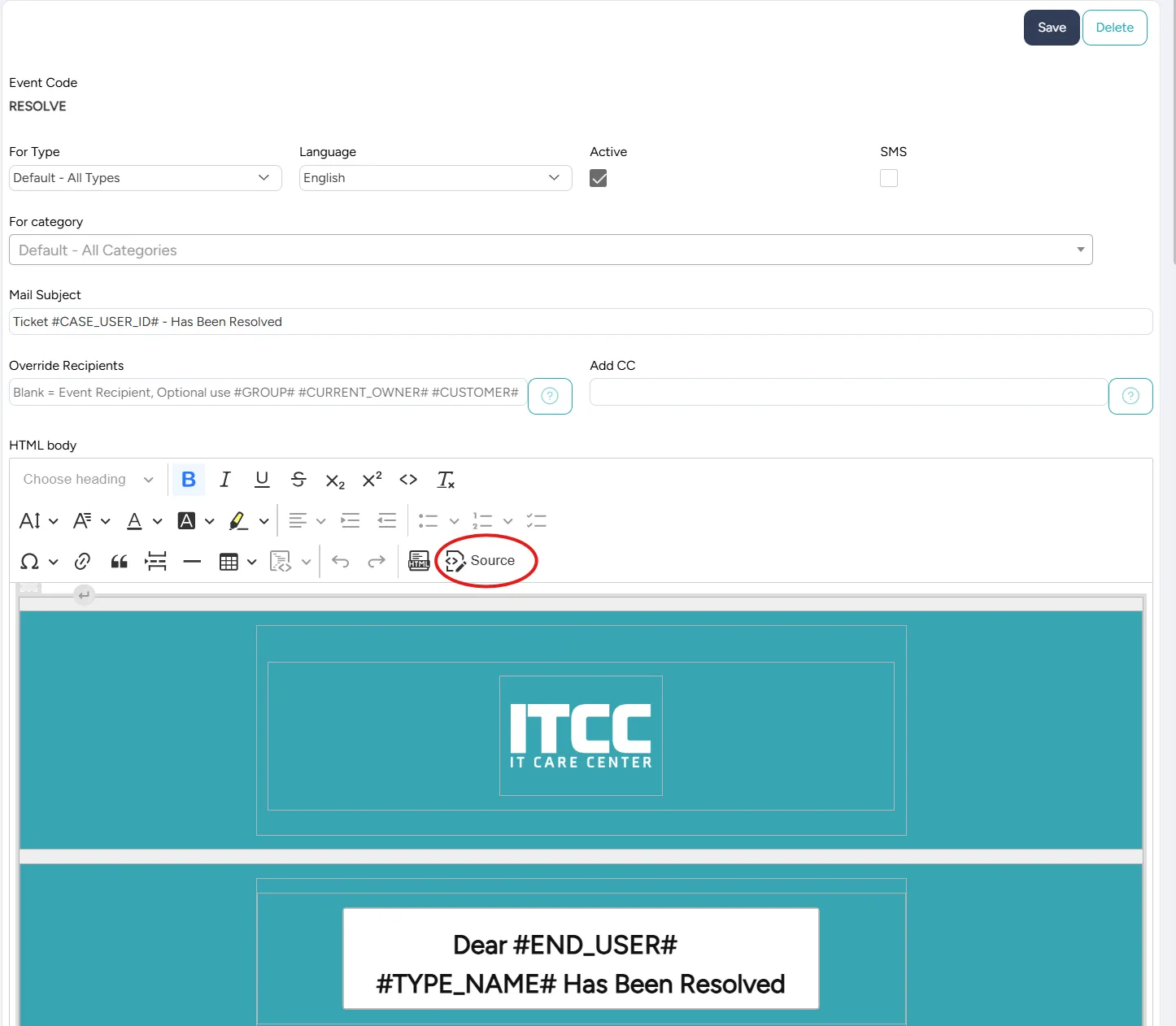
Insert the copied HTML block between the relevant sections of the email body.
Select Save.
Setting up a web page survey
A web page survey enables you to include as many questions as you want.
The administrator can choose the rating scale. The options are:
- 1-3
- 1-4
- 1-5
The default is 1-5.
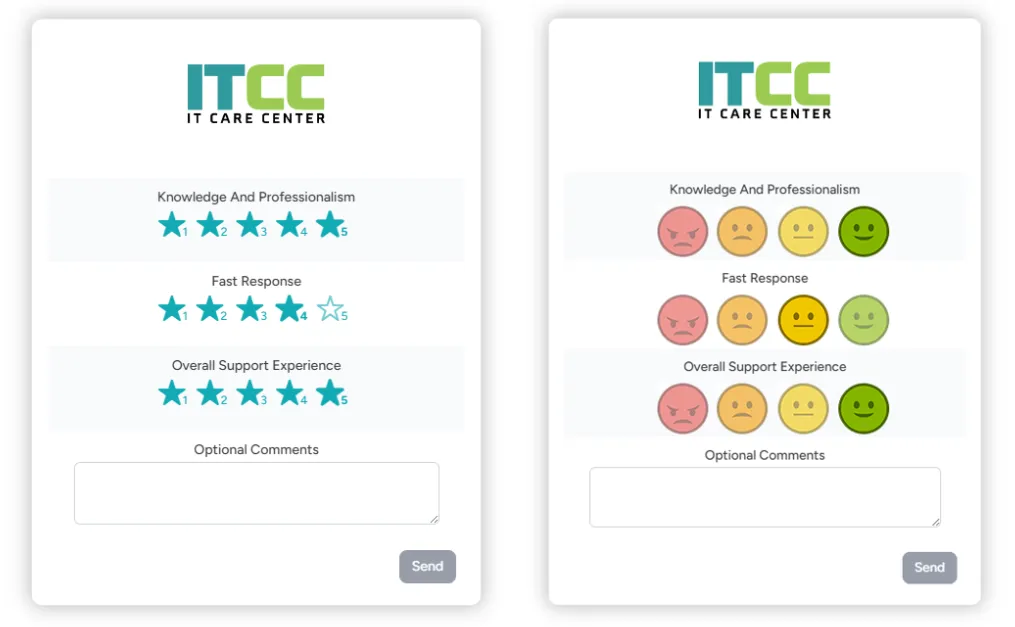
The administrator can choose if the icons appear as stars or smiley faces. Their colors can also be adjusted.
For example, your survey can look like this:
After the user completes the survey and selects Send, the survey results are added to the system's analytics.
For the user, a Thank You page opens.
The administrator can set up the Thank You page title and message on the same Survey page where you set up the survey itself.
Using a web page survey
When you create a web page survey, you must attach it to a ticket type, a category, or both before using it.
When your survey is ready and attached to a ticket type or category, you need to set up the relevant outgoing email template to include a link to the survey.
Thus, the steps are as follows:
- Attach the survey to a category (Optional)
To set up web page surveys:
On the left side menu, select Administration.
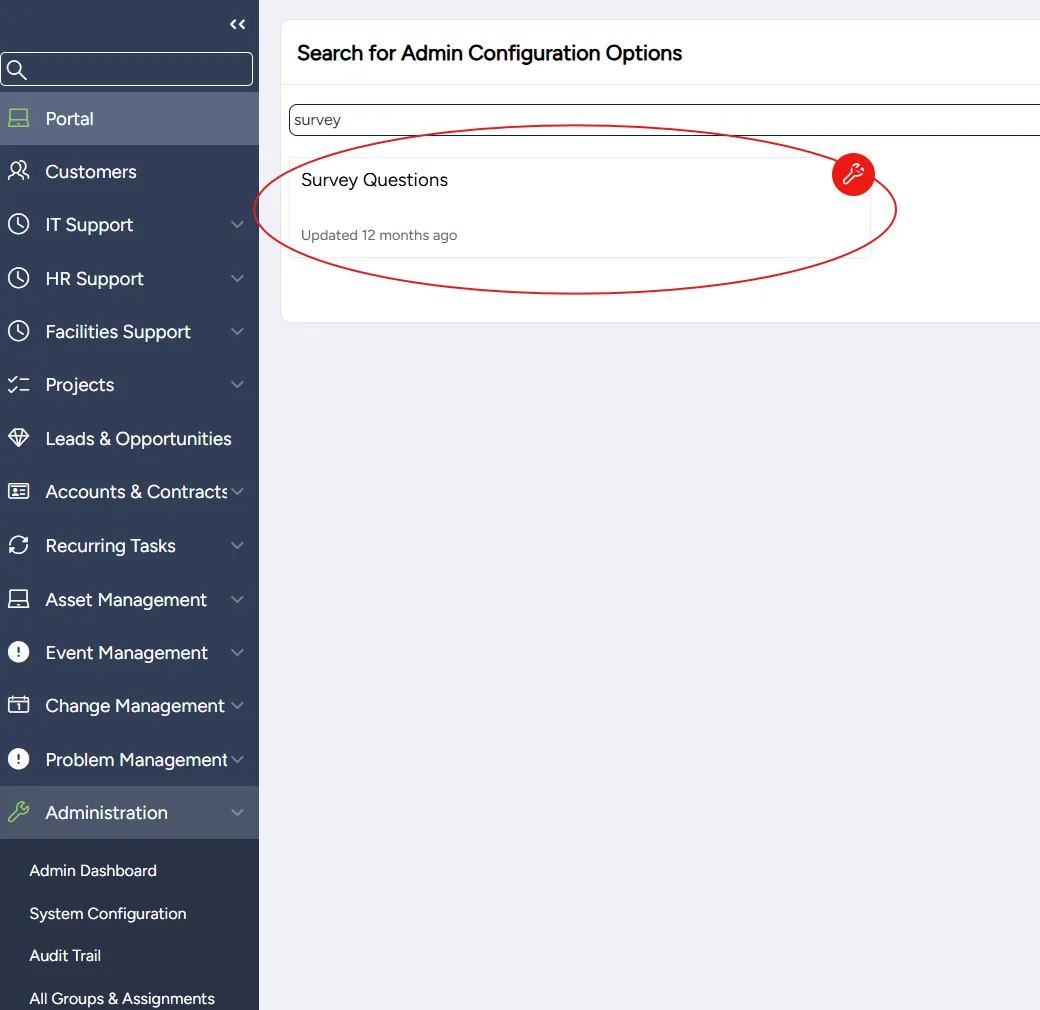
In the search bar under Search for Admin Configuration Options, enter Survey and select the Survey Questions option that appears.
Adding a new or editing an existing web page survey
You can add a new web page survey or edit an existing web page survey at any time.
To add or edit a web page survey:
On the Surveys page:
- To add a new survey: select New Survey
- To edit a survey: select the corresponding Edit icon

On the Survey page that opens, enter or edit the following survey settings:
Field | Description |
|---|---|
Survey name | Enter a meaningful name for the survey |
Active | Toggle to activate the survey |
Stars/smileys | Select to display the answers as stars or smileys |
Stars/smileys range | Set the range of the rating scale; default 5 |
Stars color | (Optional) Set your icons' color |
Show logo | Select to display your organization's logo on the survey page (Please note: the ITCC system does not support image upload for surveys by users; to display your logo, send it in .png format to the ITCC Support Team) |
Picture CSS | (Optional) Use to control your logo's height and width |
Optional Comments Label | Enter a label for the optional comments textbox |
Thank You Title | (Optional) Enter the title of the Thank You page the user sees after completing the survey |
Thank You Message | (Optional) Enter the message of the Thank You page the user sees after completing the survey |
Select Save.
In the spreadsheet on the Survey page, set up the survey questions.

(Optional) To preview the survey, select Preview. A new browser tab opens, displaying the survey.
(Optional) To preview the Thank You page, select Preview Thank You Message. A new browser tab opens, displaying the Thank You page.

When you are satisfied with the survey, select Save.
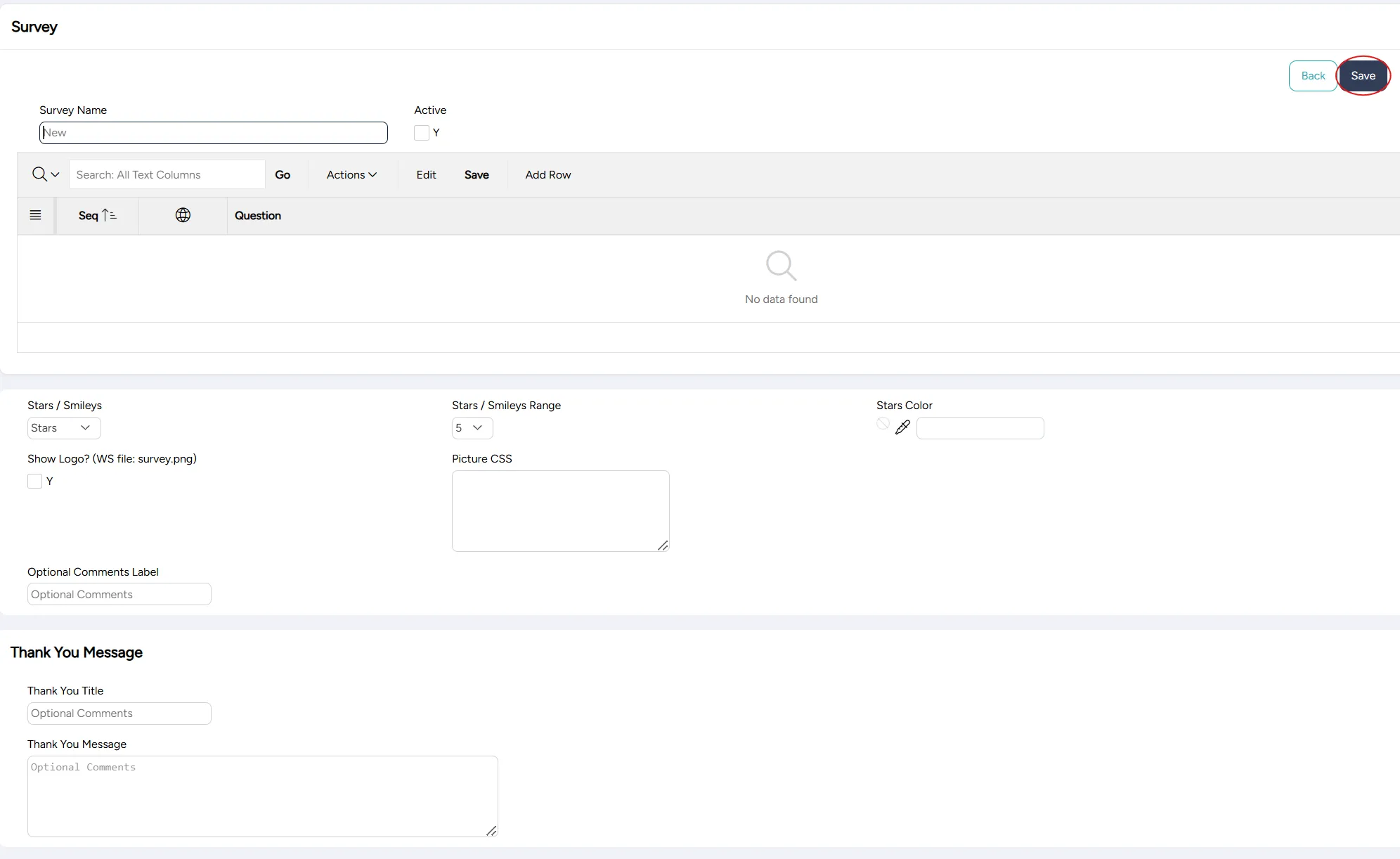
Setting up survey questions
The survey questions are entered in a spreadsheet on the Survey page.
When you create a new survey, the spreadsheet is initially empty:

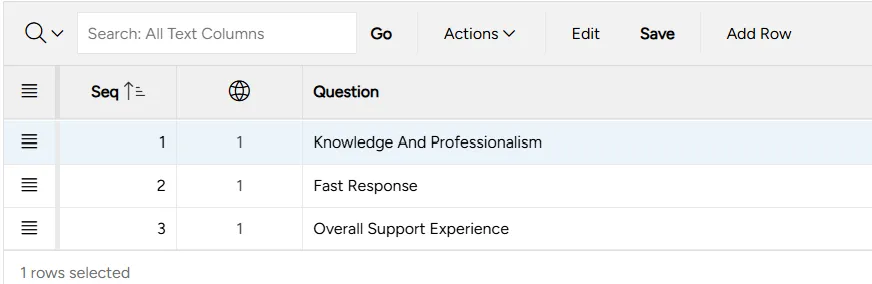
Each question is entered into a separate spreadsheet row.
For example, the questions spreadsheet can look like this:
Adding or editing a survey question
To add or edit a survey question:
At the top of the spreadsheet:
- To add a question: select Add Row
- To edit a question: select Edit

Enter or edit the question's settings:
Field | Description |
|---|---|
Seq | Enter this question's number in the sequence of questions |
Global  | (Optional) Click to enter or view translations of this question into other languages |
Question | Enter this question's text |
On top of the spreadsheet, select Save.

Deleting a survey question
To delete a survey question:
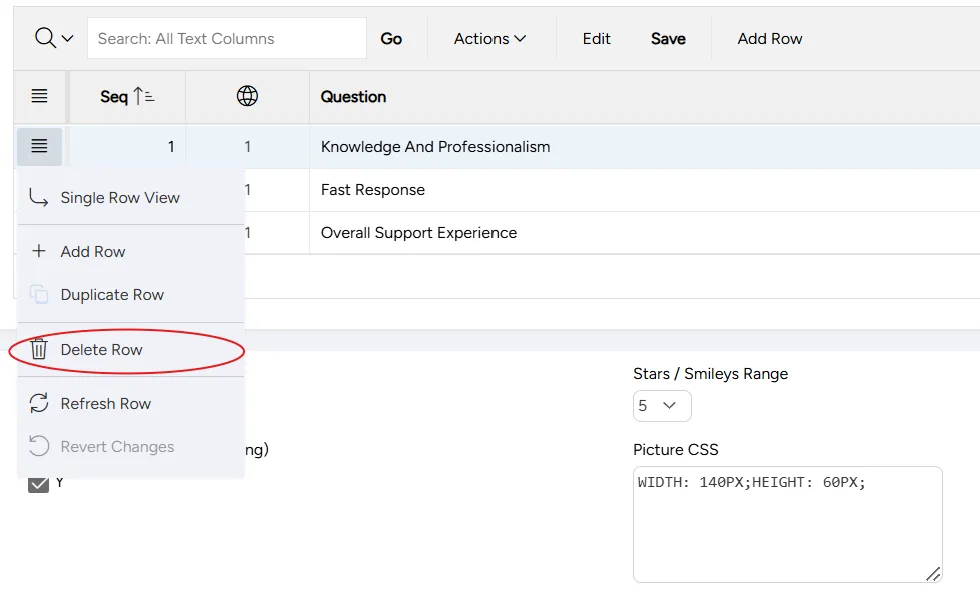
Click on the menu icon in the row you want to delete.

Select Delete Row.
On top of the spreadsheet, select Save.
Attaching a web page survey to a ticket type
Each ticket type can have a default survey associated with it.
A ticket category can also have a survey associated with it. If a ticket's category survey is different from its ticket type survey, the category survey is used by the system.
To attach a web page survey to a ticket type:
On the left side menu, select Administration.
In the search bar under Search for Admin Configuration Options, enter Ticket Type and select the Ticket Type option that appears.
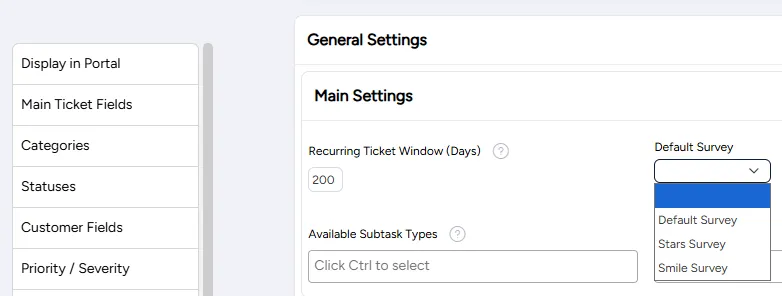
On the Setup Admin page, on the left side menu, select General Settings.
From the Default Survey dropdown list, select the survey you want to attach.
Select Save.
Attaching a web page survey to a category
You can attach a web page survey to a category.
For a ticket in this category, this setting would override the default survey set up in the ticket type.
To attach a web page survey to a category:
On the left side menu, select Administration.
In the search bar under Search for Admin Configuration Options, enter Categories and select the Categories option that appears.
Search for or scroll down to the category to which you want to attach the survey and select the corresponding cell in the Survey column.

From the dropdown list, select the survey you want to attach.

Select Save.
Embedding a link to a web page survey in an email template
You need to embed a link to a survey in an outgoing email sent upon ticket resolution or closure.
In the email sent to the user, the link appears with the text "Click here."
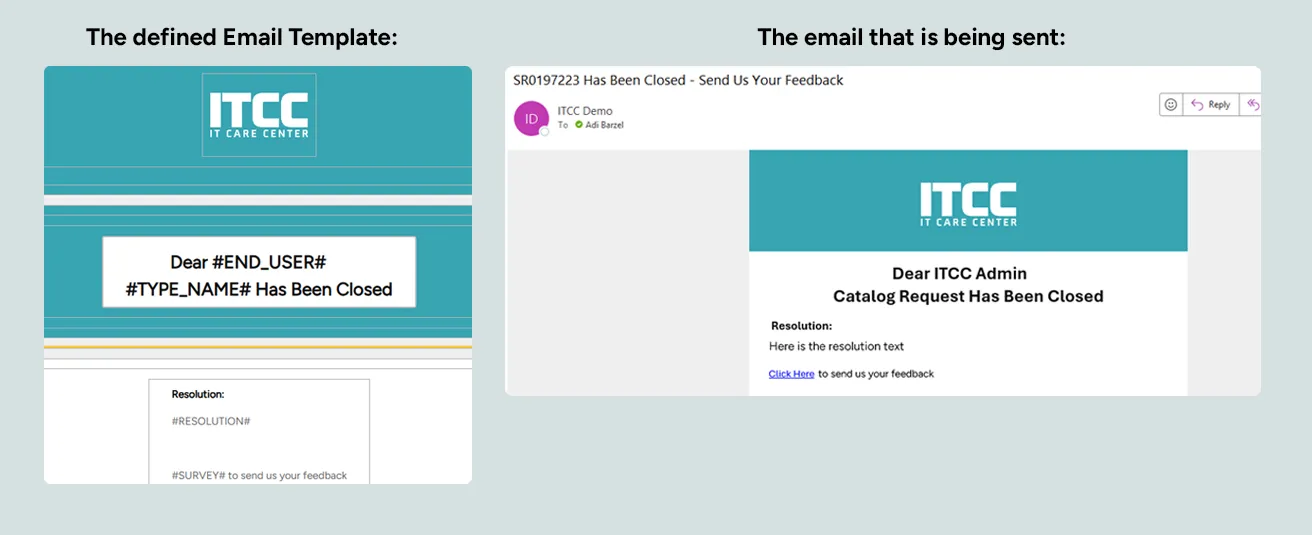
To embed a survey link in an email template:
On the left side menu, select Administration.
In the search bar under Search for Admin Configuration Options, enter Outgoing Mail and select the Outgoing Mail option that appears.
On the Outgoing Mail page that opens, search for or scroll down to the event to which you want to add a survey and select the Edit icon to open it.
(For closure emails: "Closure to Customer" or "Ticket was Closed." For resolution emails: "Resolution to Customer" or "Ticket was Resolved.")
On the dialog that opens, search for or scroll down to the template to which you want to add a survey and select the Edit icon.
In the email template editor, insert
into the place in the template where you want the link to the survey to appear.
Select Save.
Disabling a web page survey
You can disable a web page survey at any time.
To disable a web page survey:
On the Surveys page, select the Edit icon corresponding to the survey you want to disable.
On the Survey page that opens, clear the Active checkbox.

Select Save.