Root Cause Analysis (RCA)
What is Root Cause Analysis? RCA overview
How do I set up RCA status codes? Setting up RCA status codes
How do I associate RCA status codes with a ticket type? Associating RCA status codes with specific ticket types
RCA overview
The ITCC system includes the Root Cause Analysis (RCA) capability that enables you to specify the root cause of an incident or problem in its resolution.
You can set up RCA status codes used for specifying the root cause.
For example, your RCA status codes can include Bug, Data, and Permissions.
When RCA is enabled, the ticket processing page requires the agent to select a Closure Category when resolving this ticket.
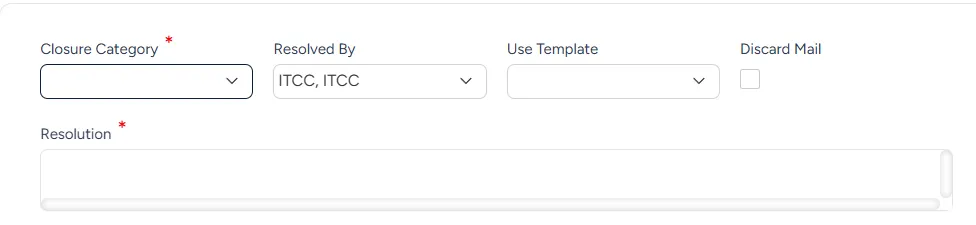
From the Closure Category dropdown list, the agent must select one of the RCA status codes available for this ticket.
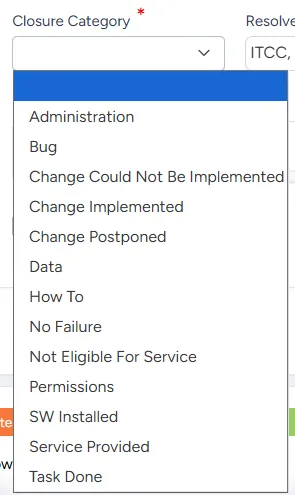
Setting up RCA status codes
You can set up RCA status codes at any time.
To set up RCA status codes:
On the left side menu, select Administration.
In the search bar under Search for Admin Configuration Options, enter RCA and select the RCA option that appears.
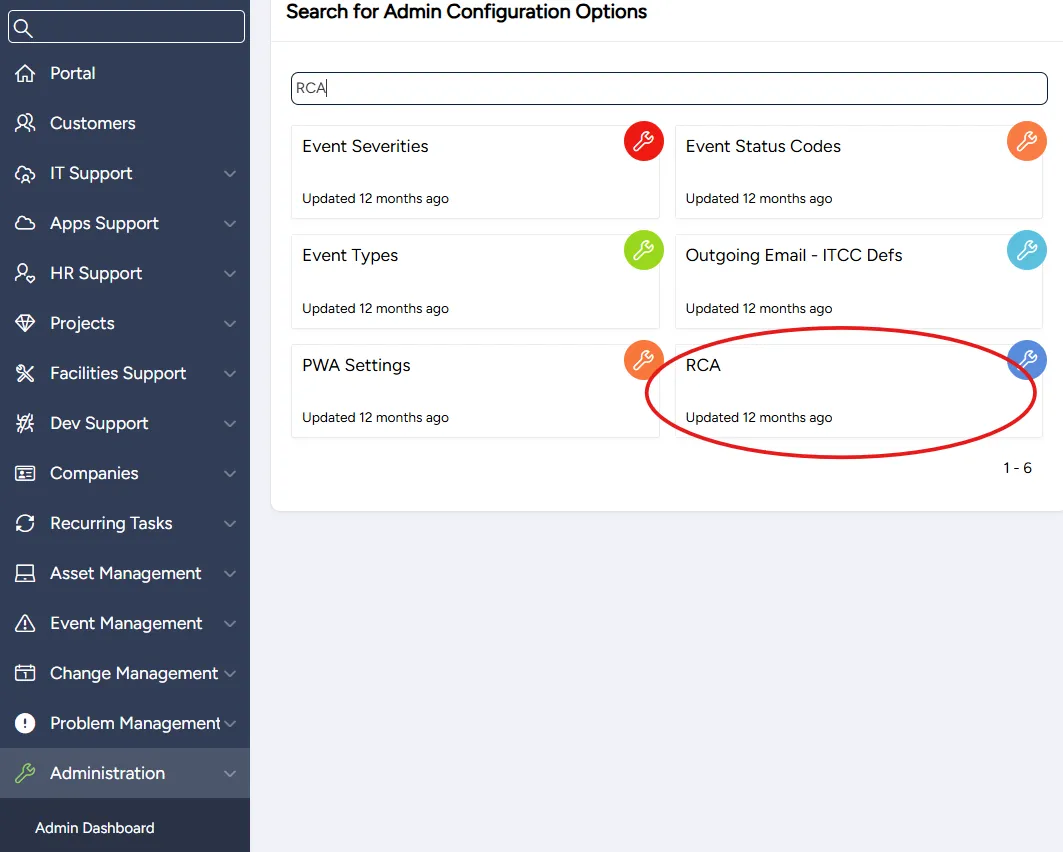
On the RCA page that opens:
- to add a new RCA status code, select Add
- to edit an existing RCA status code, select and edit its corresponding fields
- to disable an existing RCA status code, clear its corresponding Active checkbox
Enter or edit the following settings:
Field | Description |
|---|---|
Sequence | (Optional) Enter the sequential number of this root cause status code, relative to other root cause status codes |
Root Cause Name | Enter a meaningful name for the RCA status code |
Active | Select to activate the RCA status code |
Categories | Filter categories for which this RCA status code is available |
 | If multiple languages are supported, select to enter or edit the RCA status code's translations into other languages |
Select Save.
Associating RCA status codes with specific ticket types
Each ticket type can be associated with a set of RCA status codes that can be used for ticket resolution.
To associate a ticket type with RCA status codes:
On the left side menu, select Administration.
In the search bar under Search for Admin Configuration Options, enter Ticket Types and select the Ticket Types option that appears.
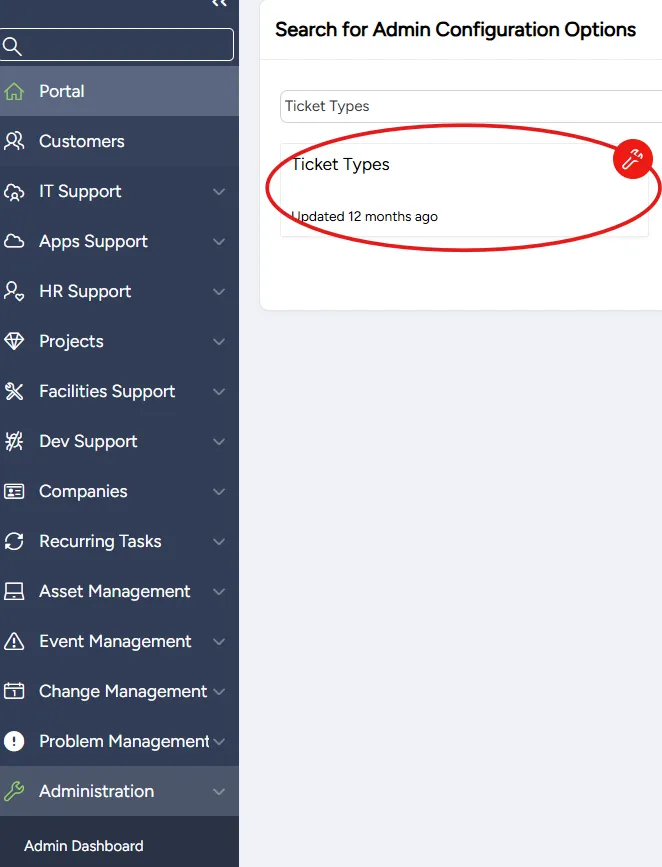
Search for or scroll down to the ticket type you want to associate with RCA status codes and select its Edit icon.

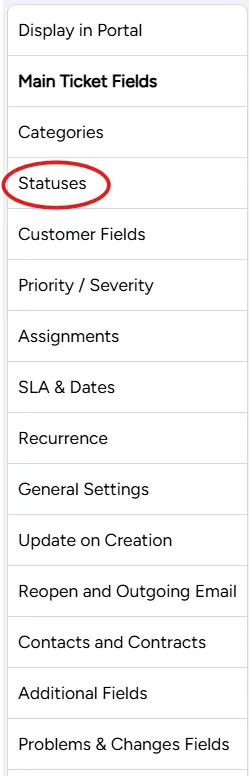
On the page that opens, from the list of sections on the left, select Statuses.
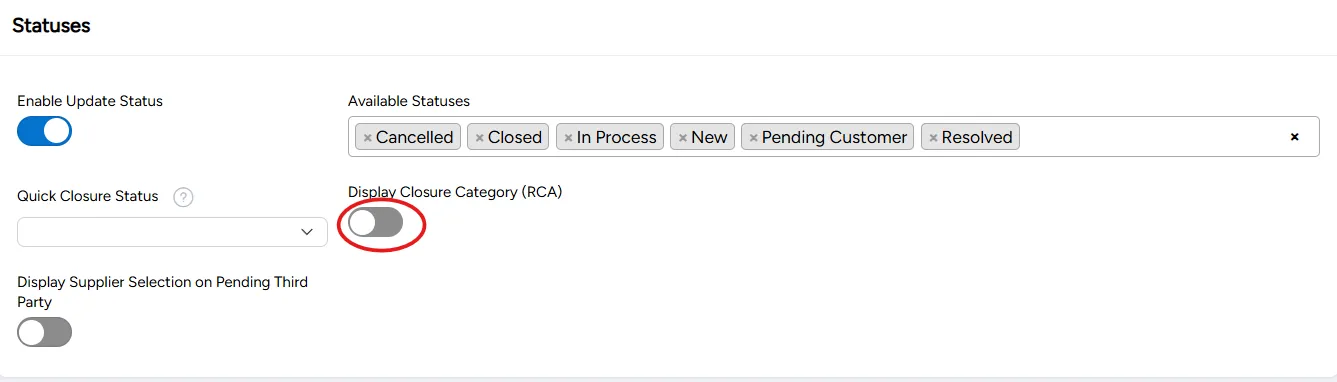
In the Statuses section, toggle the Display Closure Category (RCA) field on.
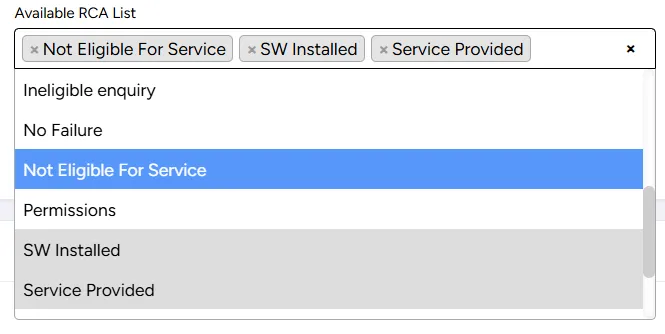
From the Available RCA List dropdown list that appears, select one or more RCA status codes you want to associate with this ticket type.
Select Save.