Assign Assets Widget
This widget is only available to agents. It enables an agent to assign existing assets to an existing user.
For example, during onboarding, an agent can use this widget to assign equipment to a new employee.
To the agent, the ticket appears as follows:
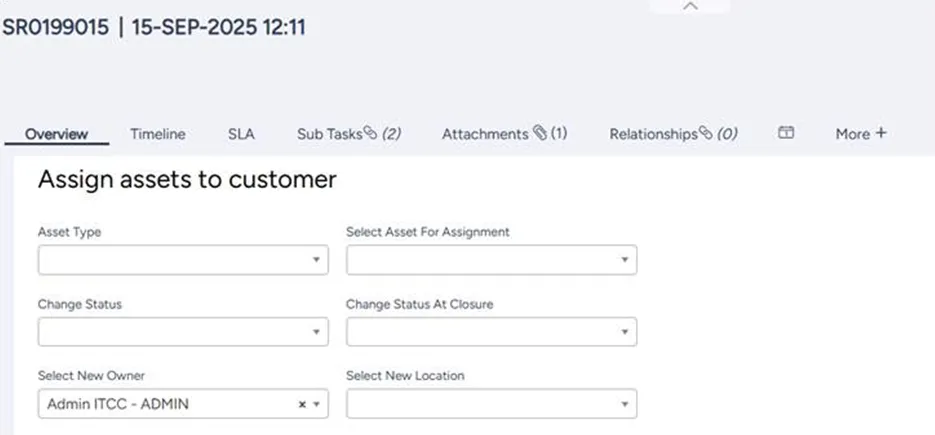
After the agent selects and assigns an asset, that asset appears in the list of this user's assets.
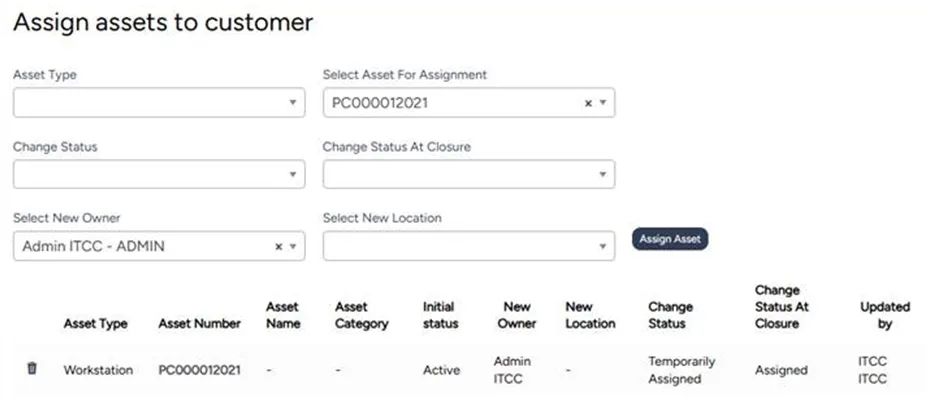
By default, the assets get assigned to the customer listed in the ticket.
Adding or editing an Assign Assets widget
You can add a new or edit an existing Assign Assets widget at any time.
To add or edit an Assign Assets widget:
In the list of widgets, turn on the toggle for the Assign Assets widget.
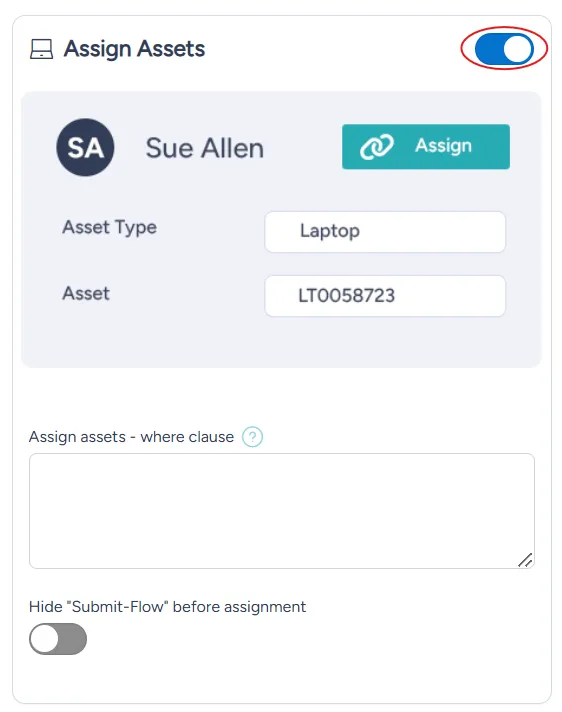
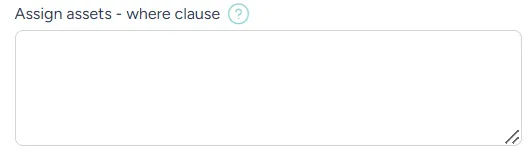
To narrow down the assets available for assignment, enter the relevant query in the Assign assets - where clause box.
For example, use the following query to narrow assets to workstations, keyboards, or monitors that are in stock, active, and located in the warehouse:
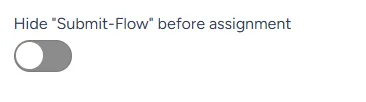
To postpone the beginning of the workflow until an asset is assigned, turn on the toggle for Hide "Submit-Flow" before assignment.
At the bottom right of the page, select Save.